
On this page0
Instaroll is the payroll run experience in the Payroll Admin Console. It brings the whole run onto one screen: results calculate as you work, one action approves and locks the payroll, your files and payslips are generated for you, and the run closes itself on the pay date. This guide explains how a run works from start to finish, what Instaroll does automatically, and the actions that need your attention.
Instaroll at a glance
Every payroll run moves through three states. The pay date you set in the Payroll Calendar decides when it closes.
| State | What it means | What moves it forward |
|---|---|---|
| Open | You review results, handle input changes and edit pay data on the Payroll tab. Results recalculate as things change. | You choose Approve and Lock. |
| Approved and Locked | Pay data is frozen. Statutory reports, the bank file and payslips are generated. Reports, payslips and files are handled on the Actions tab. | The pay date arrives. Instaroll closes the run automatically. |
| Closed | The run is final. Inputs and recalculation are blocked. The run stays available for reference, and reports and files can still be generated. | Nothing. A closed run cannot be unlocked. |
What makes it simple
- One run screen with two tabs. Payroll is where you work before approval. Actions is where you handle everything after approval.
- No separate calculation step. Results update as inputs change, and the Payroll Completion indicator shows progress.
- One-step approval. Approve and Lock freezes the pay data and generates your statutory reports, bank file and payslips.
- Automatic closure. You do not close runs by hand. The pay date does it.
- Everything stays in one place. Reports, payslips, files and their transmission status live on the run.
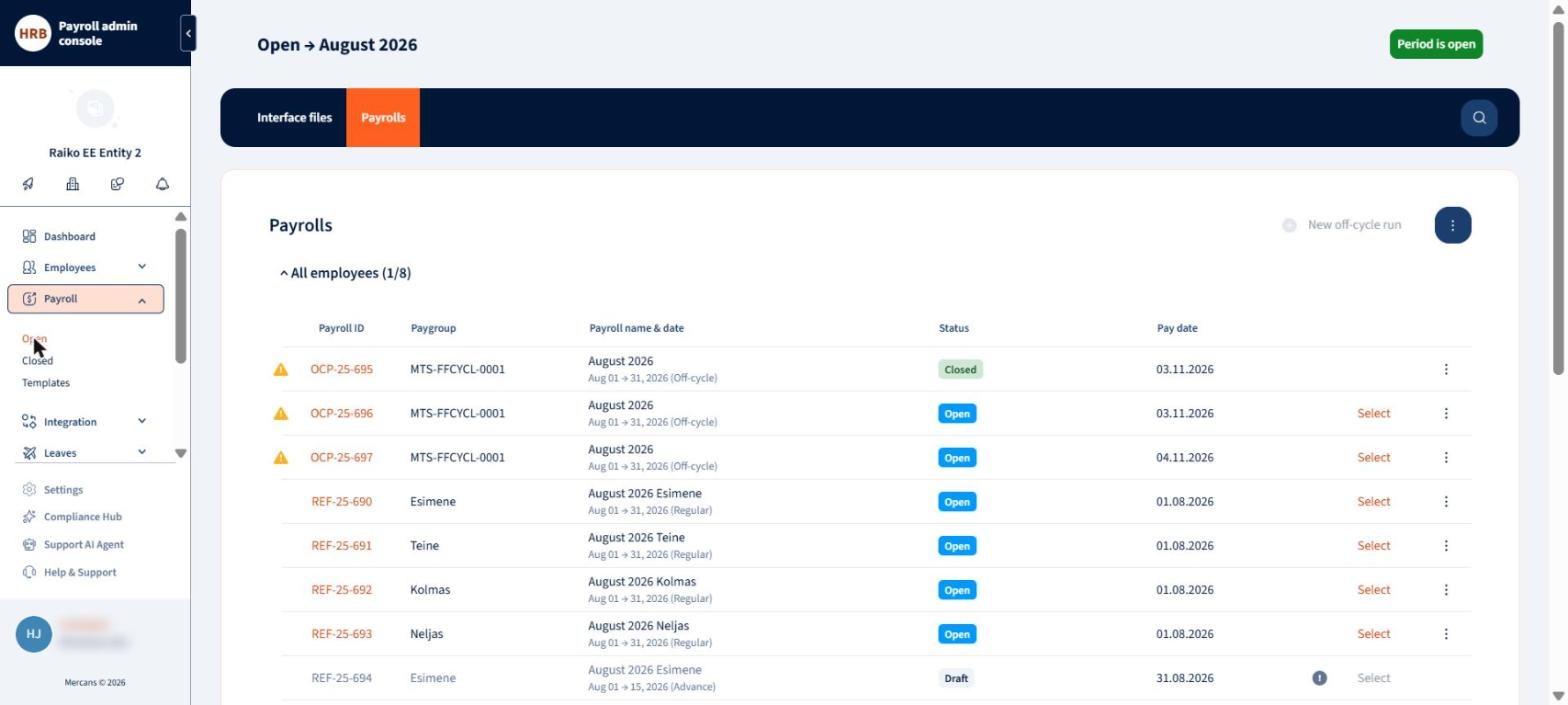
The runs listing shows every run, its status and its pay date.
The Payroll Calendar: set your pay dates first
The Payroll Calendar is the most important setting for a smooth run. The pay date you enter there decides whether you can approve a payroll, what the run screen shows, and when Instaroll closes the run for you. A missing or wrong pay date is the most common reason a run does not behave as expected.
What the pay date drives
| In Instaroll | What the pay date does |
|---|---|
| Approve and Lock | A payroll cannot be approved and locked without a pay date. When it is missing, Lock is disabled and a message explains why. |
| Run and runs listing | The same pay date is shown on the run and on the runs listing. |
| Locked banner | After approval, the banner shows the pay date and tells you how long you can still regenerate the bank file or unlock the payroll. |
| Generated files | The bank file and statutory reports created at approval use this pay date. |
| Automatic closure | On the pay date, an approved run is closed automatically. See Closing a run. |
Where to find it
Go to Settings > Payroll settings > Payroll calendar. The Schedule view lists every event with its due date, paygroup, payroll cycle and whether it is published. The Monthly view shows the same events on a calendar, with pay dates marked as target paydays.
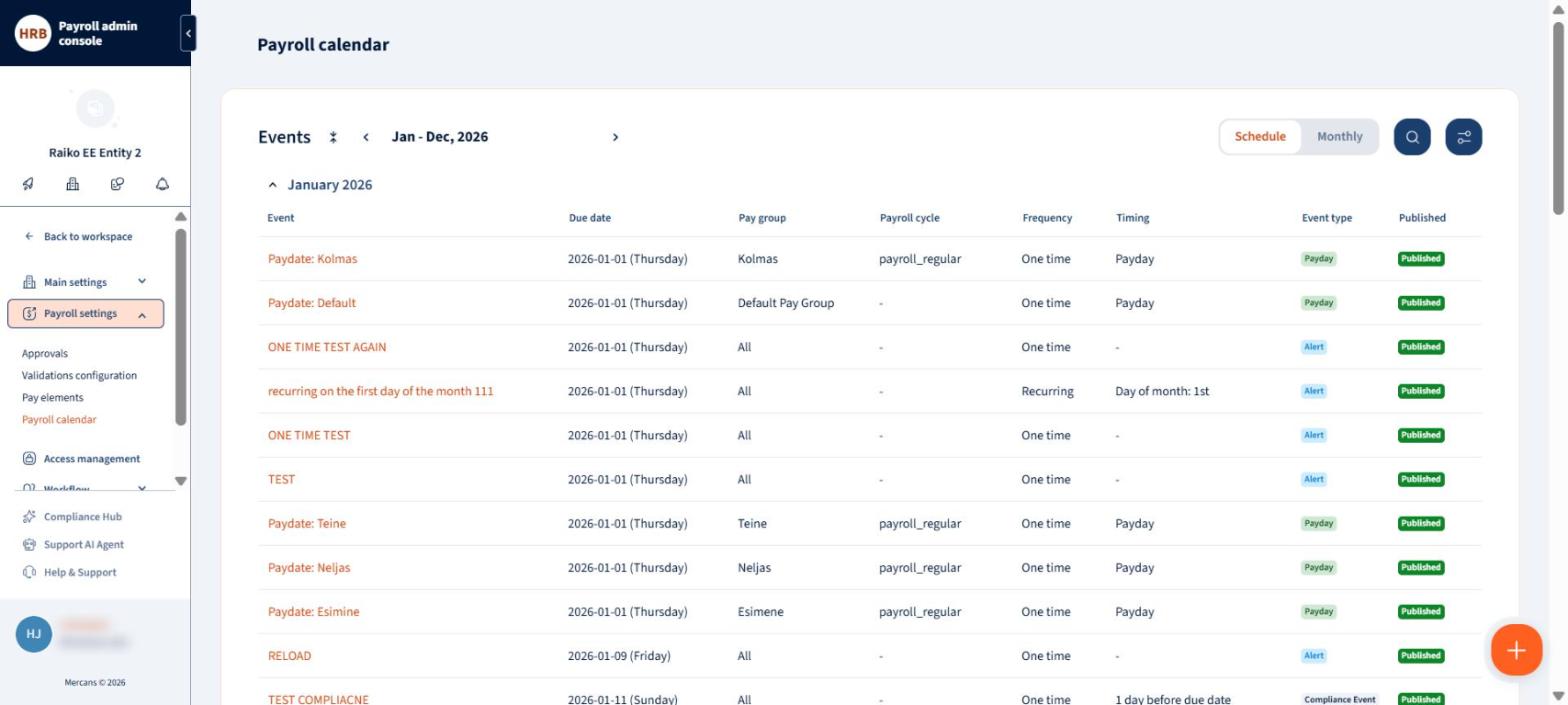
The Payroll calendar lists pay dates per paygroup and cycle.

The monthly view shows pay dates on the calendar.
Set a pay date
- Choose the + button and select Pay date. The other event types, Standard alert and Compliance Event, are reminders and statutory deadlines.
- Enter an event name, choose the pay group and the year, and set the payment date. Instaroll shows the schedule for every period of the year.
- Choose Add. The pay dates are now used by the runs of that paygroup.

Choose Pay date to set the pay dates for a paygroup.
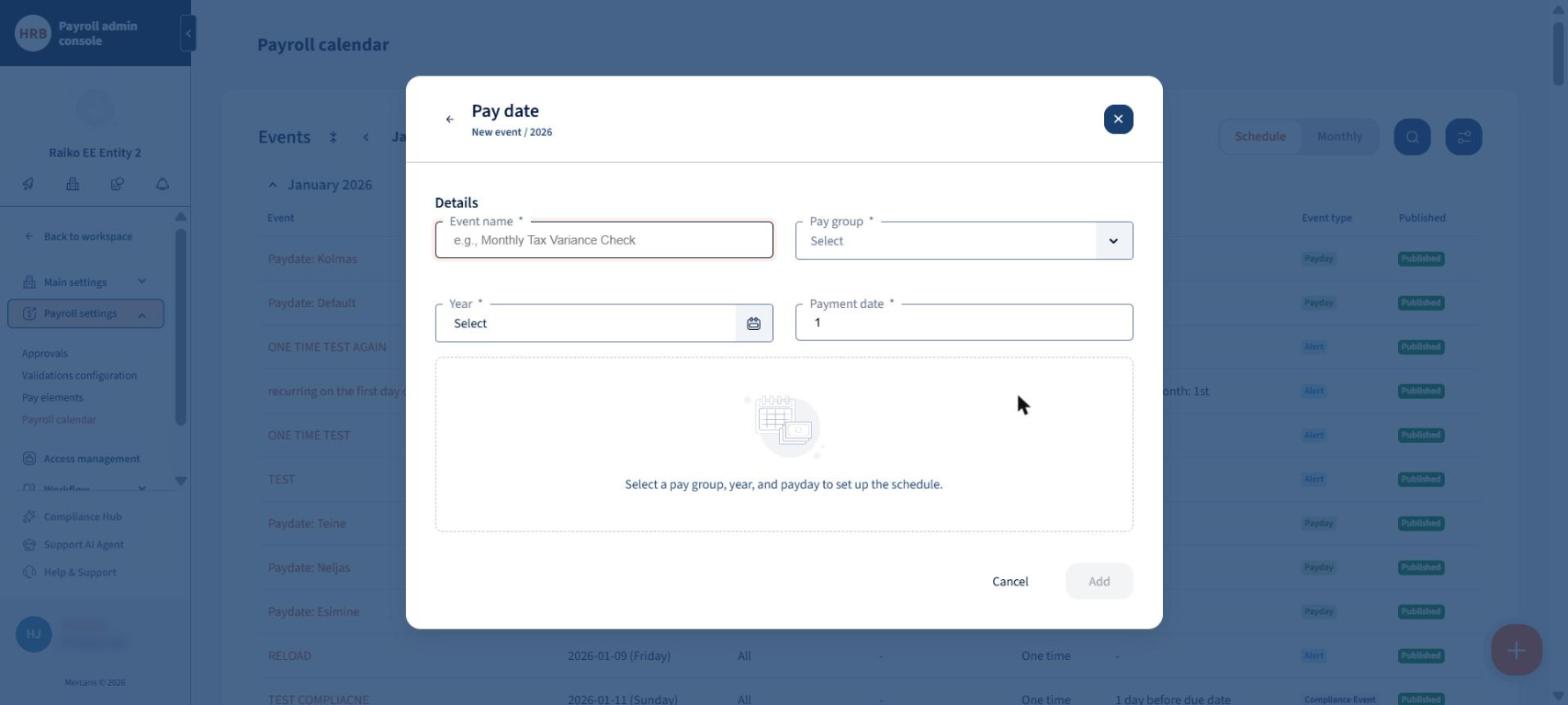
Pay date events are set per paygroup, per year.
Good to know. You can set pay dates for a year that already has payroll periods configured for the pay group. If the periods are not configured yet, the form tells you so.
Rules to keep in mind
- One pay date applies to each period of a paygroup.
- A pay date can be on or after the end of the period, for example a January payroll paid on 5 February. It cannot be before the period starts.
- If a paygroup has more than one payroll cycle, such as an Advance and a Regular cycle, set the pay date for each cycle. The Payroll cycle field appears when the paygroup has two or more cycles and is then required.
- Pay dates of closed periods cannot be edited. You can change a pay date for the current period.
- For an off-cycle run, you set the pay date when you create the run. You can change it, to today or a future date, until the run is approved.
- Published events appear on your dashboard, so your team sees upcoming pay dates and deadlines.
Check before every period
- Every paygroup has a pay date for the coming period.
- Paygroups with several cycles have a pay date for each cycle.
- The pay date is on or after the start of the period, and matches when you really pay.
- Off-cycle runs have the pay date you expect.
What Instaroll does for you
These things happen without you doing anything. Knowing them helps you plan your payroll calendar.
| What happens | When | What you should do |
|---|---|---|
| Results recalculate | Whenever pay data or inputs change on an open run. | Watch Payroll Completion reach 100% before you approve. |
| Input changes are picked up | Timesheet, leave and benefit changes are approved and calculated into the run automatically. A change that arrives while the run is locked stays Pending until you unlock the run. | Review the Transactions view and the Insights panel. |
| Employees join the right run | When an employee is assigned to a paygroup that has an open run. A move is not allowed while the run the employee is leaving is locked. If the new run is locked, the employee joins when it is unlocked or in the next period. | Unlock the run first if you need to move someone out of a locked run. |
| Files and payslips are generated | At Approve and Lock: statutory reports, the bank file and payslips. Custom reports generated before approval are regenerated automatically on approval and marked Approved. | Check the Actions tab, then send the files. |
| Transmission is tracked | Every time you send a report or payslips to an integration, per version. | Resolve any failed transmission and send again. |
| The run closes | Every day at 23:00 UTC, runs whose pay date is today or earlier are closed, but only when all of them are approved. | Approve every run before its pay date. |
Opening a payroll run
Go to Payroll > Open. The listing shows each run with its payroll ID, paygroup, name and period, status and pay date. Regular, advance and off-cycle runs appear together. Choose Select to open a run, or New off-cycle run to create an off-cycle run.
The menu at the top right of the listing opens the Audit Reports (Gross to Net, Variance Report, Compare different run in period, Payment Report and Audit Trail Report) and the Period reports (Detailed Headcount Report and Starters and Leavers Report). The Audit Trail Report is available as soon as the period is open and captures the changes made up to the moment you run it.

Audit Reports and Period reports are available from the menu on the listing.
Working on the run: the Payroll tab
The run header and Insights
The header shows the run name and period, the pay date, the paygroup with its number of employees, the run status and the lock. The Insights panel shows how the calculation is going and what the run costs: Payroll Completion (in progress, queued, missing and failed employees), the number of employees with input changes, net pay, employer contributions and total payroll cost.

The run header and the Insights panel.
Gross to net breakdown
Each employee appears with gross pay, deductions, net pay and employer contributions. Arrows under the figures show the change against the previous period, so unexpected movements stand out. A banner summarises the findings of the AI checks. Use the search, export and filter buttons to find employees or take the data out of the run.

Gross to net breakdown, with the change against the previous period under each figure.
Transactions
Switch to Transactions to see incoming changes grouped as Timesheet, Leave and Benefit. Changes are approved and calculated into the run automatically.

The Transactions view groups incoming changes by type.
Validations
The Validations view runs checks on your results and inputs and summarises payroll and statutory findings with AI Insights. Use it before approval to catch what the totals alone do not show.
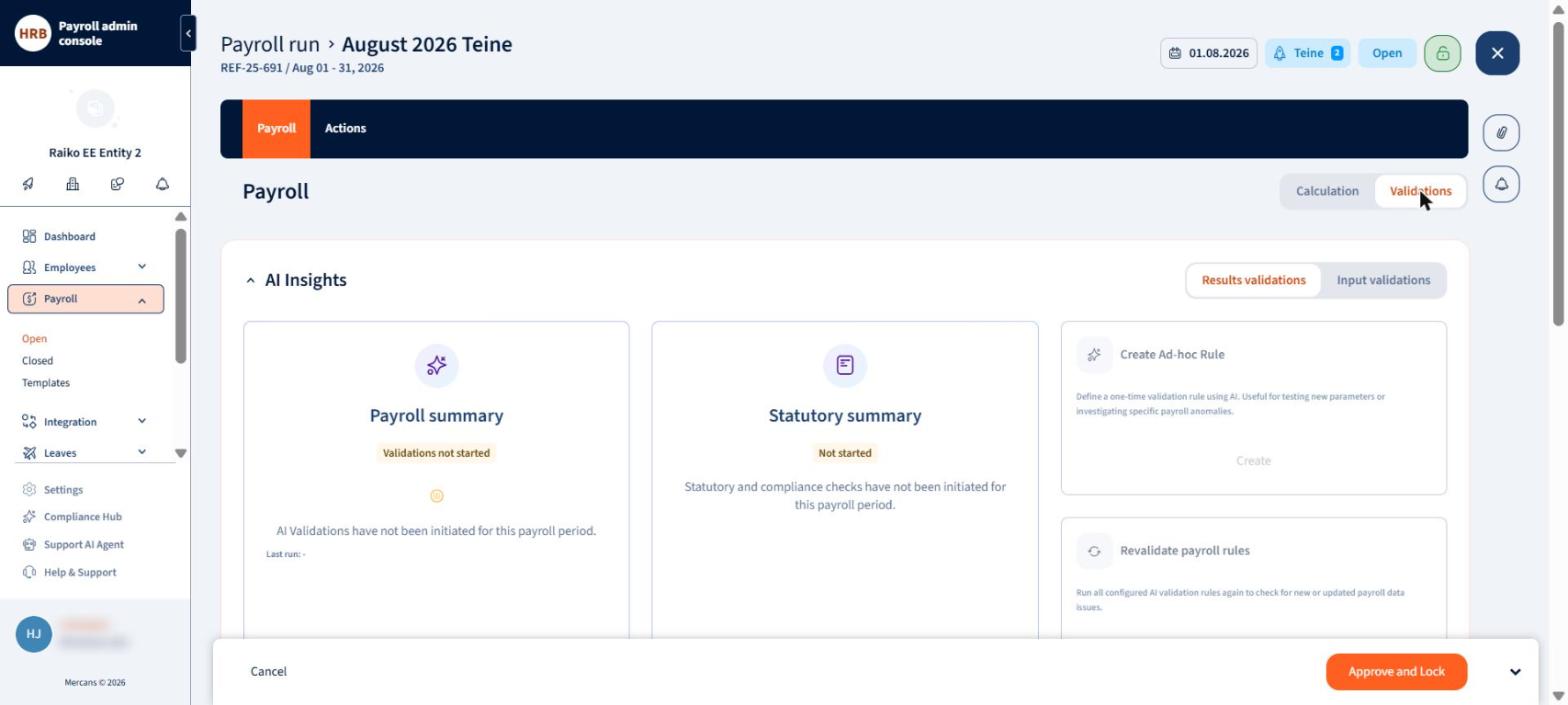
The Validations view with AI Insights.
Employee details
Select an employee to see how their pay is built. The Salary tab lists every pay element with its previous value and its source. You can add or edit a pay element, then use Recalculate to refresh the employee’s results and Confirm to save the change to the run. The Payment method tab shows the job and payment details, and the Payslip tab previews the payslip before approval.

The employee detail shows each pay element, its previous value and its source.

The payslip preview shows how the payslip looks before approval.
Approve and Lock: the most important action
Approve and Lock, in the footer of the Payroll tab, finalises the payroll in one step.
- Pay data is frozen. Manual changes and external syncs, such as time-tracking and HRIS, are disabled for the run.
- Statutory reports, the bank file and payslips are generated.
- Payroll reports become available to generate, and reports you already generated are regenerated automatically.
- You move to the Actions tab, where a banner confirms the pay date and how long you can still regenerate the bank file or unlock.
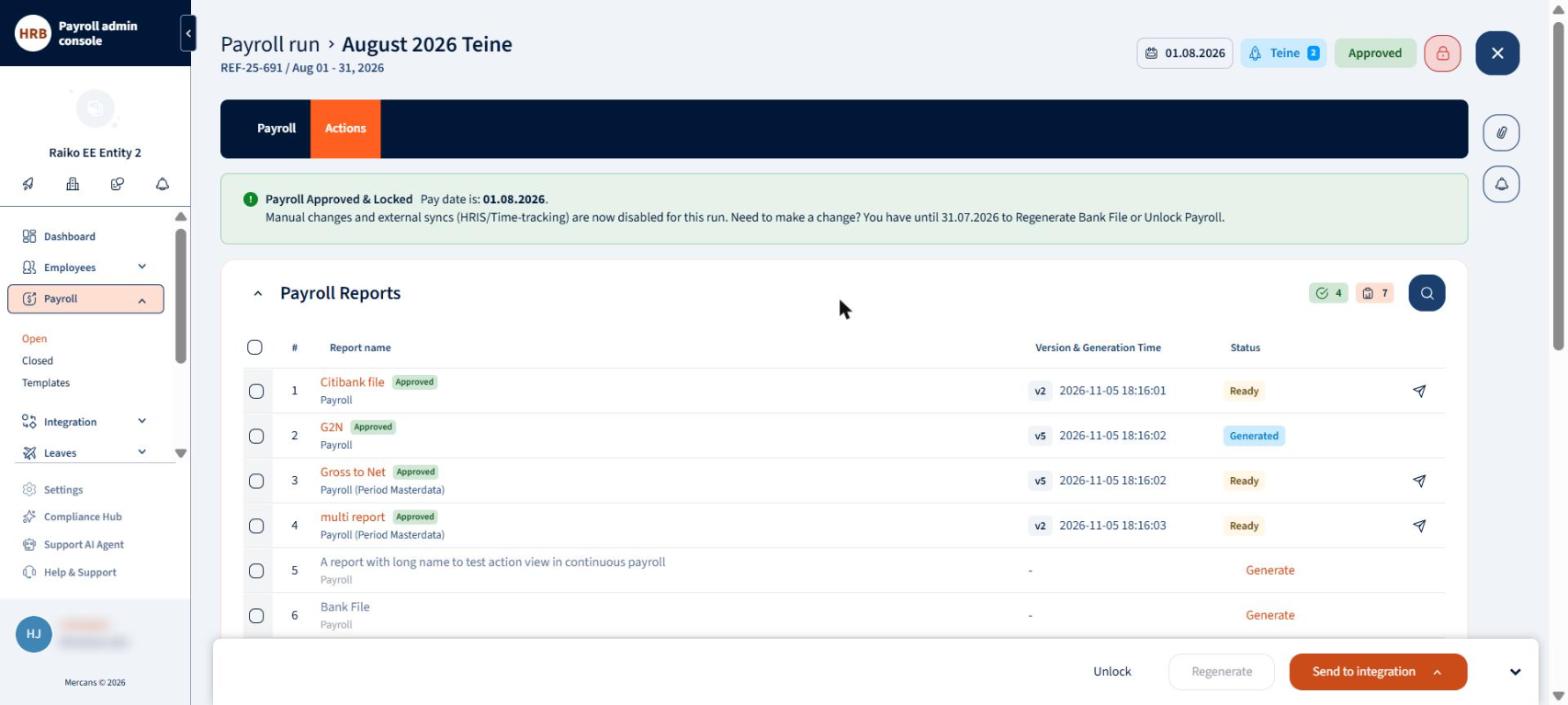
After Approve and Lock the run moves to the Actions tab and shows the pay date banner.
Before you approve
- Payroll Completion shows 100% and no failed employees.
- You reviewed the Validations findings and the pending input changes.
- The pay date is correct in the Payroll Calendar.
- You are sure the numbers are final. Approving is deliberate, and unlocking later reopens the run.
Who can approve
By default, anyone with Role_Manager access in the legal entity can approve, lock, unlock and send it to an integration. To control this, go to Settings > Payroll settings > Approvals and add approvers. Once you add approvers, only they can approve, lock, unlock and send the payroll to integration.
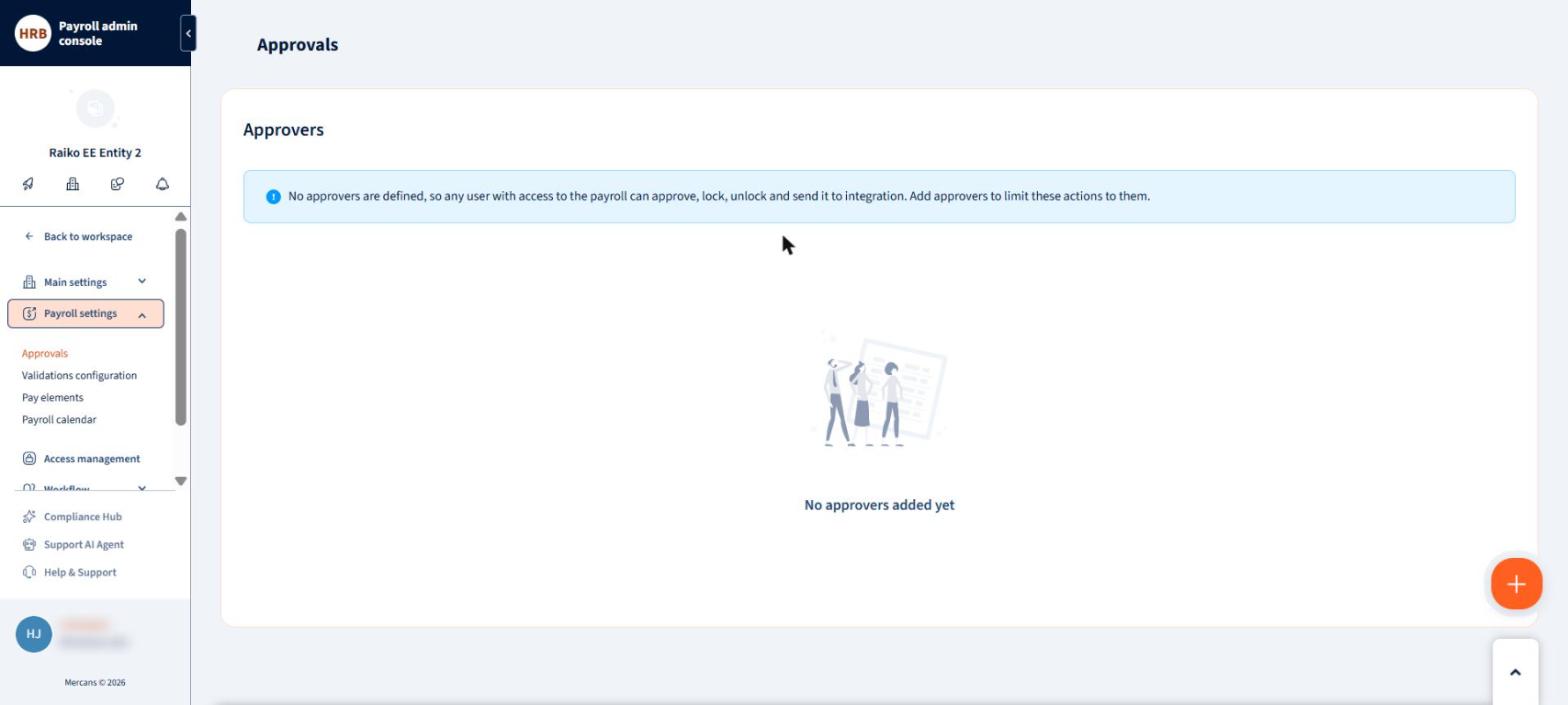
Approvers are managed in Settings, Payroll settings, Approvals.
Unlocking
If pay data must change, choose Unlock on the Actions tab. Unlocking reopens the run, enables manual edits again and resumes external syncs. All pending changes and updates since the lock are applied to the payroll, which can change your totals. After you change the data, approve and lock again. You can unlock until the run closes on the pay date.
- Only one payroll run can be open at a time for the same employee. If an employee is in another open run, Unlock is disabled and a message explains why.
- Files you already sent stay recorded. New versions are generated after you approve again.

Unlocking asks for confirmation and explains the effect.
After approval: the Actions tab
Reports
Reports are split into Payroll Reports and Statutory Reports. Each report shows its version, its generation time and its status: Generate when it has not been created yet, Generated or Ready when it exists, and a send icon when it can be sent. Reports created after approval carry an Approved label, so you can tell final versions from drafts. Older versions are kept in the file history.
Bank files can also be generated before approval, like statutory reports. They are generated again automatically when you approve.
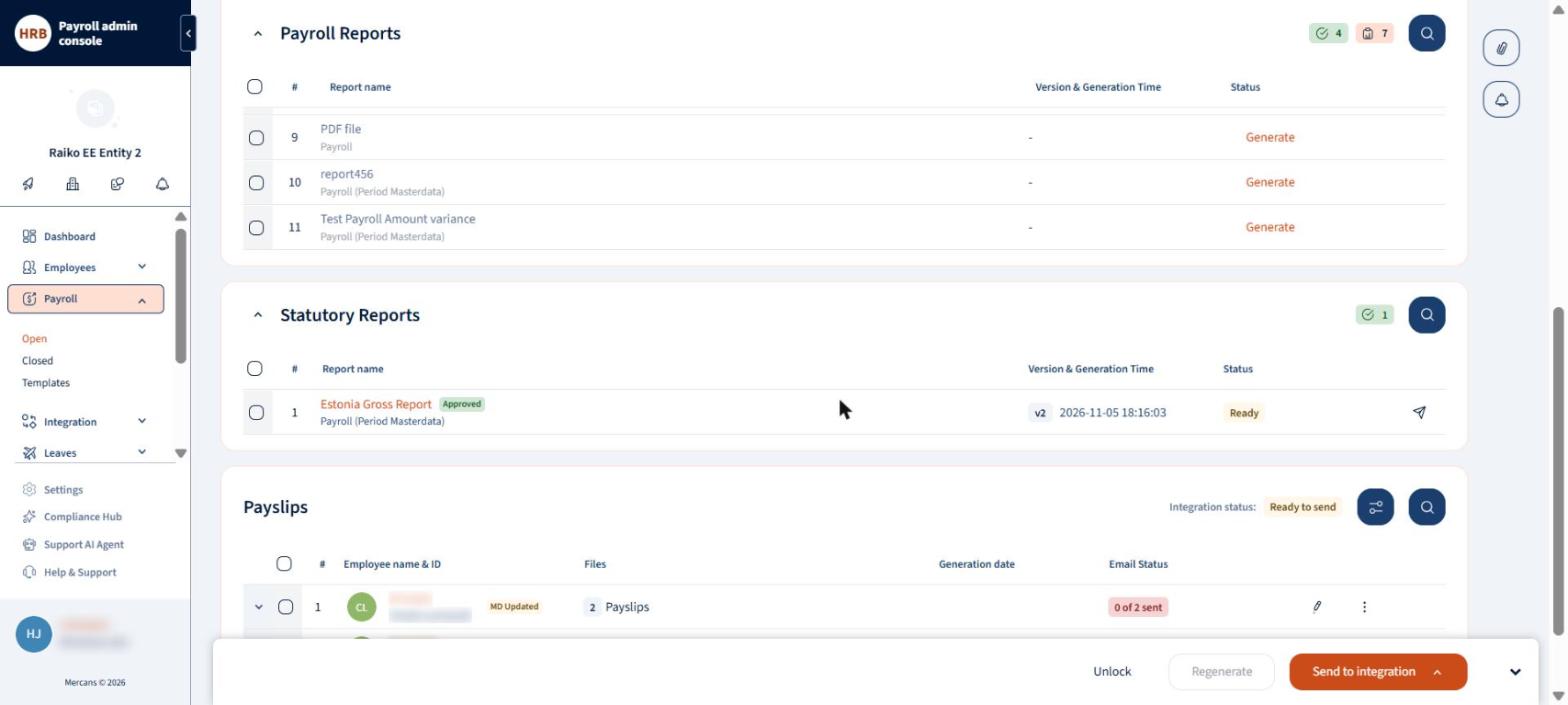
Statutory reports and payslips are generated for you on approval.
Generate, regenerate and download in bulk
Tick several reports to act on them together. Choose Generate for reports not created yet, Regenerate for existing ones, or Download to get the generated reports in one ZIP file. Instaroll processes the reports one after the other, so a large selection does not overload the system, and it shows the progress.
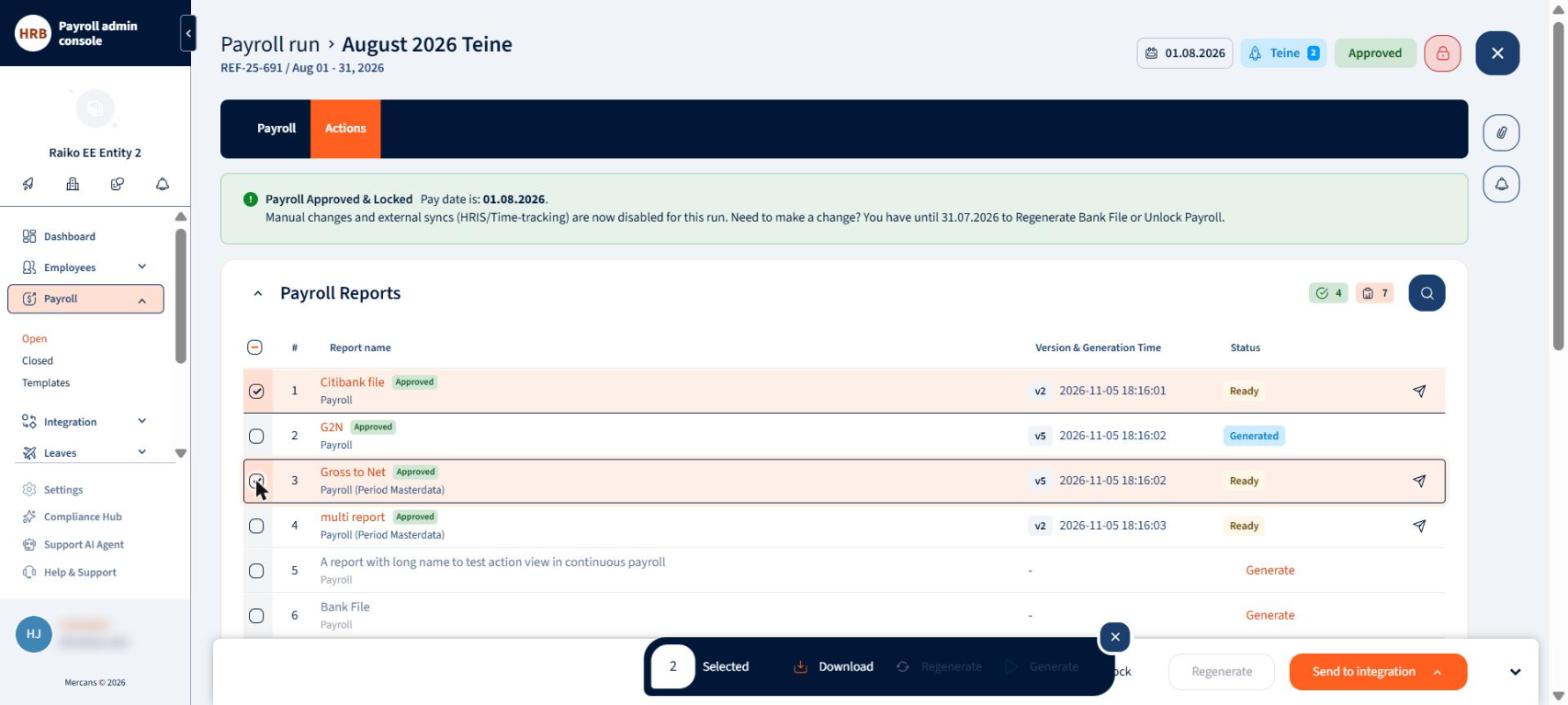
Select several reports to download, generate or regenerate them together.
Reports with several outputs
Some reports produce more than one file, for example a payment report split by bank. The report appears once in the list. Open it to see every output with its status and whether a preview is available, preview or download each one, or use Download all. When you send the report, each output has its own status. If only some outputs fail, sending again resends only the failed ones.

A report that produces several files lists each output with its status.
Audit and comparison reports
Use the Audit Reports to understand and evidence changes: Gross to Net, Variance Report, Compare different run in period and the Audit Trail Report. Run on run variance compares two versions of the same run, such as two approved versions, an approved version against the current open data, or against the closed version. It shows what changed between each approve, unlock and recalculate cycle.
Payslips
Payslips are generated when you approve. The list shows the number of files per employee and the email status. An MD Updated label marks a payslip whose master data changed after the lock. Tick payslips to Regenerate them, Download them, or Send for employees to publish them to Employee Self-Service. Downloads are offered as a Zip file of individual payslips or a Single file with all payslips together. The ZIP file is not password protected.
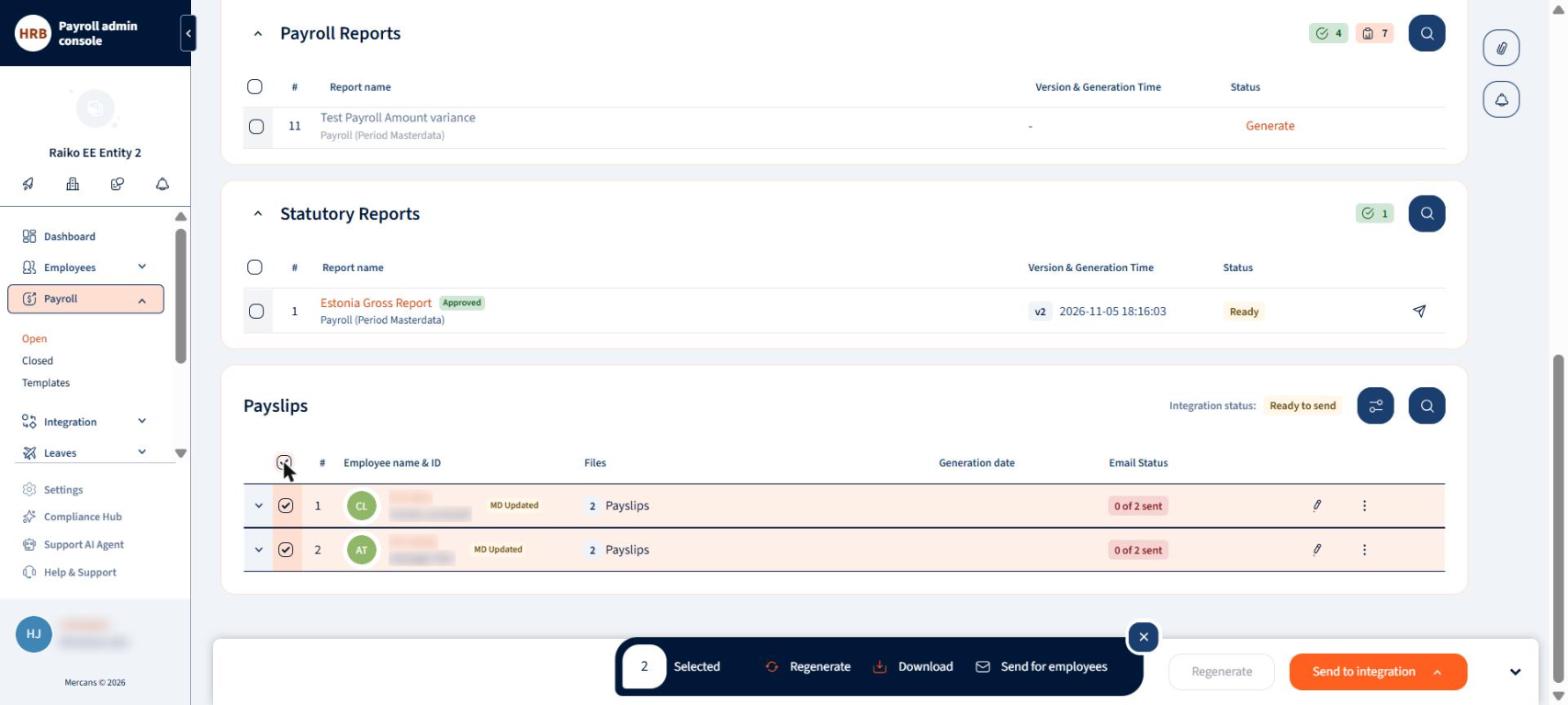
Select payslips to regenerate, download or send to employees.

Download selected payslips as a ZIP file or as a single file.
Sending to integrations
Use Send to integration in the footer to send everything, only the payroll reports, only the statutory reports, or only the payslips. Use the send icon on a report to send it alone.
- Instaroll records the transmission status for each version.
- A version that was sent successfully is not sent again in a bulk send, which avoids duplicates.
- If a transmission fails, the error is shown against the file. Fix the cause and send again.
- You can send payslips again after a successful send. Instaroll asks you to confirm, because the same version goes out a second time.
- Payslips can also be sent after the run is closed.

Send to integration lets you choose what to send.
Closing a run
You do not close a run yourself. Every day at 23:00 UTC, Instaroll looks for runs whose pay date is today or earlier. If all of those runs are approved, it closes them. The pay date comes from the Payroll Calendar, which is why the calendar matters.
Approve every run before its pay date. Instaroll closes due runs only when all of them are approved. A run that is not approved is never closed automatically, and an unapproved run that is due can hold back the closure of the others.
What changes when a run is closed
- New inputs from the employee card, integrations and imports are blocked, and the calculation is frozen.
- Unlock is no longer available.
- The run moves to Payroll > Closed, listed by period.
- The change is recorded in the audit trail.
What you can still do on a closed run
- Generate reports, and regenerate the bank file.
- Send reports and payslips to an integration.
- Review results, payslips and reports for reference.

Closed payrolls are listed by period.

A closed period lists its runs by paygroup.
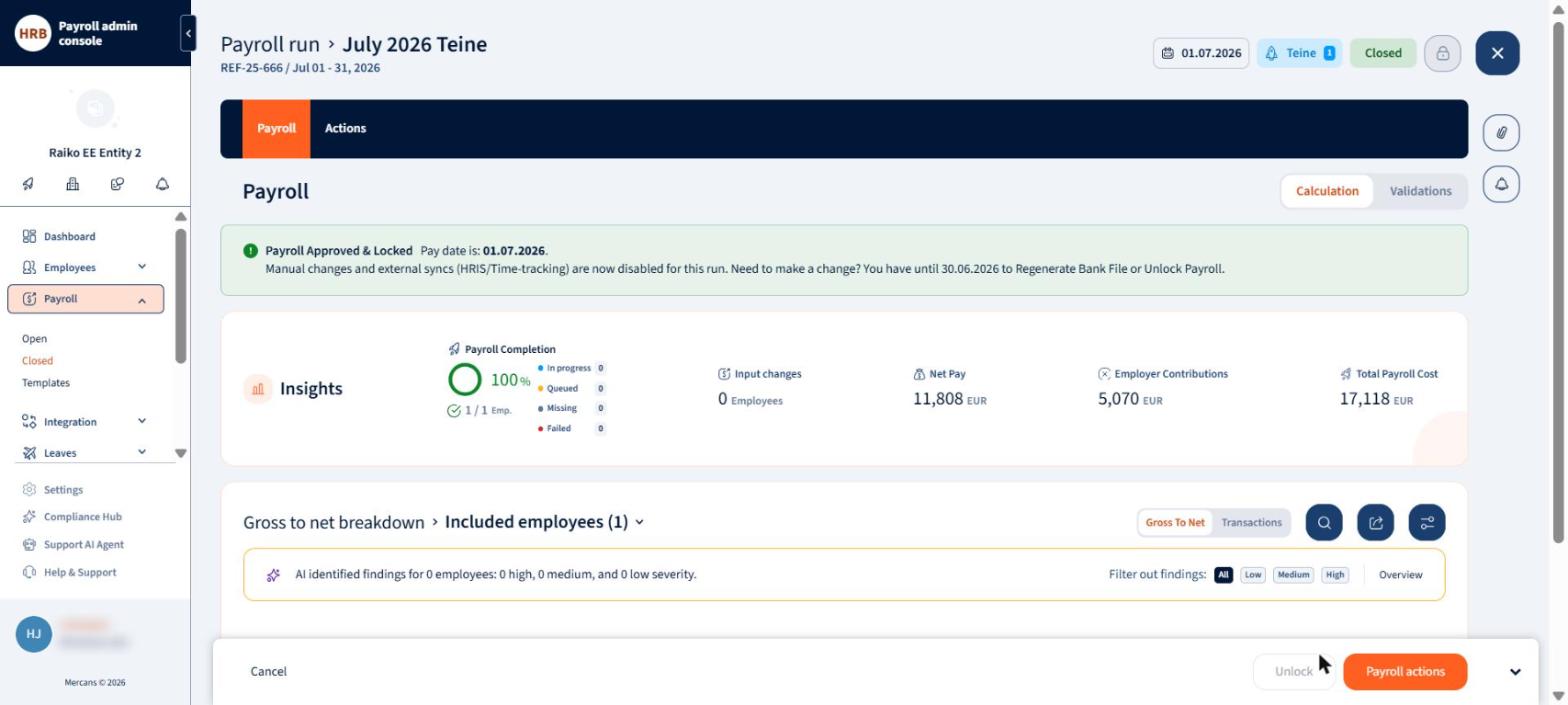
A closed run keeps its results, and Unlock is no longer available.
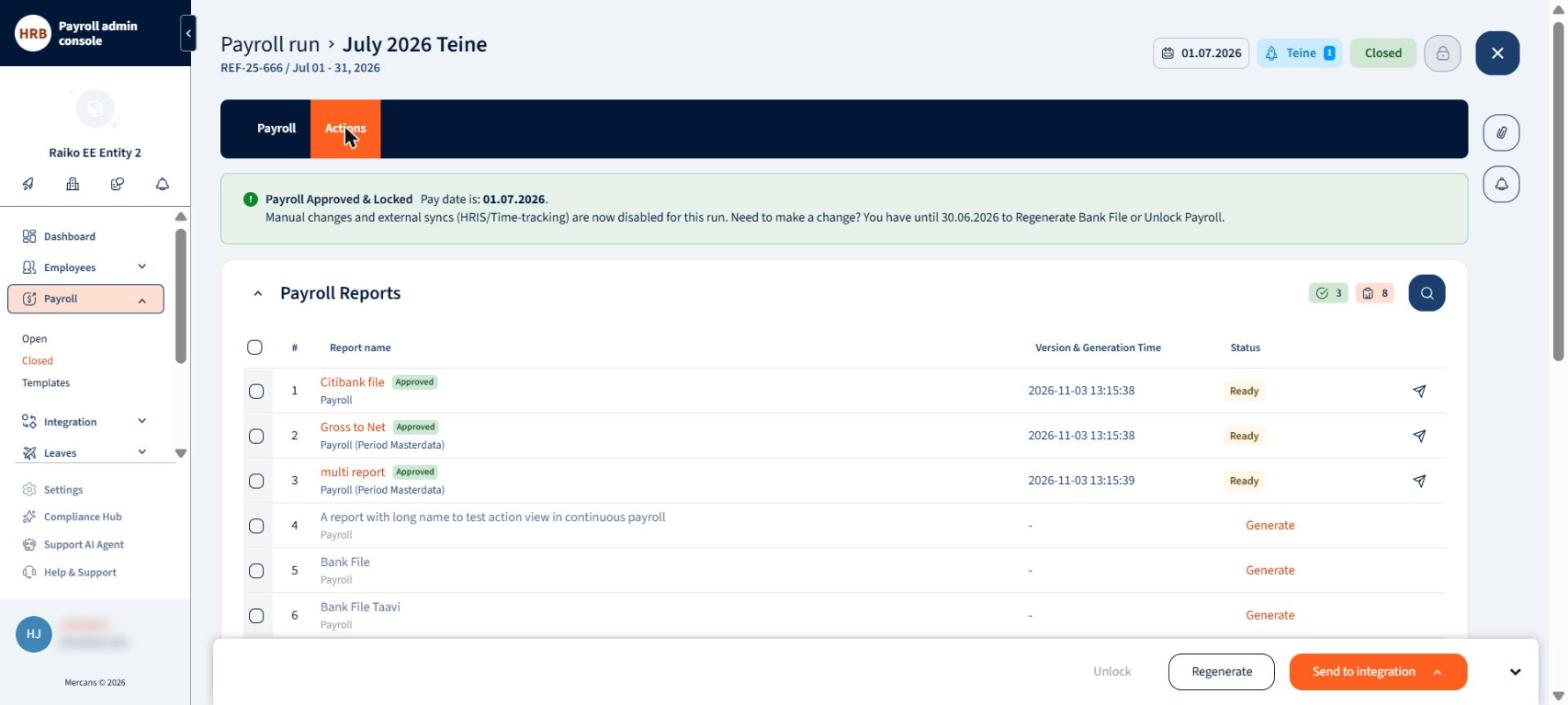
Reports and files remain available on a closed run.
Good to know. To close a period, the next reporting period must be set.
Off-cycle runs
Create an off-cycle run from the runs listing with New off-cycle run. An off-cycle run has its own pay date, which you set when you create it and can change until it is approved. It calculates, approves, locks and closes like a regular run. See also Instaroll: Exclude employees from a payroll run.
Important actions at a glance
| Action | Why it matters |
|---|---|
| Set pay dates in the Payroll Calendar | Without a pay date you cannot approve, and the run cannot close on time. |
| Approve and Lock | Freezes pay data and generates your reports, bank file and payslips. |
| Approve every run before its pay date | Only approved runs close automatically, and only when all due runs are approved. |
| Unlock only when needed | Applies all pending changes and can change your totals. Approve again afterwards. |
| Send to integration | Delivers files and payslips. Check the status and fix any failed transmission. |
| Set approvers | Limits who can approve, lock, unlock and send. |
Frequently asked questions
Why can I not approve and lock my payroll?
Check that a pay date is set in the Payroll Calendar for the paygroup and period. Lock is disabled when the pay date is missing. If approvers are configured, only they can approve.
When does my run close?
Every day at 23:00 UTC, runs with a pay date of today or earlier are closed, provided all of those runs are approved.
Can I still change a payroll after approving it?
Yes, until the run closes. Unlock the run, make your change and approve again. Unlocking applies all pending changes, so check your totals.
What happens to a transaction I add while the run is locked?
It stays Pending. When you unlock the run, it is approved and included.
Why is Unlock disabled?
Either the run is closed, or the same employee is in another run that is open. Only one run can be open at a time for an employee.
Can I send a payslip again?
Yes. Instaroll asks you to confirm before it sends the same version again.
Why does a payslip show MD Updated?
The employee’s master data changed after the payroll was locked. Regenerate the payslip if you want it to include the change.
Can I get reports after the run is closed?
Yes. You can generate reports, regenerate the bank file and send reports and payslips from a closed run.
Glossary
| Term | Meaning |
|---|---|
| Instaroll | The payroll run experience in the Payroll Admin Console. |
| Run | A payroll calculation for a paygroup and period. It can be regular, advance or off-cycle. |
| Approve and Lock | The action that freezes pay data and generates reports, the bank file and payslips. |
| Closed | The final state of a run, reached automatically on the pay date. |
| Pay date | The date employees are paid. It comes from the Payroll Calendar. |
| Payroll Calendar | The setting where pay dates, alerts and compliance events are planned. |
| Send to integration | Sending files or payslips to a connected system. |
| MD Updated | A label on payslips whose master data changed after the lock. |
Your response has been submitted — it helps us make these pages better.