
On this page0
📘 ESS User Manual: Tax Declaration & Proof Submission
Introduction
The Tax Declaration portal allows you to declare your planned investments at the start of the year and submit supporting documents (proofs) later in the year to optimize your TDS (Tax Deducted at Source).
This manual is designed solely to guide the user on application usage and does not constitute regulatory advice.
This guide will walk you through the two-stage process of managing your taxes: Declaration (Planning) and Proof Submission (Verification).
Part 1: Investment Declaration (Planning Phase)
- Getting Started
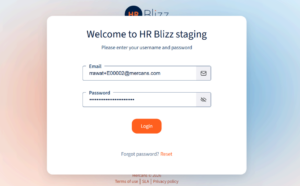
Accessing the Portal- Log in to your Employee Self-Service (ESS) portal.
- Navigate to the “Tax Declaration” section.

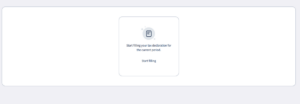
- You will see the main dashboard showing your current submission status (e.g., Draft, Under Review, or Approved).
- Log in to your Employee Self-Service (ESS) portal.
- Tax Regime Selection
Before starting your declaration, you must choose your preferred Tax Regime.- Old Regime: Allows you to claim various deductions (HRA, 80C, 80D, etc.).
- New Regime: Lower tax rates but most deductions are not applicable.
- How to Switch: You can’t switch the tax regime once selected, you will get a confirmation on selected that this action can’t be undone.
- Navigating the Declaration Form
- The form is organized into several tabs. Click on a tab to fill in the details for that specific section:
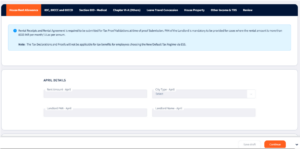
- House Rent Allowance (HRA): For rent paid for your accommodation.
Enter details of rent paid, landlord information, and city type to claim HRA exemption.
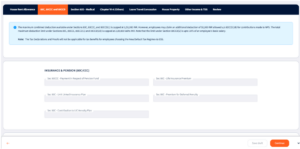
- 80C, 80CCC and 80CCD: For Life Insurance, PF, ELSS, NPS, etc.
Declare investments like Life Insurance, Provident Fund (PF), ELSS, and NPS for tax deductions.
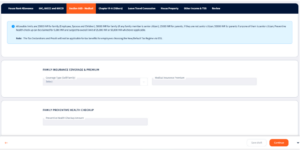
- Section 80D – Medical: For health insurance premiums for self and parents.
Provide details of health insurance premiums paid for self, family, and parents.
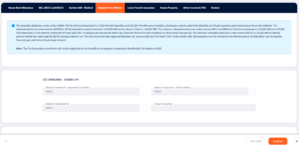
- Chapter VI-A (Others): For education loans, donations, and disability-related deductions.
Include other eligible deductions such as education loan interest, donations, and disability-related claims.
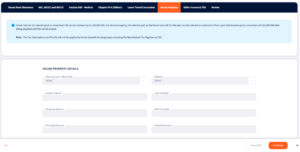
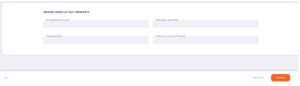
- House Property: For home loan interest and rental income details.
Enter information about home loans, interest paid, and rental income from property.
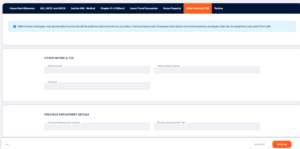
- Other Income & TDS: For income from other sources or previous employment.
Report additional income sources (e.g., interest income) and any tax deducted at source from previous employment or other sources.
- Special Feature: HRA “Copy Data”
- To save time filling out the House Rent Allowance section:
1. Enter your rent, city type, and landlord details for the first month (April).
2. Scroll to the bottom of the April section.
3. Click the “Copy Data to All Months” button.
4. The system will automatically populate the remaining 11 months with the same data.
Note: The button will only work if you have entered data for April.
- To save time filling out the House Rent Allowance section:
- Saving and Continuing
- Save Draft: Click “Save Draft” at any time to save your progress without submitting. You can return later to finish.
- Continue: Click “Continue” to move to the next tab in the sequence.
- Back: Use the “Back” button to review previous sections.
Part 2: Proof Submission (Verification Phase)
- Proof Submission (Uploads)
When the proof submission window is open, you will see an “Upload Proof” button next to specific line items or at the end of a section.- Click the upload icon/button.
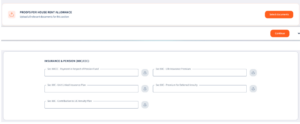
- Drag and drop your file (PDF, JPG, or PNG) or click to browse.
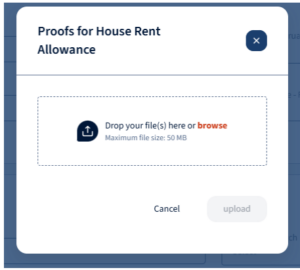
- Ensure the document is clear and legible to avoid rejection by the tax team.
- Once uploaded, the status will change to “Submitted” or “Under Review.”
- Click the upload icon/button.
- Final Submission
- Review all tabs to ensure the data is accurate.
- On the final tab, click the “Submit Declaration” button.
- Once submitted, the form will be locked for editing until the tax team reviews it or sends it back for clarification.
- Tracking Approval Status
After uploading, keep an eye on the Status Column for each item:- ⏳ Under Review: The Tax Team is checking your document.
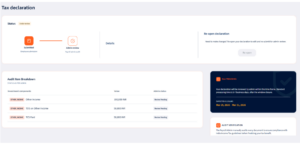
- ✅ Approved: Your proof is accepted; tax benefits are locked in.
- ❌ Rejected: Check the “Remarks” column. You can reopen the declaration and submit the request again with correct amounts / documents.
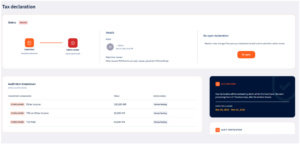
- ⏳ Under Review: The Tax Team is checking your document.
Best Practices & Tips
- Always verify details before submitting.
- Keep necessary documents ready (if required).
- Submit requests within the defined timelines.
- Monitor request status regularly.
Frequently Asked Questions
- How do I access the Tax Declaration module?
Log in to your Employee Self-Service (ESS) portal and click on Tax Declaration in the left navigation panel.
The module is available year-round, but you can only submit or edit data when the relevant phase window is open. - What is the difference between the Declaration Phase and the Proof Submission Phase?
There are two distinct phases:
Declaration Phase (typically April)
You declare your planned investments for the financial year. No documents are required at this stage.
Proof Submission Phase (typically Q4)
You upload actual supporting documents to verify the investments you declared earlier.
Both phases are opened and closed by your Payroll Admin. You will only see the relevant action buttons when a phase is active.
- What does my submission status mean?
Draft — You have saved progress but not yet submitted.
Submitted / Under Review — Your submission is with the Payroll Admin for review.
Approved — Your declaration or proof has been accepted and the tax benefit is confirmed.
Rejected — Your submission was not accepted. Check the Remarks column for the reason and resubmit. - What is the difference between the Old and New Tax Regime?
Old Regime
Higher tax slabs but allows you to claim a wide range of deductions such as HRA, 80C, and 80D.
New Regime
Lower flat tax slabs but most deductions are not applicable.
The right choice depends on your investment profile. If you have significant investments and rent expenses, the Old Regime may result in lower tax.
Consult your tax advisor if unsure. - Can I switch my tax regime after selecting it?
No. Tax regime selection is a one-time, irreversible action for the financial year.
The system will display a confirmation warning before locking your choice. Once confirmed, it cannot be changed through the ESS portal for the remainder of that financial year. - I selected the New Tax Regime — do I still need to fill in the declaration form?
If you have selected the New Tax Regime, tax declarations and proof submissions are not applicable for tax benefit purposes.
The deduction sections will not affect your TDS calculation. You may still see the form, but no action is required on those sections.
FILLING THE DECLARATION FORM - What sections do I need to fill in the declaration form?
The form is organised into tabs. Fill in the sections relevant to your investments:- House Rent Allowance (HRA) — if you pay rent
- 80C, 80CCC & 80CCD — Life Insurance, PF, ELSS, NPS, etc.
- Section 80D — Health insurance premiums for self, family, and parents
- Chapter VI-A (Others) — Education loan, donations, disability claims, EV loan interest
- House Property — Home loan interest or rental income
- Other Income & TDS — Interest income, previous employer income
You only need to fill sections that are applicable to you. Leave others blank.
- I pay the same rent every month. Do I need to enter it 12 times in the HRA section?
No.
Enter your rent amount, city type, and landlord details for April, then click the Copy Data to All Months button.
The system will automatically fill the same data for the remaining months.
Note: This button only works if April data has been entered first. - Can I save my form and come back later?
Yes.
Click Save Draft at any point to save your progress without submitting.
You can return later to continue editing. - What happens once I submit my declaration?
Once you submit, the declaration is automatically approved.
The declared amounts are used for your TDS calculation during the Declaration Phase.
The form will be locked until the Proof Submission Phase opens. - I made a mistake in my declaration. Can I edit it after submitting?
During the Declaration Phase, if your submission has not yet been finalised, you may be able to reopen and edit it.
Once the Declaration Phase window is closed, changes are not permitted until the Proof Submission Phase. - When can I upload my proof documents?
Proof submission is only possible when the Proof Submission Phase window is open.
This is typically in Q4 (January–March) and is configured by your Payroll Admin. - What file formats and sizes are accepted for proof uploads?
PDF
JPG
PNG
Maximum file size
50 MB per upload
Ensure documents are clear and legible to avoid rejection. - Do I need to upload proofs for every section?
You should upload proofs for all sections where you have declared an investment amount.
Sections without supporting documents may be rejected or have their approved amount reduced. - What documents do I need for HRA proof submission?
You should provide:- Rental receipts for each month or a rental agreement covering the period
- Landlord’s PAN if annual rent exceeds ₹1,00,000
- My proof was rejected. What should I do?
Check the Remarks column in your ESS dashboard.
Then:
1. Click Re-open Declaration
2. Correct the document or amount
3. Re-upload the corrected proof
4. Submit again for review - My proof was partially approved. What does that mean?
Partial approval means the admin approved a lower amount than you declared based on the supporting document.
Only the approved amount will be used for your TDS calculation. - How will I know when my proofs have been reviewed?
Monitor the Status column in your Tax Declaration dashboard.
It will update in real time as the admin reviews each item. - How does my declaration affect my monthly TDS?
Your declared investment amounts are used to estimate your tax liability for the year.
This determines how much TDS is deducted from your salary each month during the Declaration Phase.
Once proof submission is approved, final TDS is adjusted based on admin-approved amounts. - If my proof is rejected, will I owe more tax?
Yes.
If a proof is rejected, the deduction will not be allowed as a tax benefit.
This may increase your taxable income and result in higher TDS in subsequent months. - I had income from a previous employer this financial year. Where do I declare it?
Go to the Other Income & TDS tab in the declaration form.
Under Previous Employment Details, enter your previous employment income and the tax deducted.
You will also need to submit Form 12B during proof submission.
Was this page helpful?
Thanks for your feedback.
Your response has been submitted — it helps us make these pages better.