
On this page0
Users will now be able to view the history of employee changes made.
Users will also be able to export history to the following formats: XLS, CSV and PDF.
The following information is present in the history view:
- Employee ID, Name & Surname
- Actor (Individual who made the change)
- Subject (Field, pay element, etc.)
- Type (Field type)
- HR Field
- Pay element types such as earnings, deductions, and more
- Old Value (If a change was made, previous value)
- New Value (Newly updated value)
- Change Date (Date that the change occurred)
- Source (Where the change happened)
Employee Listing
Navigate to: Employees → Employees → Click “History” button
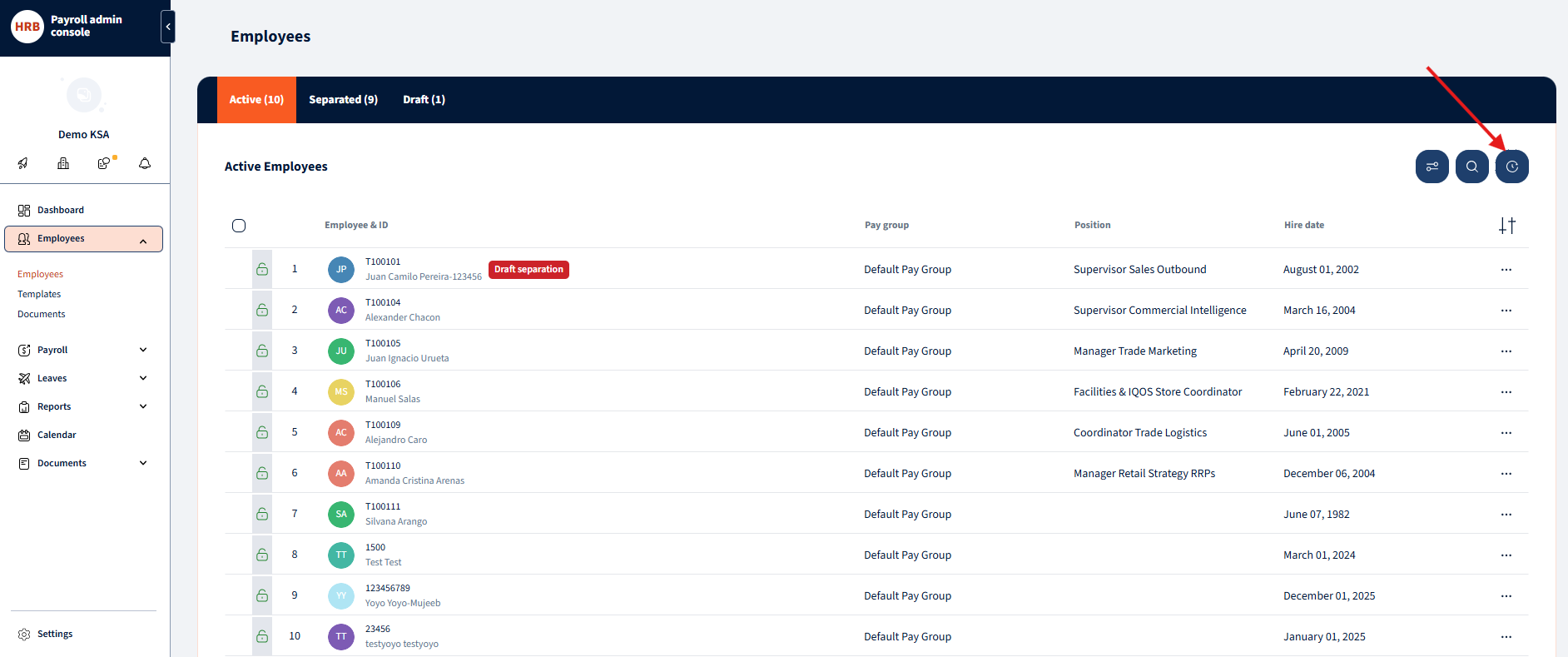
Employee Listing History Opened:
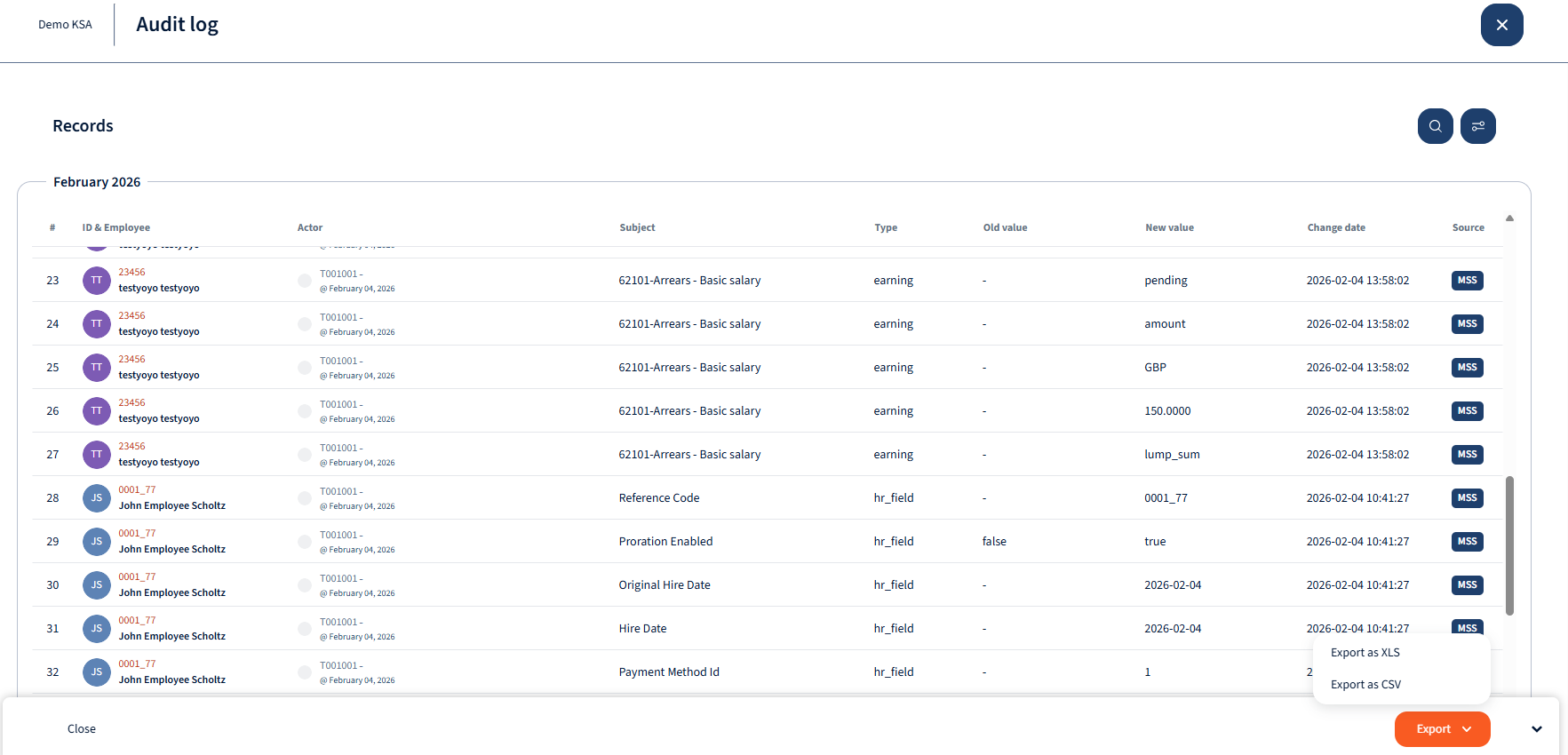
Employee Listing Filtering:
Filtering Options:
- Pay Groups (Users are able to specify for which pay groups to apply the filtering)
- Field Type (Users are able to select from various field types including HR fields, Earnings, Deductions, etc)
- Date Range (System will by default filter the date range accross 2 years from the current date, users can define this)
- Subject Employee (User can select specific or mulitple employees)
- ESS Status (Users are able to filter according to various ESS Statuses)
- Actor Employee (User are able to specify filtering based on who made the changes)

Specific Employee History:
Navigate to Employees-> Employees ->”Select Employee”-> “Click history button”

Specific Employee history opened:
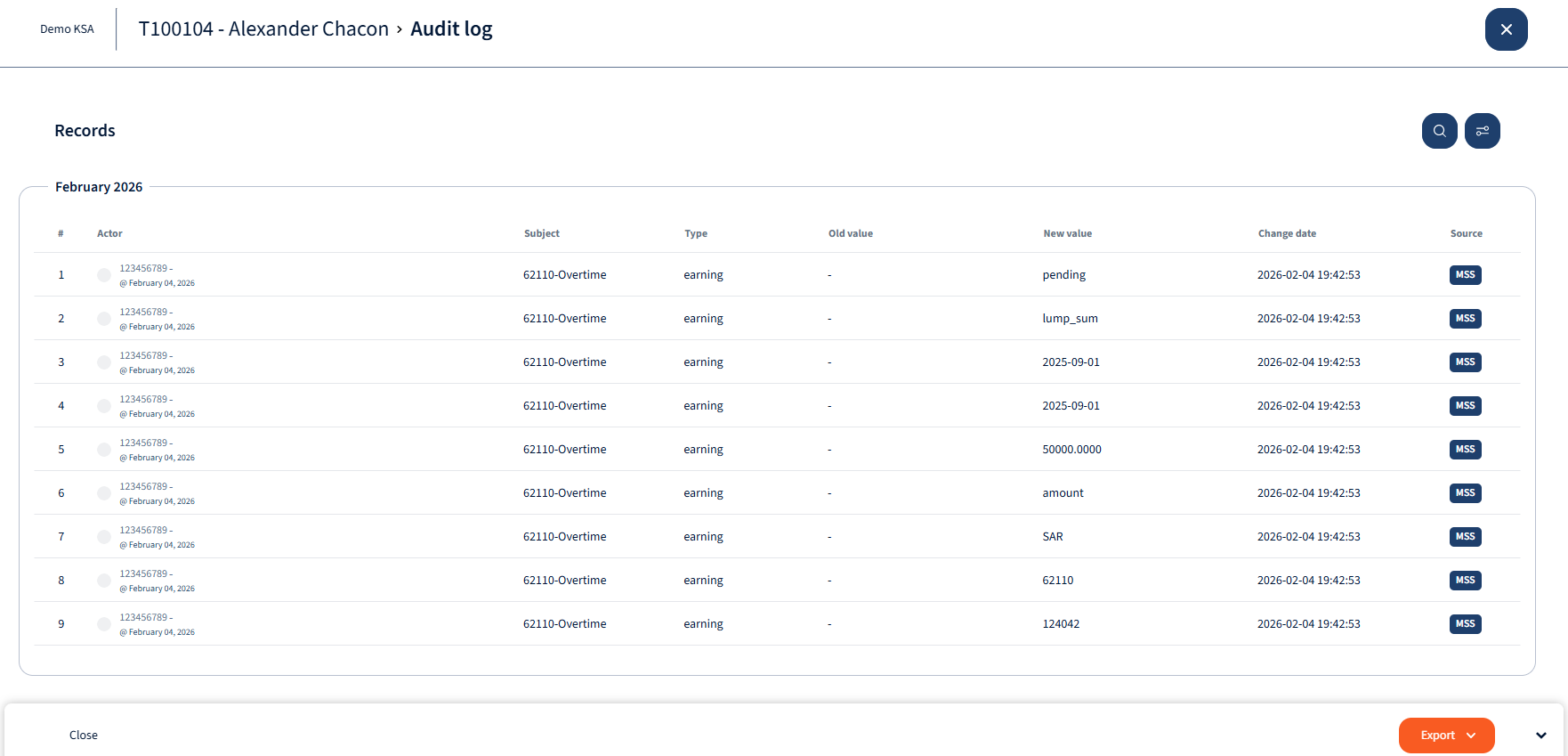
Employee Listing Filtering:
Filtering Options:
- Source ( Source will indicate where the change was made from)
- Pay Groups (Users are able to specify for which pay groups to apply the filtering)
- Field Type (Users are able to select from various field types including HR fields, Earnings, Deductions, etc)
- Date Range (System will by default filter the date range accross 2 years from the current date, users can define this)
- Actor Employee (User are able to specify filtering based on who made the changes)

Was this page helpful?
Thanks for your feedback.
Your response has been submitted — it helps us make these pages better.