
On this page0
📘 Admin User Training Manual: Configuration and Proof Submission Audit
Introduction
This Payroll Admin Training Manual provides a comprehensive guide for administrators to manage, review, and process employee tax declarations and proof submissions within the India Tax Declaration System.
1. Role Overview
As a Payroll Admin, your primary responsibility is to ensure the accuracy of employee tax declarations and validate the supporting documents (proofs) submitted. Your actions directly impact the TDS (Tax Deducted at Source) calculations for the organization.
2. Admin Dashboard Navigation
Upon logging in with PAC – Admin credentials, you will have access to the Admin Console:
- Submission Overview: A high-level summary of total employees, pending reviews, approved declarations, and rejected items.
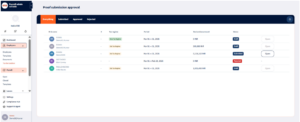
- Employee List View: A grid containing all employees, their selected tax regime (Old/New), and their current submission status.
3. Managing Submission Windows
Before employees can interact with the system, you must define the active window:
- Declaration Phase: Open this at the start of the financial year (April) to collect planned investment data.
- Proof Submission Phase: Open this later in the year (typically Q4) for employees to upload actual investment documents.
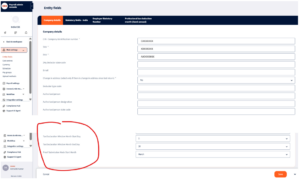
- Declaration/Proof submission Window : You have the authority to define the monthly window.
- To configure this window and proof submission month, go to settings>>entity fields and update these settings
4. The Review Workflow
When an employee submits their declaration or proofs, the status changes to “Under Review”.
Step 1: Accessing the Review Screen
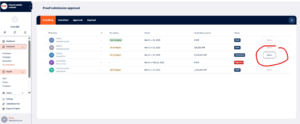
Click on an employee’s name from the dashboard to open their full declaration form in “Review Mode.”
Step 2: Validating Line Items
For each declared item (e.g., LIC Premium, HRA, 80D):
- Show Proof: Click the attachment icon to view the uploaded document in the side panel.
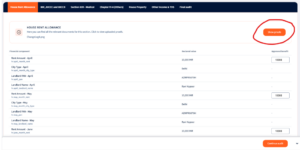
- Verify Data: Compare the amount declared by the employee with the amount shown on the document. You can make the changes to the approved amount if there is any discrepancy.
- Do the same activity for all the tabs and sections.
- Set Status:
- ✅ Approve: If the document is valid and the amount matches.
- ❌ Reject: If the document is invalid, blurred, or incorrect.
- ⚠️ Partially Approve Amount: If you are approving a lower amount than declared based on the proof provided. For this you need to mention the reason in the Final Remarks
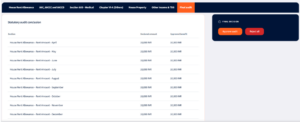
Step 3: Adding Comments
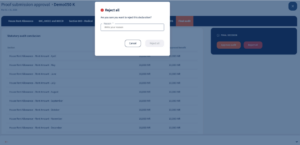
If you approve/reject an item, you must provide a reason (e.g., “PAN not visible on rent receipt” or “Policy expired”). These comments are visible to the employee in their ESS portal.

5. Handling Tax Regimes
- Regime Monitoring: Monitor the distribution of employees between the Old and New regimes.
- Regime Overrides: Changes of Tax regime via backend in b/w the tax year will lead to miscalculation of the taxes, so it is not recommended without discussion with account director.
Admin Best Practices
- Timely Feedback:
Review submissions regularly to avoid bottlenecks at the end of the month. - Effective Communication:
Ensure clear communication of tax filing guidelines to employees to minimize queries and errors.
Frequently Asked Questions:
- How do I configure the Declaration and Proof Submission windows?
Go to:Payroll Admin Console → Settings → Entity FieldsUnder Company Details, you will find:- Tax Declaration Window Month Start Day
- Tax Declaration Window Month End Day
- Proof Submission Mode Start Month
Update these fields and click Save.
- Can I open and close the submission windows at any time?
Yes.
You have full control over the submission windows and can adjust the dates as needed.
Communicate timeline changes to employees in advance. - Where do I access the proof submission audit dashboard?
Navigate to:Payroll Admin Console → Employees → Tax DeclarationThis dashboard shows employee tax regime, declaration amount, and submission status. - An employee has submitted their proofs. How do I start the review?
Go to Employees → Tax Declaration
Find the employee with status Submitted
Click Open
Review each tab and supporting document
Enter the approved benefit amount
Complete the Final Audit tab - What are the three outcomes I can set for a proof?
Approve — Document is valid and fully accepted
Reject — Document is invalid or unclear
Partially Approve — Lower amount approved than declared - Is adding a comment mandatory when approving or rejecting?Can I change the approved amount to something different from what the employee declared?
Comments are mandatory for rejections and recommended for approvals.Clear comments help employees correct and resubmit quickly. - Can I change the approved amount to something different from what the employee declared?
Yes.The Approved Benefit field is editable.If approving a lower amount, provide the reason in Final Remarks. - What is the Final Audit tab?
The Final Audit tab provides a consolidated summary of declared versus approved amounts.From here you can:- Approve Audit
- Reject All
This is required to complete the review.
- An employee has a Draft status — does that mean they have not submitted anything?
Yes.Draft means the employee has saved progress but has not submitted the form for review. - An employee wants to change their tax regime mid-year. Can I update this?
Tax regime changes mid-year are strongly discouraged.Such changes may cause TDS miscalculations and payroll discrepancies. - How do I monitor which employees are on the Old vs. New Regime?
The Employee List View in the Tax Declaration dashboard displays each employee’s selected tax regime alongside submission status.
- An employee submitted incorrect proofs and needs to resubmit. What is the process?
Reject the relevant section or submission
Add clear comments explaining the reason
Employee reopens the declaration
Employee uploads corrected documents
Employee resubmits for review - What happens to TDS after I approve a proof submission?
Approved benefit amounts are locked and used for final TDS calculation.Any difference between declared and approved amounts is adjusted in the subsequent payroll run. - What should I do if an employee misses the proof submission deadline?
If the window is closed, employees cannot upload documents.TDS will be calculated without the benefit of unsubmitted deductions.You may temporarily reopen the window if organisational policy permits. - How many employees can I review at the same time?
You can review one employee submission at a time.For large teams, process submissions regularly throughout the proof submission window to avoid bottlenecks.
Your response has been submitted — it helps us make these pages better.