
On this page0
Pay Elements Overview
Configuration
- All Entity Pay elements that are marked active will appear
- Only pay elements configured for the user’s assigned country are visible.
- Cross-country pay elements are not displayed.
Tabs and Default View
The Pay Elements screen contains two tabs:
- Active (default view)
- Inactive
Pay elements are automatically categorized into these tabs based on their current status.
Log in to PAC.
Navigate to:
Settings → Payroll Settings → Pay Elements
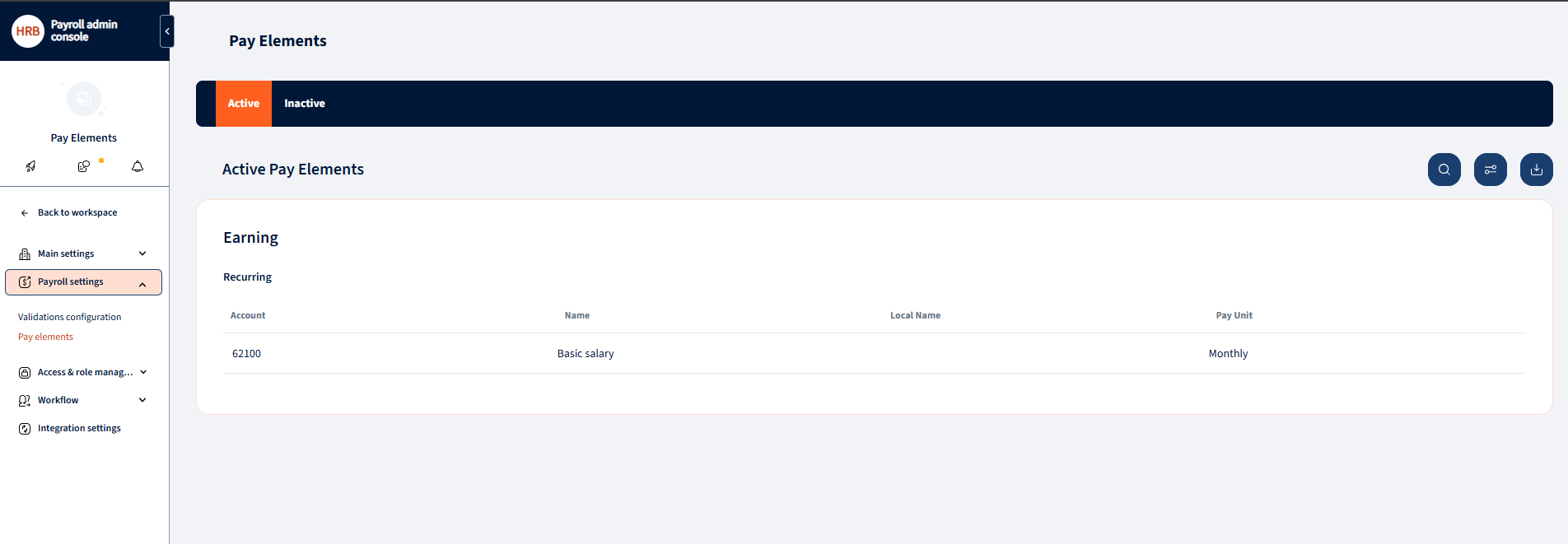
Viewing Pay Elements
List View
In the list view, users can:
- See all pay elements marked as Visible
- Identify the status (Active or Inactive)
- Search for pay elements using the search field
- Download the full list as an Excel file
Searching Pay Elements
- Use the Search field at the top of the list.
- The list filters dynamically based on the entered keyword.
Downloading Pay Elements
- Click Download to export the pay elements list.
- The file is downloaded in Excel format and includes both active and inactive pay elements.
Pay Element Details
Opening Pay Element Details
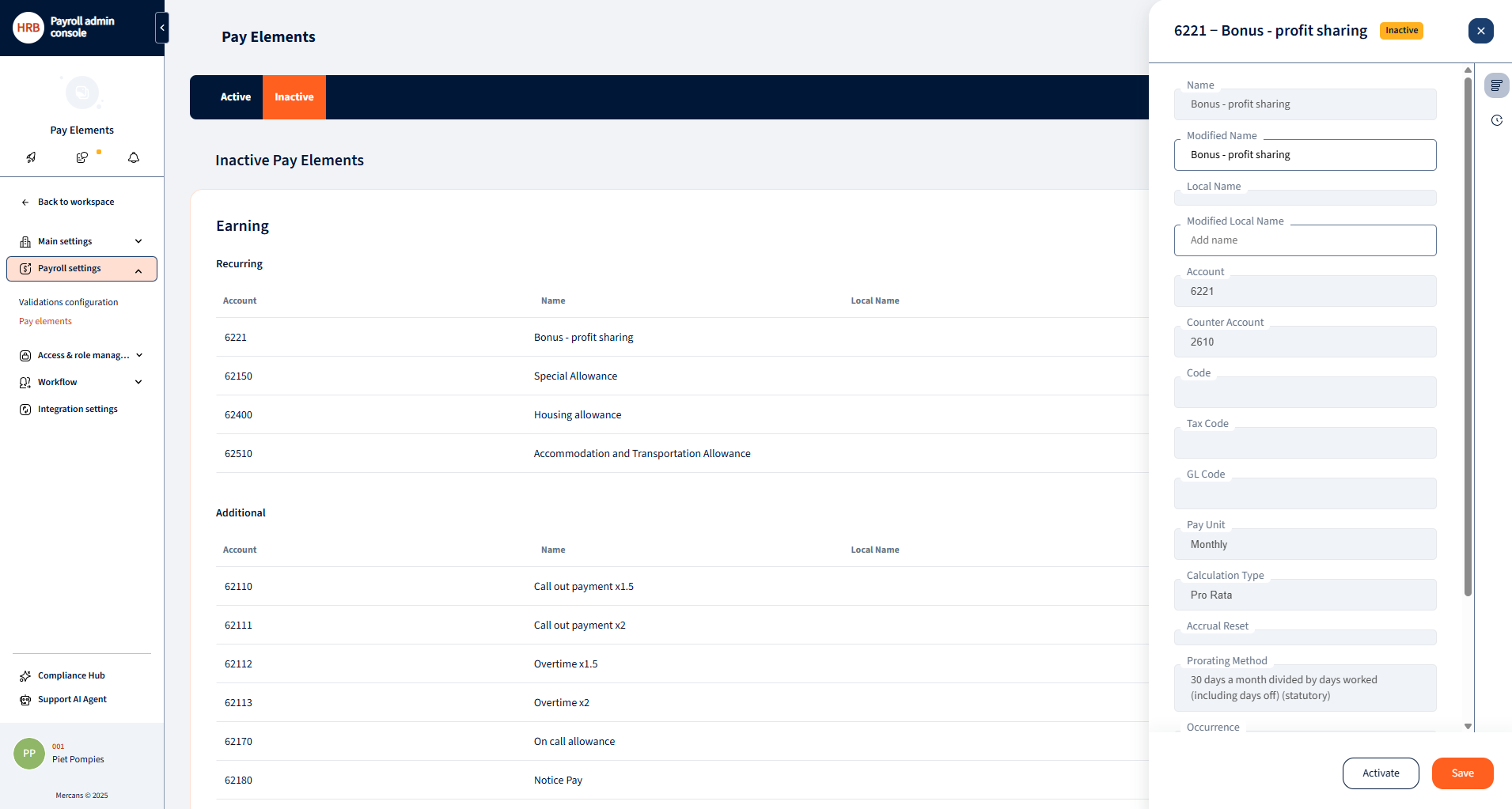
- Click on any Pay Element row to open the Pay Element Details pop-up.
Information Displayed
The Pay Element Details pop-up shows:
- Pay Element name
- Current status (Active/Inactive)
- Pay Element details
- Change logs (history of updates)
Editing Pay Elements
Renaming a Pay Element
- Click Rename in the Pay Element Details pop-up.
- Update the Pay Element title.
- Click Save to confirm the change.
Important restriction:
- Pay Elements that are already in use by at least one employee cannot be edited.

Activating and Deactivating Pay Elements
Activation
- Inactive pay elements can be activated from:
- The Inactive tab
- The Pay Element Details pop-up
- Click Activate to enable the pay element.
Deactivation
- Active pay elements can be deactivated from the Pay Element Details pop-up.
- Click Deactivate to disable the pay element.
Important restriction:
- Pay Elements that are in use by at least one employee cannot be deactivated.
Was this page helpful?
Thanks for your feedback.
Your response has been submitted — it helps us make these pages better.