
On this page0
The Currency screen holds the exchange rates payroll uses for your legal entity. You can add and change rates one at a time, import many rates at once from a CSV or Excel file, and export the current rates to a CSV file.
Where to find it
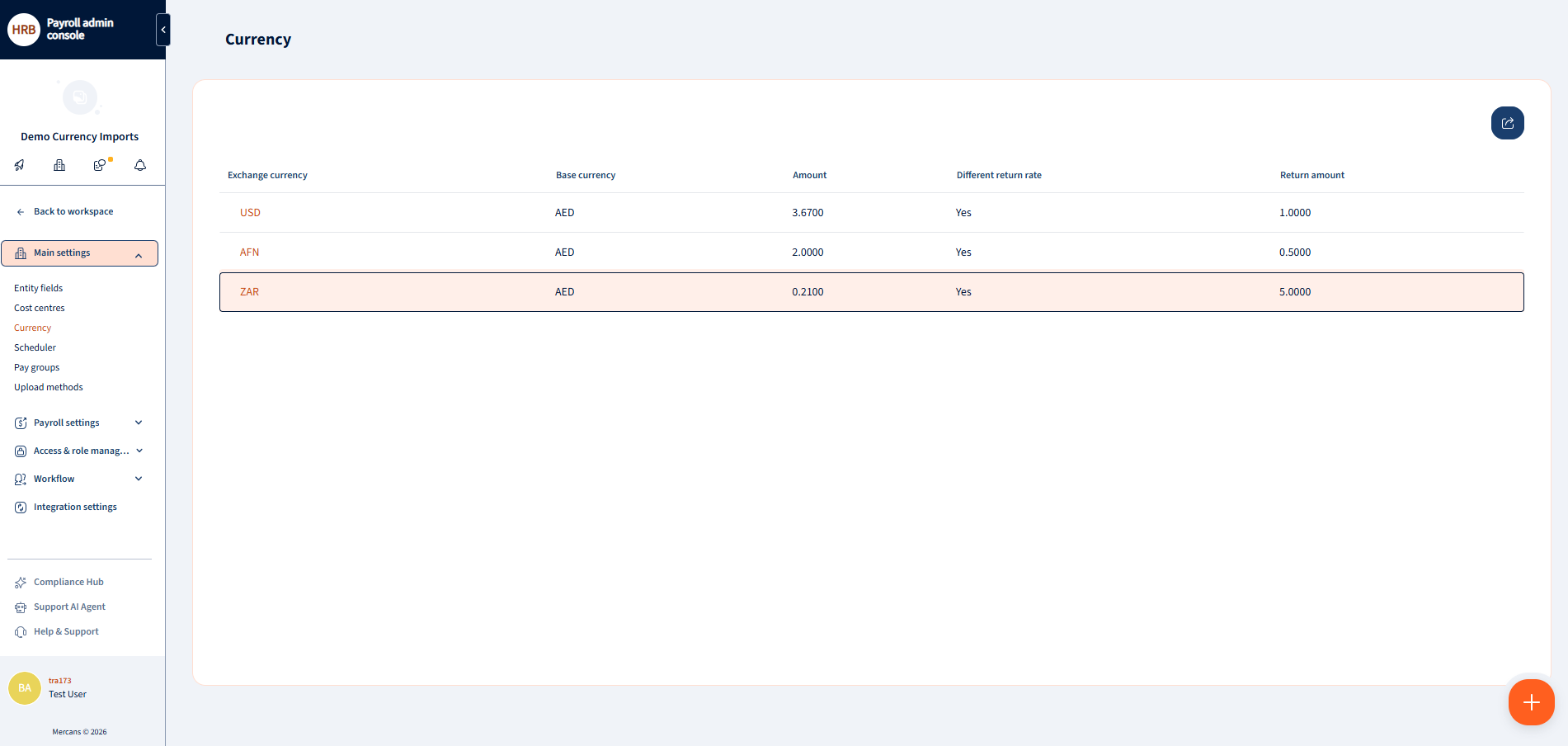
Go to Settings › Main settings › Currency. Your legal entity always has a base currency, and each row in the table is the exchange rate for one other currency:
| Column | What it shows |
|---|---|
| Exchange currency | The other currency, for example USD |
| Base currency | Your legal entity’s currency, for example AED |
| Amount | The exchange rate, for example 3.6700 |
| Different return rate | Yes when converting back uses its own rate |
| Return amount | The rate for the way back, when Different return rate is Yes |
Add a rate
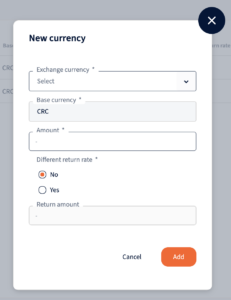
- Click the + button at the bottom right of the page and choose Add new.
- Pick the Exchange currency from the list. The Base currency is filled in for you.
- Enter the Amount.
- If converting back uses a different rate, set Different return rate to Yes and enter the Return amount.
- Click Save.
Change a rate
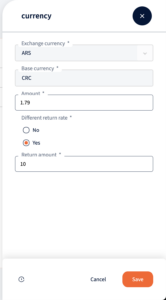
- Click the rate in the table. A panel opens on the right.
- Change the Amount, Different return rate or Return amount.
- Click Update, then confirm.
Rates can’t be deleted from this screen.
Important
All changes take effect immediately and can affect payroll.
The file template
The first row of the file is always the header From,To,Rate. Each row after it is one rate:
From,To,Rate
AED,USD,3.6700
AED,ZAR,0.2100
The file columns map to the screen like this:
| File column | Currency screen column |
|---|---|
From |
Base currency |
To |
Exchange currency |
Rate |
Amount |
So the row AED,USD,3.6700 is the rate with Exchange currency USD, Base currency AED and Amount 3.6700.
Keep to these rules:
- The header comes first, in this order:
From,To,Rate. Upper or lower case doesn’t matter. Any columns afterRateare ignored. - Use three-letter currency codes, such as
USDorEUR. - Rate must be a number greater than 0.
- List each currency pair only once in a file.
- Save the file as CSV or Excel (.xlsx). In Excel, only the first sheet is read, and formulas aren’t calculated, so type each rate as a plain number.
- Keep the file under 10 MB. Blank rows are ignored.
Import rates
- On the Currency screen, click the + button at the bottom right and choose Import.
- In the Upload file window, drop your file in, or click browse to pick it.
- Click Import.
- When the message Currency rates imported appears, the window closes and the table shows the new rates.
What the import does:
- A new currency pair is added, with Different return rate set to No.
- An existing pair gets the new Amount. Its Different return rate and Return amount stay as they are.
- Nothing is deleted. Rates that aren’t in the file stay unchanged.
Important
Imported rates take effect immediately and can affect payroll, just like a rate you change by hand. Unlike a manual change, the import doesn’t ask you to confirm, so check the file before you import it.
If the import is rejected
The whole file is checked before anything is saved. If any row has a problem, nothing is imported, the window stays open, and a red message names the first row to fix, for example Row 3: Rate must be greater than 0. Row 1 is the header, so your first rate is Row 2.
Fix that row and import the file again. Only the first problem is reported, so check the rest of the file before you retry. The messages are listed under Troubleshooting below.
Export rates
- On the Currency screen, click the Export button at the top right of the table.
- A file named
currency-rates.csvdownloads, with one row per rate in theFrom,To,Rateformat.
Export creates CSV files only. You can open the file in Excel, edit it, and import it again as CSV or .xlsx.
Tip
To change many rates at once, export first, edit the Rate column, then import the file. Rates you didn’t change stay the same, and no duplicates are created.
Rates in both directions
When a rate has Different return rate set to Yes, the export contains two rows for it: the usual one, and one with the currencies swapped that carries the Return amount. For example:
From,To,Rate
AED,USD,3.6800
USD,AED,0.2725
Importing this file again keeps both values.
Take care with swapped rows: importing a row with the currencies swapped turns Different return rate on for that pair and uses the row’s rate as the Return amount. Only include a swapped row when you want a separate return rate. To turn it off again, click the rate on the Currency screen, set Different return rate to No, click Update and confirm.
See what changed
Click a rate in the table, then click the clock icon on the right edge of the panel. Its history lists every change, including imported ones, with the name of the person who made it and the old and new value, for example Rate: 3.6800 → 3.6900.
Troubleshooting
Messages about the file’s content start with Data in file is not formatted correctly: or Can’t import file:, followed by the details below.
| What you see | What to do |
|---|---|
| Header must be exactly ‘From,To,Rate’, got ‘…’ | The header row is missing, renamed or in a different order. Make the first row From,To,Rate. |
| Row N: Rate must be greater than 0 | Change the rate on that row to a number above 0. |
| Row N: Target Currency rate (‘Rate’ column) can not be null | The rate on that row is empty, isn’t a number, or is an Excel formula. Type the rate as a plain number. |
| Row N: Target Currency rate ‘To’ column can not be the same as ‘From’ column | The row uses the same currency twice. Correct the codes. |
| Row N: Duplicate row for currency pair ‘…’ to ‘…’ | The pair appears more than once. Keep one row for it. |
| Row N: System level Currency rate from … to … does not exist. | The currency code is mistyped, or that pair isn’t available. Check the code. If it’s right, contact Mercans Support. |
| Incorrect file type. Supported types: CSV, XLSX | Save the file as .csv or .xlsx. |
| File must be a .csv or .xlsx file | Older Excel files (.xls) aren’t supported. Save the file as .xlsx or .csv. |
| Task execution errored. | The file is named .xlsx but isn’t a real Excel workbook. Open it in Excel and save it as .xlsx again. |
| Uploaded file exceeds the maximum allowed size, or a network error | The file is over 10 MB. Split it into smaller files. |
| Export shows a red message and nothing downloads | The legal entity has no rates yet, so there’s nothing to export. Known issue: the message currently reads Task completed successfully. |
Your response has been submitted — it helps us make these pages better.