
On this page0
Purpose
This SOP defines the end-to-end configuration and eligibility-maintenance tasks that HR Administrators must complete in the HR Blizz Payroll Admin Console (PAC) to operate the School Allowance benefit across all Middle East payroll entities.
Completing the steps in this document ensures that:
- Grade-level annual caps are correctly loaded per legal entity and country.
- Individual employees are marked as eligible on a per-child basis.
- Employees can successfully submit school fees reimbursement claims through Employee Self-Service (ESS).
- Approved claims are posted to the applicable wage type in the correct payroll cycle.
Scope
This SOP applies to the following countries and entities:
| Country | Currency | Eligible Grades |
|---|---|---|
| United Arab Emirates (UAE) | AED | SB07 – SB14, SB99 |
| Kingdom of Saudi Arabia (KSA) | SAR | SB07 – SB14, SB99 |
| Qatar | QAR | SB07 – SB14, SB99 |
| Sultanate of Oman | OMR | SB07 – SB14, SB99 |
| Arab Republic of Egypt | EGP | SB07 – SB14, SB99 |
| Republic of Lebanon | USD | SB07 – SB14, SB99 |
| Hashemite Kingdom of Jordan | JOD | SB07 – SB14, SB99 |
Roles and Responsibilities
| Role | Responsibility |
|---|---|
| HR Administrator (this SOP) | Configure grade-level rates in PAC; set per-child eligibility flags on employee records. |
| HR Approver | Approval of claims, maintain dependent records.. |
| Employee (ESS) | Submit reimbursement claims with supporting invoices; |
Configure School Allowance Rates
School allowance rates are set at the legal entity level in PAC. Each salary grade band carries an annual cap in the local currency. The system uses these caps to limit the amount an employee can claim per academic year.
This task must be completed before employees can be marked as eligible or submit claims.
Navigate to Entity Fields
| Navigation path: PAC › Settings › Main Settings › Entity Fields › School Allowance Rates |
| Log in to PAC
Open the Payroll Admin Console and select the correct legal entity for the country you are configuring. Confirm the entity name is displayed in the top-left navigation before proceeding. |
| Open Main Settings
From the left-hand navigation panel, expand Main Settings. |
| Select Entity Fields
Click Entity Fields. The screen will display three tabs: School Allowance Rates, Airfare Rates, and Company Details. |
| Select School Allowance Rates tab
Click the School Allowance Rates tab (highlighted in orange when active). You will see a list of fields each with a current value. |

Enter the Annual Cap per Grade
Enter the approved annual cap for each eligible grade row. Reference the authoritative cap values per country.
UAE — Annual School Allowance Caps (AED)
| Grade | Annual Cap (AED) | Notes |
|---|---|---|
| SB01 – SB06 | 0 | Not eligible |
| SB07 | 15,000 | Per academic year |
| SB08 | 48,000 | Per academic year |
| SB09 | 48,000 | Per academic year |
| SB10 | 58,000 | Per academic year |
| SB11 | 58,000 | Per academic year |
| SB12 | 65,000 | Per academic year |
| SB13 | 65,000 | Per academic year |
| SB14 | 65,000 | Per academic year |
| SB99 | 70,000 | Per academic year |
KSA — Annual School Allowance Caps (SAR)
| Grade | Annual Cap (SAR) | Notes |
|---|---|---|
| SB01 – SB06 | 0 | Not eligible |
| SB07 | 10,000 | Per academic year |
| SB08 | 44,000 | Per academic year |
| SB09 | 44,000 | Per academic year |
| SB10 | 50,000 | Per academic year |
| SB11 | 50,000 | Per academic year |
| SB12 | 55,000 | Per academic year |
| SB13 | 55,000 | Per academic year |
| SB14 | 55,000 | Per academic year |
| SB99 | 55,000 | Per academic year |
Qatar — Annual School Allowance Caps (QAR)
| Grade | Annual Cap (QAR) | Notes |
|---|---|---|
| SB01 – SB06 | 0 | Not eligible |
| SB07 | 10,000 | Per academic year |
| SB08 | 44,000 | Per academic year |
| SB09 | 44,000 | Per academic year |
| SB10 | 50,000 | Per academic year |
| SB11 | 50,000 | Per academic year |
| SB12 | 55,000 | Per academic year |
| SB13 | 55,000 | Per academic year |
| SB14 | 55,000 | Per academic year |
| SB99 | 55,000 | Per academic year |
Oman — Annual School Allowance Caps (OMR)
| Grade | Annual Cap (OMR) | Notes |
|---|---|---|
| SB01 – SB06 | 0 | Not eligible |
| SB07 | 1,047 | Per academic year |
| SB08 | 4,607 | Per academic year |
| SB09 – SB99 | 0 | Per academic year |
Egypt — Annual School Allowance Caps (EGP)
| Grade | Annual Cap (EGP) | Notes |
|---|---|---|
| SB01 – SB06 | 0 | Not eligible |
| SB07 | 42,448 | Gross; subject to income tax |
| SB08 | 193,420 | Gross; subject to income tax |
| SB09 | 193,420 | Gross; subject to income tax |
| SB10 | 255,893 | Gross; subject to income tax |
| SB11 | 255,893 | Gross; subject to income tax |
| SB12 – SB99 | 0 | Not eligible |
Lebanon — Annual School Allowance Caps (USD)
| Grade | Annual Cap (USD) | Notes |
|---|---|---|
| SB01 – SB06 | 0 | Not eligible |
| SB07 | 2,725 | Per academic year |
| SB08 | 11,989 | Per academic year |
| SB09 | 11,989 | Per academic year |
| SB10 – SB99 | 0 | Per academic year |
Jordan — Annual School Allowance Caps (JOD)
| Grade | Annual Cap (JOD) | Notes |
|---|---|---|
| SB01 – SB06 | 0 | Not eligible |
| SB07 | 1,929 | Per academic year |
| SB08 | 8,488 | Per academic year |
| SB09 – SB99 | 0 | Per academic year |
Save and Verify
- After entering all cap values for the entity, click Save (or the equivalent action button for your PAC version).
- Reload the School Allowance Rates screen and confirm the saved values match the approved rate card.
- Repeat the process for each legal entity in scope. Each entity must be configured independently.
Set Per-Child Eligibility Flags on Employee Records
The system controls which children of an employee are eligible for school allowance using per-child eligibility flags on the employee’s profile. The flags must be set to Yes for each eligible child before the employee can submit a claim for that child.
The system supports up to three children per employee under this configuration. Each flag is independent — a child can be eligible while another child on the same record is not.
Navigate to the Employee Record
| Navigation path: PAC › Employees › [Select Employee] › Client Specific tab |
| Search for the employee
From the PAC left-hand navigation, click Employees. Use the search function to locate the employee record by name or employee ID. |
| Open the employee profile
Click the employee’s name to open their full profile. |
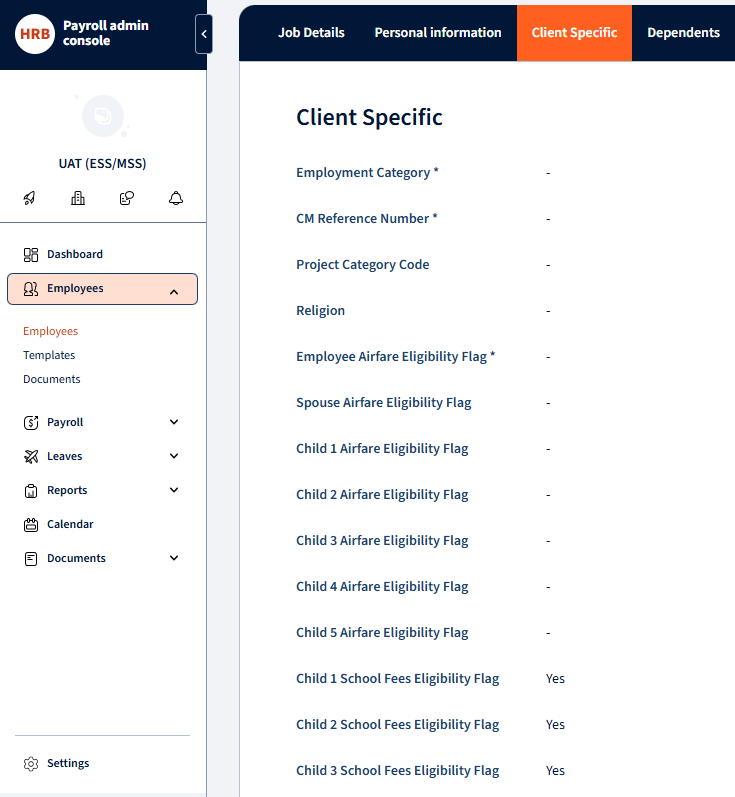
| Navigate to the Client Specific tab
Along the top tab bar, select Client Specific. This tab contains Client-specific configuration fields including employment category, airfare eligibility, and school fees eligibility flags. |
| Locate the School Fees Eligibility Flags
Scroll down to the School Fees section. You will see three flags: Child 1 School Fees Eligibility Flag, Child 2 School Fees Eligibility Flag, Child 3 School Fees Eligibility Flag. |
| Set flags to Yes
For each child who is eligible, change the flag value from the default (empty / No) to Yes. Only set flags for children who are genuinely entitled based on the employee’s grade and Company’s policy. Do not set flags for children who are not school-age or are otherwise ineligible. |
| Save the record
Click Save. The change takes effect immediately. The employee will now see school fees entitlement for the flagged children when they log in to ESS. |
Post-Configuration Verification
After completing, perform the following checks before notifying employees that the benefit is available.
| Check | How to verify | Expected outcome |
|---|---|---|
| Rates saved correctly | Reload Entity Fields › School Allowance Rates and compare each grade value against the approved rate card. | All eligible grades show the correct local-currency cap; SB01–SB06 show 0. |
| Employee entitlement visible in ESS | Log in as a an employee and navigate to Benefits › School Fees. | Entitlement is displayed per eligible child, matching the employee’s grade cap. |
| Grade cap enforced on claim submission | Submit a test claim above the grade cap in ESS. | System blocks the submission or caps the claimable amount at the grade limit. |
| Ineligible employee sees no entitlement | Check an employee at Grade H or SB01–SB06. | No school fees option is presented in ESS for that employee. |
| Claim routes through approval workflow | Submit a valid test claim and confirm it appears in the Line Manager’s approval queue. | Claim status changes to Pending Approval; manager receives notification. |
Annual Rate Review
Total Rewards publishes updated school allowance caps at the start of each academic year (typically August–September). When updated caps are received:
- Obtain the revised rate card from Total Rewards.
- Navigate to Entity Fields › School Allowance Rates for each affected entity.
- Update each grade row with the new cap value.
- Save and verify.
- Notify employees of any changes to their entitlement.
New Hires
When a new employee joins at an eligible grade and has school-age children, set the appropriate Child School Fees Eligibility Flags within the standard onboarding process. Do not wait for the employee to request the benefit.
Grade Changes
When an employee’s salary grade changes, their school allowance entitlement updates automatically from the effective date of the grade change. No manual rate adjustment is required. However, if the grade change moves the employee from an eligible grade (SB07+) to an ineligible grade (SB01–SB06 or H), remove the eligibility flags accordingly.
Employee Departures
When an employee leaves the organisation, ensure any pending school fees claims are resolved (approved, rejected, or withdrawn) before the employee’s record is terminated. Unpaid approved claims will be included in the final payroll cycle.
Troubleshooting
| Issue | Likely cause | Action |
|---|---|---|
| Employee cannot see School Fees option in ESS | Eligibility flag not set, or grade is not eligible. | Verify the employee’s grade (SB07+) and confirm at least one Child School Fees Eligibility Flag is set to Yes in the Client Specific tab. |
| Employee sees entitlement of 0 | Rates not configured for the entity, or grade row is set to 0. | Navigate to Entity Fields › School Allowance Rates and confirm the correct cap is entered for the employee’s grade. |
| Claim is blocked when amount is below the grade cap | Dependent is not captured, or the child’s eligibility flag is No. | Check the dependents record in ESS and confirm the child is captured. Confirm the eligibility flag in the Client Specific tab. |
| Claim does not appear in manager’s approval queue | Approval workflow not configured for the entity. | Raise with Mercans to confirm the workflow routing for the employee’s entity and pay group. |
| School fees amount does not appear on payslip after approval | Payroll cycle has already closed for the period, or claim was approved after the payroll cut-off. | Confirm the approval timestamp relative to the payroll run date. The amount will post in the next cycle. |
Your response has been submitted — it helps us make these pages better.