
On this page0
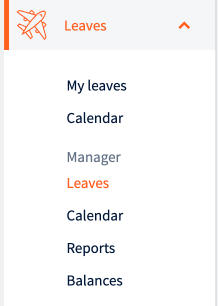
Line managers can view all requests submitted to them from the Leave module under Manager -> Leaves. They can also view teams’ leave calendars, generate leave reports and view team members’ balances.
Approving requests
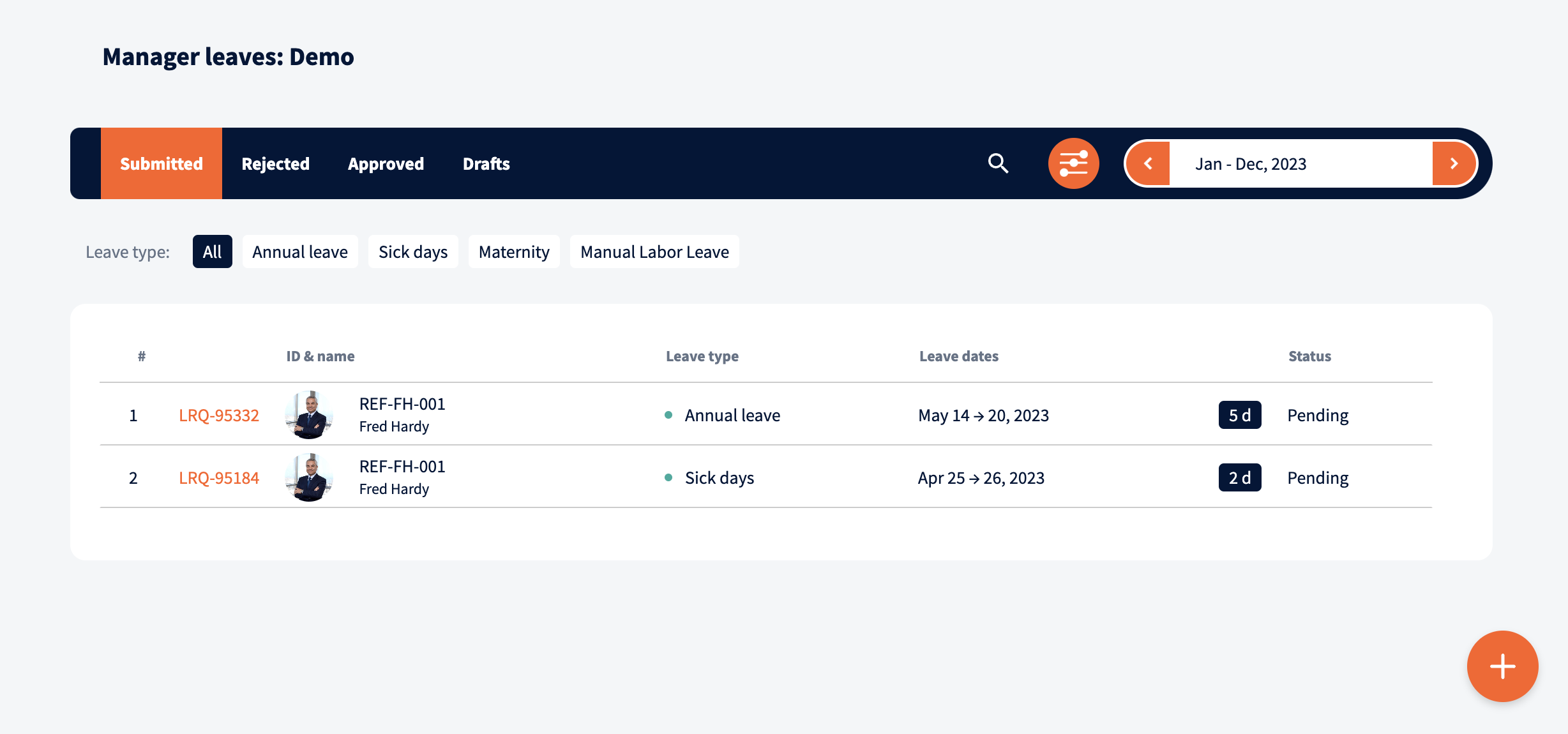
Requests are categorized by their status – submitted, rejected, approved and draft. Requests can be searched by employee name, and filtered by request type and time of submission.
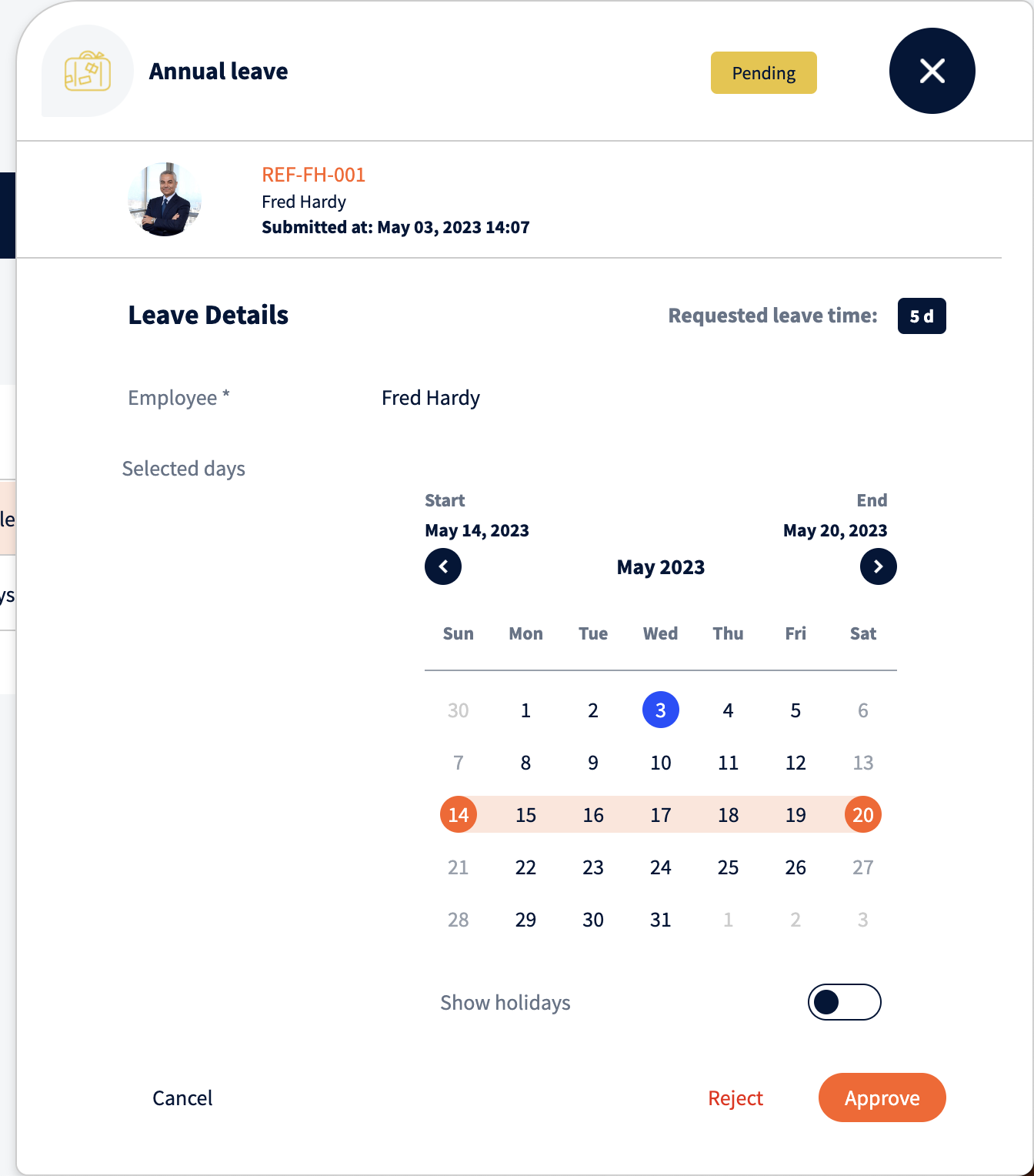
To view the details of a leave and perform actions on it, click on the request to open it. From the details view, managers can approve or reject the request.
Forwarding a request to a colleague
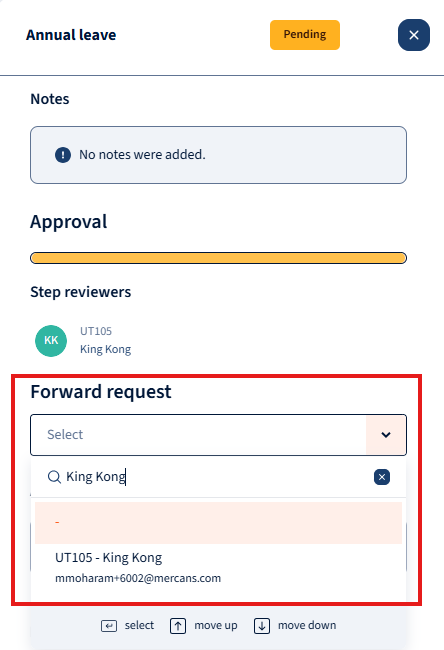
Managers can also forward a request to a different manager should they have the need for someone else to approve a specific request. (Cases like these are often when a request was made prior to a change in the employee’s manager and these requests now need to be approved by the new manager)
Requesting leave on behalf
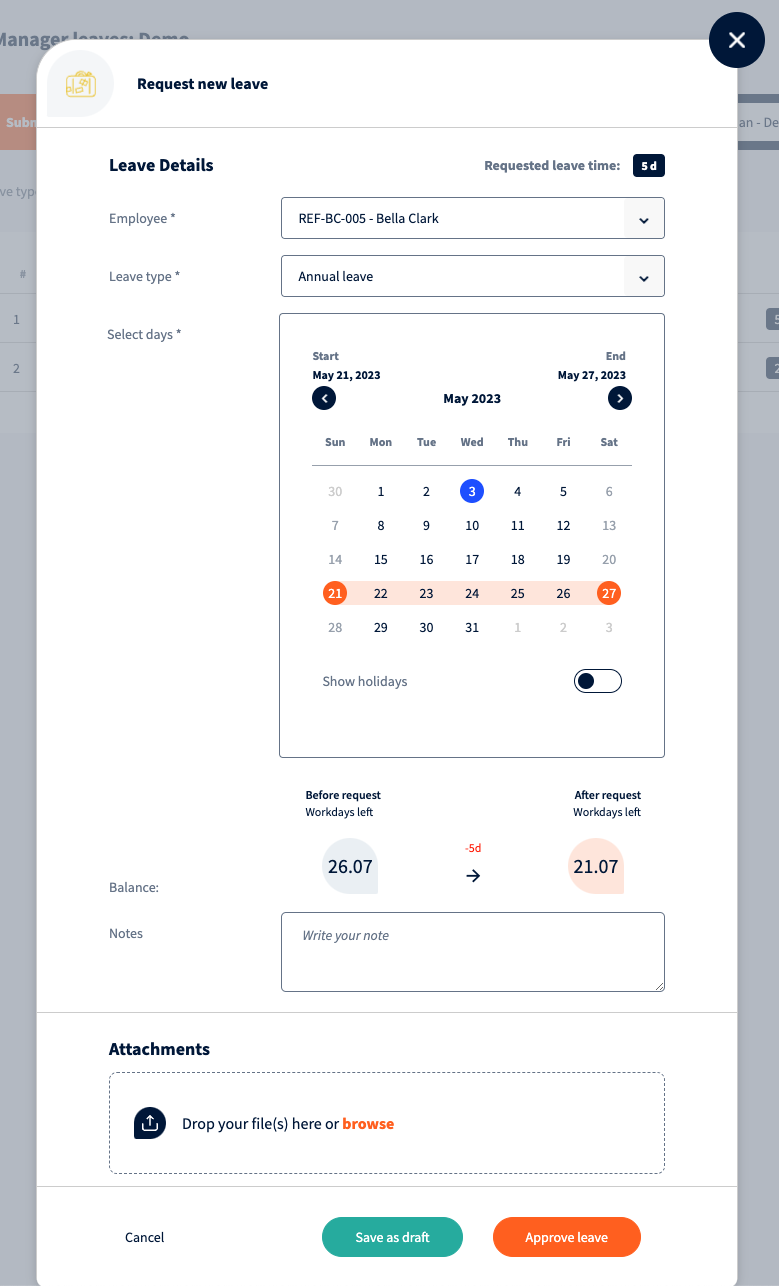
Managers can also request leaves on behalf of their subordinates by clicking on the “Add” button on the bottom right corner.
From the request modal, select the employee to make the request on behalf of. Then choose the Leave type and select the leave dates. Depending on the leave, you may also need to specify the hours or if the leave is partial day. The module will display the leave balance change or display the amount of days that are counted as leave. If necessary, you can write a note or attach a file, which may be required in certain cases. Request can be saved as draft or approved.
Team calendar
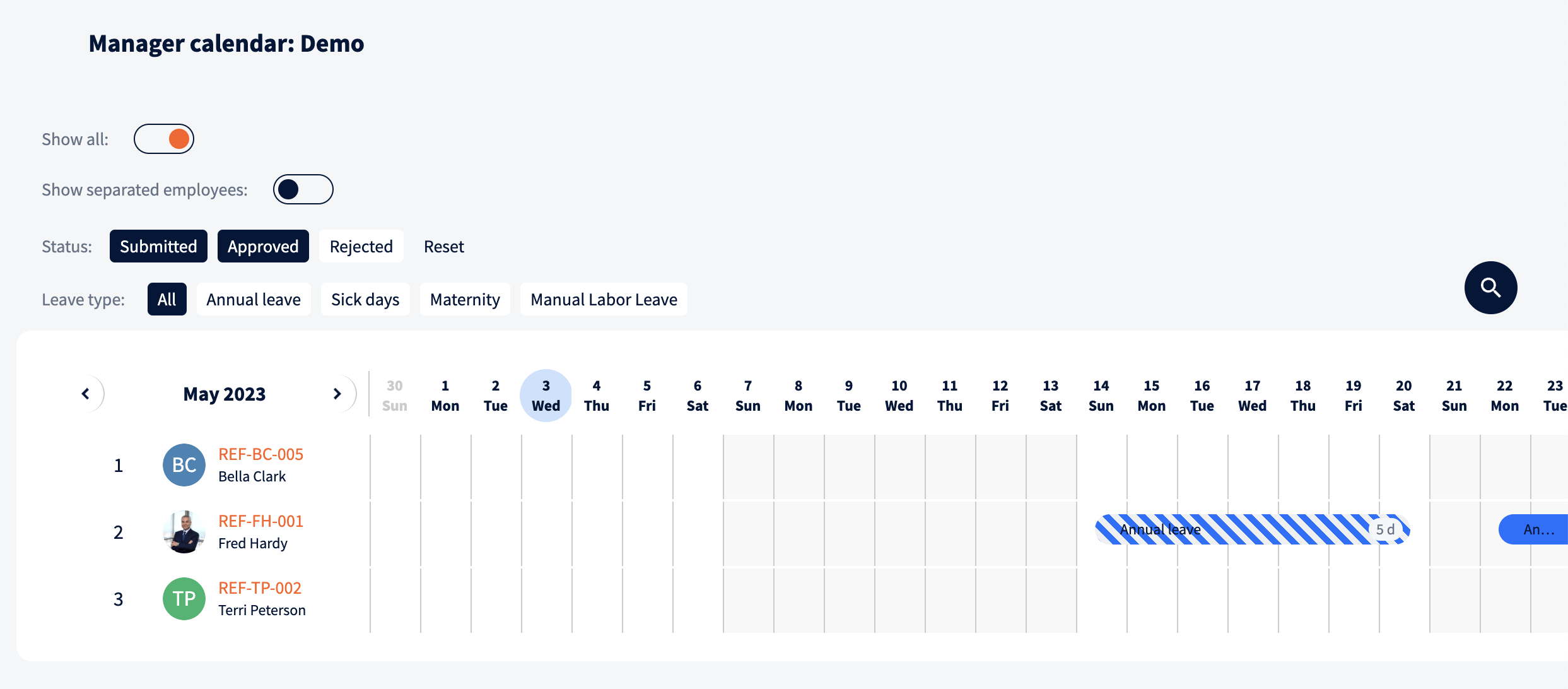
Team calendar view displays team member leaves. Leaves can be filtered by employment status, leave status and leave type.
Leave reports
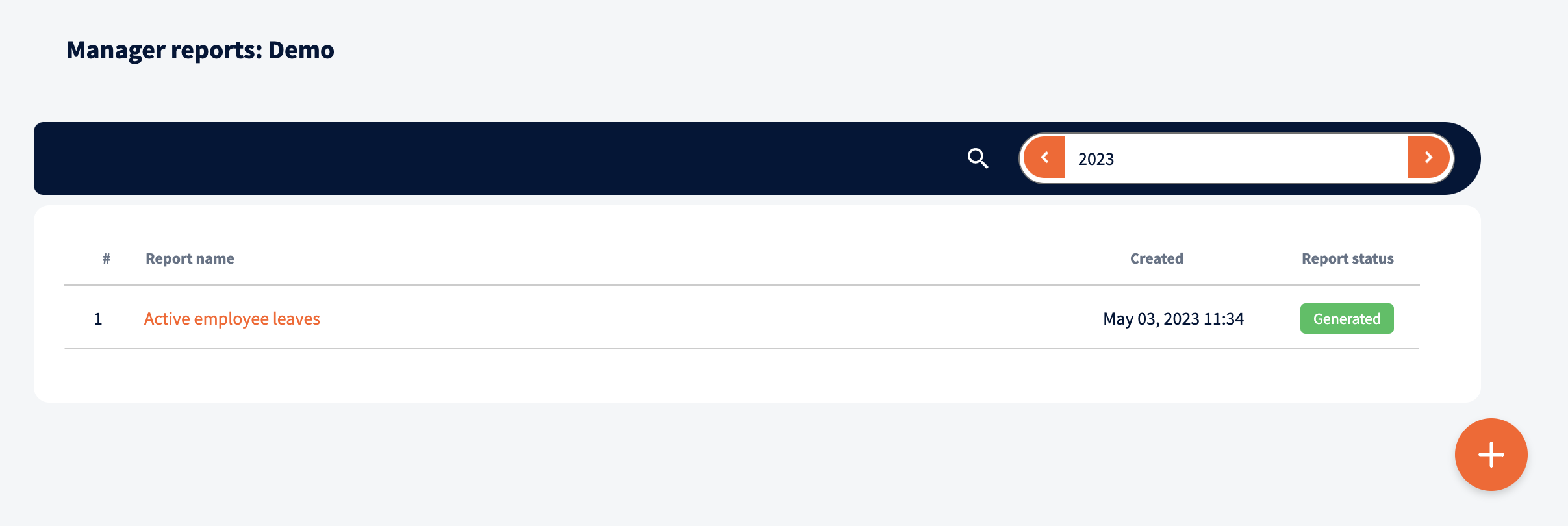
From leave reports it is possible to create reports with detailed leave information.
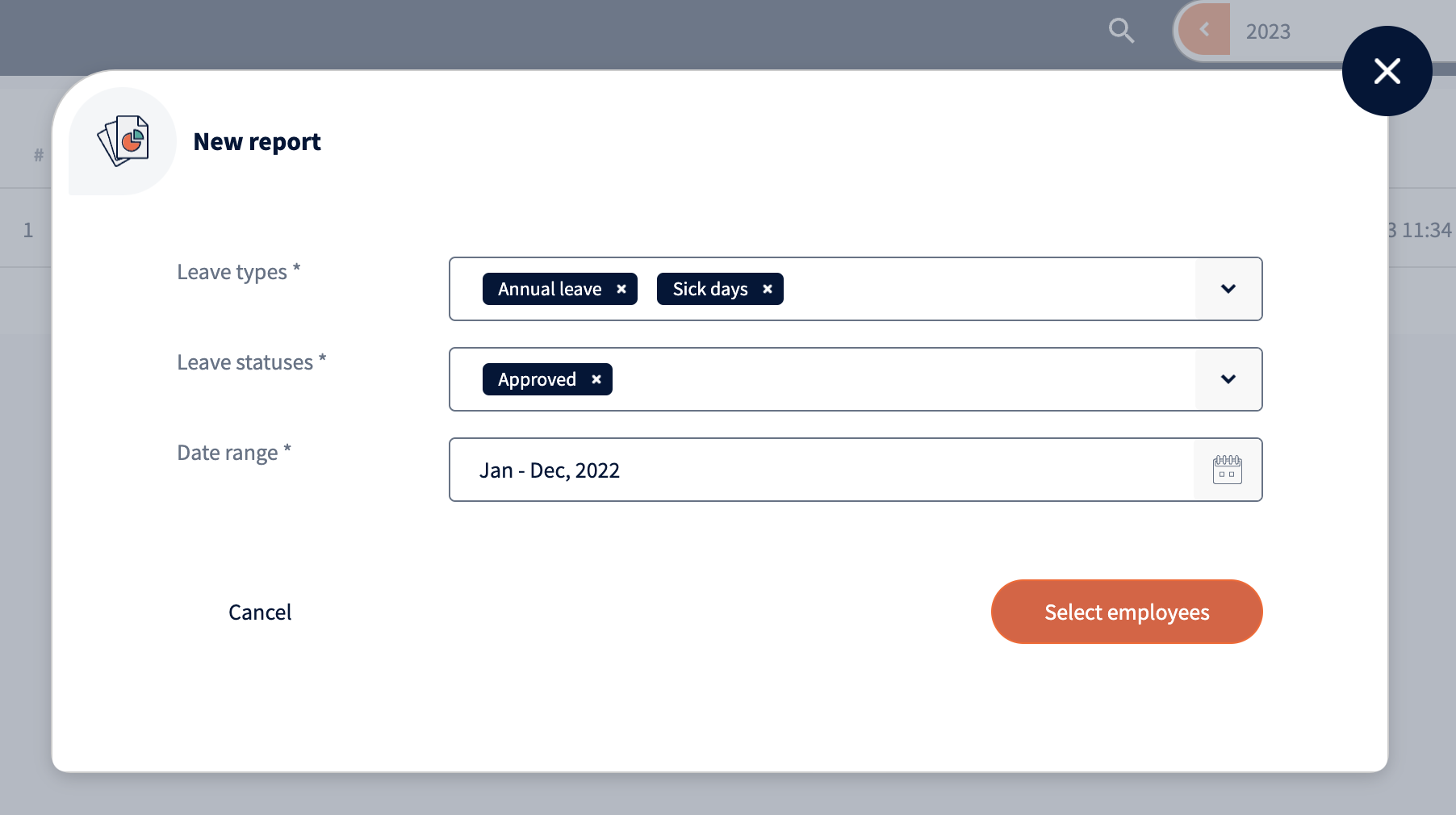
To create a new report, click on the “Add” button on the bottom right corner. From the report modal select leave types, statuses and date range you want to include in the report.
Next select the employees. Employees can be selected one by one or added by bulk.
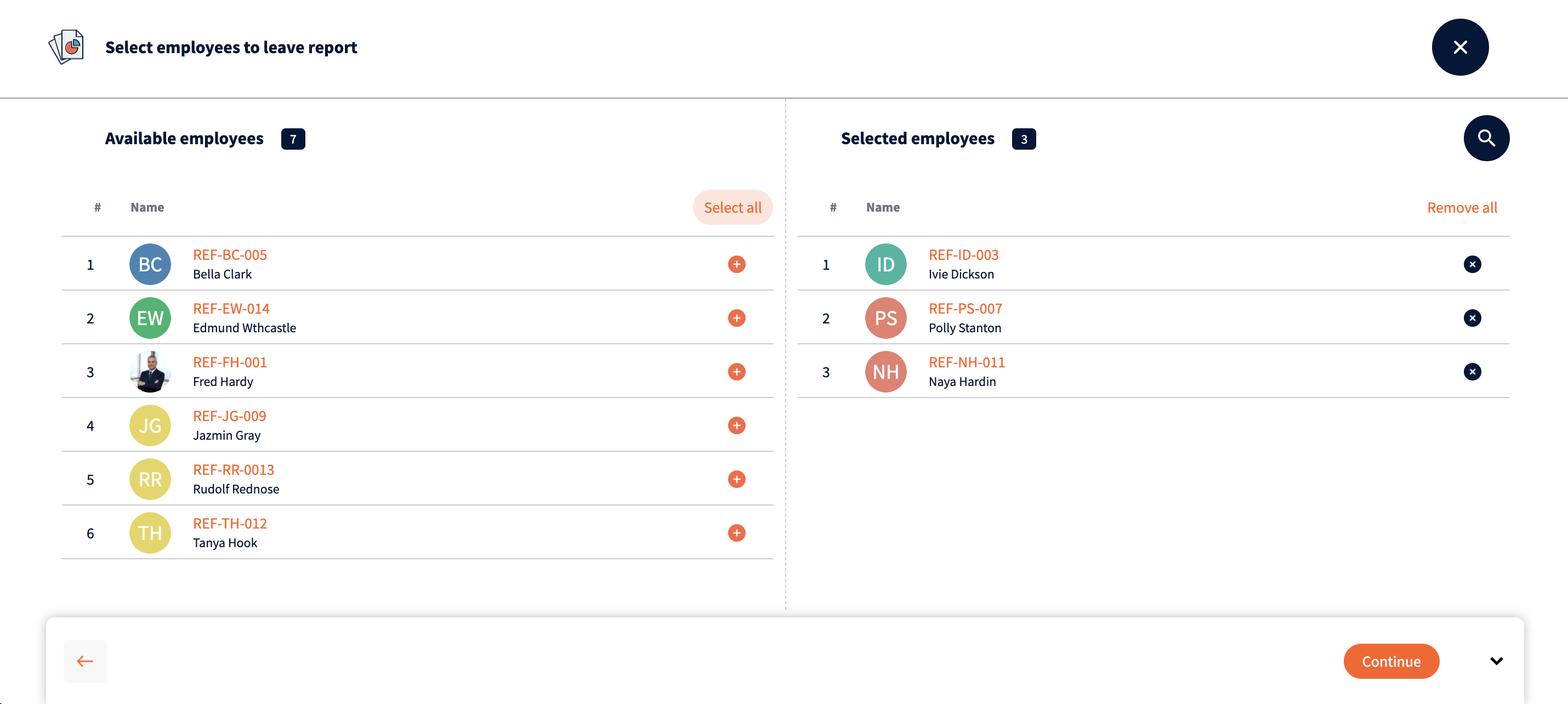
Once the leave is generated, it can be viewed and downloaded.
Leave balances
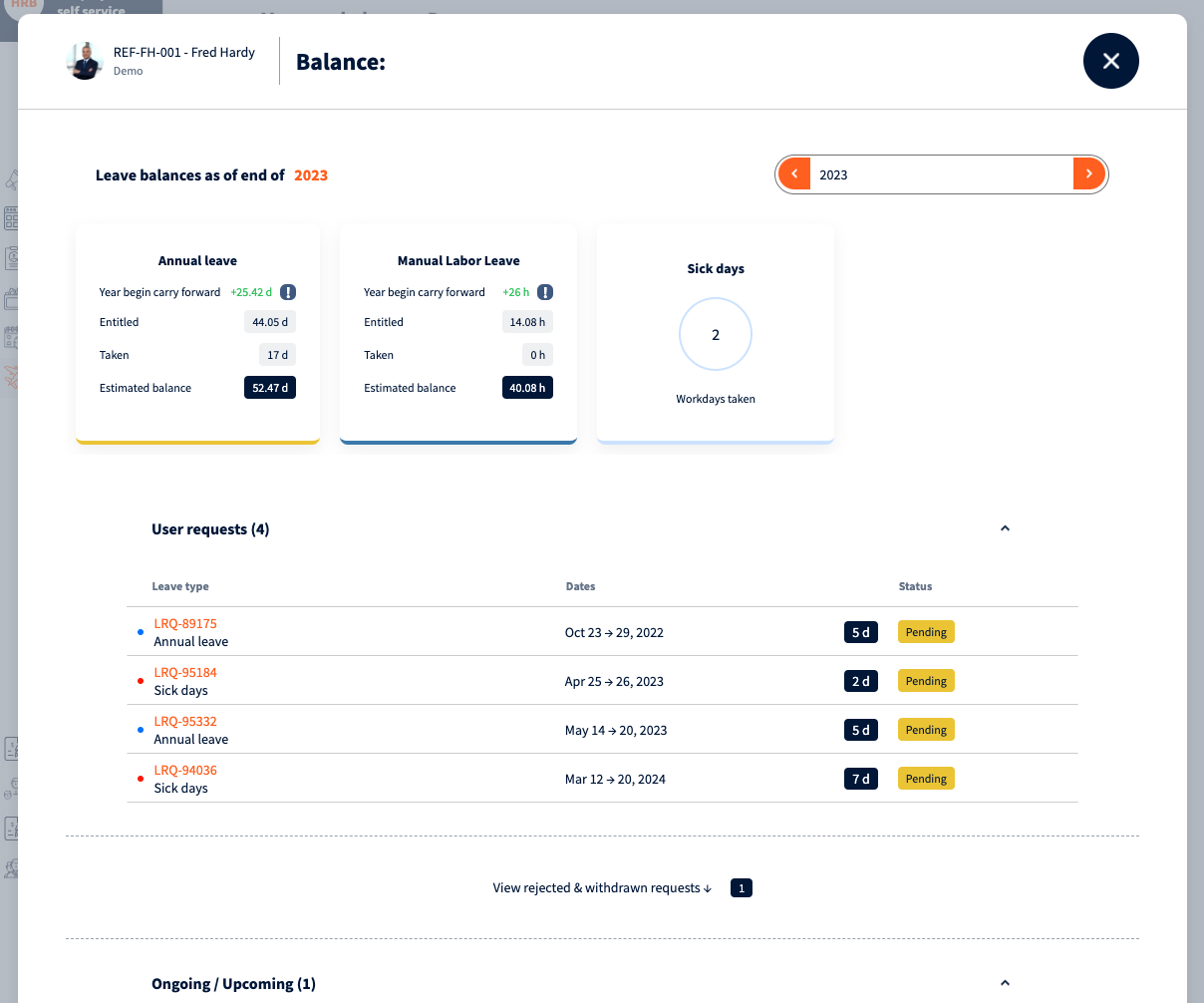
From the Balances view, managers can see their teams leave balances and leave statuses. This view mirrors the view employees can see themselves in the My Leaves view.
Your response has been submitted — it helps us make these pages better.