
On this page0
In this module, you can manage employees’ roles at PAC functionality.
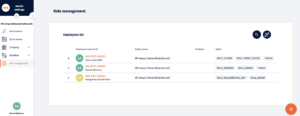
View shows list of Employees who has roles at current Legal Entity (Employee could be at current Legal Entity or at Consolidation group for current Legal Entity).
Click on the row with Employee you can see all Roles with active dates for this Employee
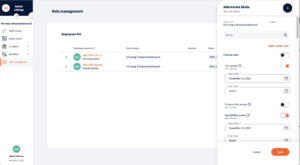
Search Employee
You can search Employee by name or reference id at the Search field

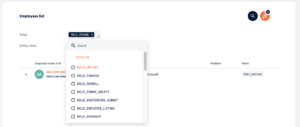
Filtering
You can filter list of Employees by:
- Legal Entity at Consolidation group
- Role or group of Roles
Add role to a new Employee
For adding a Role to a new Employee:
- push Add button –

- System will show dialog for search an Employee
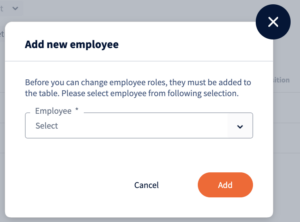
You can scroll list or search Employee by name or Reference number
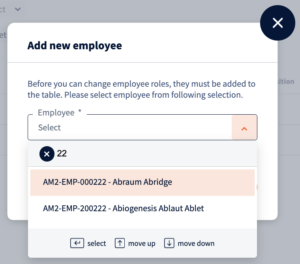
Choose Employee and push Add button - System will show popup view with chosen Employee and Roles for him
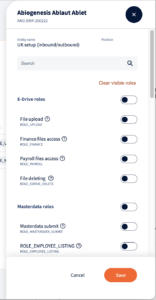
- To select needed role switch toggle near Role name
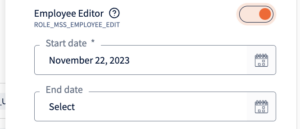
System will add Start date automatically as a current date
If End date required – please choose needed date at the End date field - After push Save button Roles will be given to Employee and Employee will appear at main Role manage view
Edit Roles on Employee
- Click on Employee row at main Role management view
- System shows popup view with roles on selected Employee
- Switch toggle on active Roles thats need to be revoked
- Push Save button
- System will show approve dialog
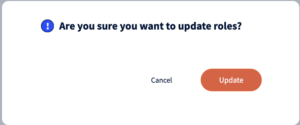
- Push Update button
- System will put yesterday date as End for this Role for Employee, Role became inactive
Exporting role data
You can export the Role Management view to an Excel (XLSX) file to audit, share, or review the complete role matrix for your users — without leaving HRBlizz.
To export, click the Export button in the top-right corner of the Role Management page, next to the Search and Filter buttons. Hovering over it shows the tooltip “Export all.”
The export respects whatever is currently on screen:
- If you have filters (such as Roles or Entity name) or a search applied, the file contains only the employees that match your current view.
- If no filter is applied, the file contains the full role matrix for all users in the current Legal Entity, including users from other entities in the consolidation group who have access to this entity.
The exported file is formatted as a role matrix. The first columns identify each employee (including reference ID and name), followed by a column for every role, each marked Yes or No to show whether that role is assigned. This layout makes it easy to review role coverage across users at a glance.
The file downloads automatically once it has been generated. The filename includes the entity name and a timestamp, making exports easy to trace for audit purposes.
If no employees match your current filter, you will receive an error with the message: “No records match the current filter. The exported file contains no records.”
The Export button is only visible to users with the required access permissions. Every export is recorded in the system Audit Trail, including who performed it, when, and which entity or consolidation group was in scope.

Your response has been submitted — it helps us make these pages better.