
On this page0
Instead of switching between four separate admin screens to check on employee requests, Workflow Requests brings Leave, Benefits & Expenses, Timesheet, and Documents activity into one place — filterable, searchable, and exportable to a spreadsheet whenever you need a record.
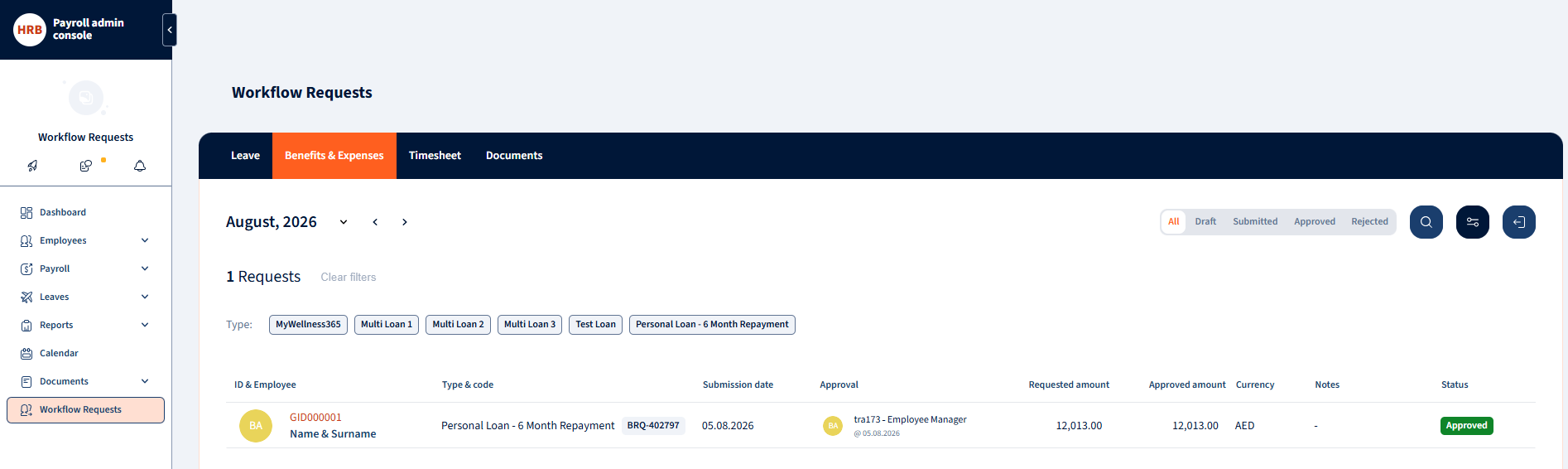
What You’ll Be Able to Do
- See every employee’s Leave, Benefits & Expenses, Timesheet, and Documents activity for a period without leaving one screen.
- Filter by status, type, and search by employee, so you can find exactly what you’re looking for in seconds.
- Export any tab to a spreadsheet, with the same filters you’re currently viewing applied.
- Know at a glance who’s been approved, who’s pending, and who’s still outstanding — without opening four different modules.
1. Overview
1.1 What Is Workflow Requests?
Workflow Requests is a single screen in the Payroll Admin Console (PAC) that shows employee request activity across four modules, organized as tabs:
- Leave
- Benefits & Expenses (including Loan/Advance requests)
- Timesheet
- Documents
It’s a view-only screen — you can monitor and export from here, but you won’t approve, reject, or edit anything on this screen itself. Those actions still happen in each module’s own approval flow.
1.2 Why a Single Screen?
Previously, checking on requests meant visiting Leave, Benefits, Timesheet, and Documents separately, each with its own filters and layout. Workflow Requests puts them side by side with a consistent way to filter, search, and export — useful for a quick status check, a monthly review, or pulling records for an audit.
1.3 Who This Guide Is For
| Role | What You Can Do |
|---|---|
| Requests Admin | View and export all four tabs, scoped to your assigned legal entity/country |
| Manager | View and export all four tabs, scoped to your assigned legal entity/country |
| Viewer | View all four tabs, scoped to your assigned legal entity/country — export is not available |
2. Getting Started
2.1 Before You Start
Don’t see “Workflow Requests” in your PAC sidebar? This feature needs to be switched on for your account first. Contact your account manager or support to have it enabled — it isn’t visible until it is.
If it’s enabled but you still don’t see it, check that your user role is one of the three listed in section 1.3 — anyone without one of those roles won’t see the menu item at all.
2.2 Navigating to the Feature
Go to the PAC sidebar and click Workflow Requests (a direct item, near the bottom of the menu, next to Documents and Settings). The screen opens on the Leave tab by default, showing the current month.
2.3 The Four Tabs at a Glance
| Tab | Shows | Statuses |
|---|---|---|
| Leave | Vacation, Sick, and other leave requests | All, Draft, Submitted, Approved, Rejected |
| Benefits & Expenses | Loan/Advance and other benefit or expense requests | All, Draft, Submitted, Approved, Rejected |
| Timesheet | Submitted timesheets and their approval status | All, Open, Submitted, Approved, Rejected |
| Documents | Documents routed for signature/acknowledgement | All, In progress, Completed, Rejected |
Each tab remembers its own filters and period independently — switching tabs takes you back to the current month on the tab you land on.
3. Filtering, Searching, and Reading the List
3.1 Choosing a Period
Every tab has a period selector at the top, defaulting to the current month. Use the arrows on either side to move to the previous or next month.
3.2 Filtering by Status
Each tab shows status options as a row of buttons, with All selected by default. Click any status to narrow the list to just that status — the options are always shown, even if nothing currently matches.
3.3 More Filters (Type / Initiator)
Click the filter icon (the sliders icon, next to the search icon) to reveal:
- Leave: a Type filter — a searchable, multi-select list of your configured leave types, with a “Select all” option.
- Documents: an Initiator filter, to narrow by who started the document.
- Benefits & Expenses: Filters by status and type.
- Timesheets: Filters by Project.
This is also where you’ll find the employee count and a Clear filters link to reset everything back to the default view.
3.4 Searching
Click the search icon to open a text box. You can search by Employee ID, Employee Name, or the tab’s own type field (e.g. leave type). Results update automatically a couple of seconds after you stop typing.
3.5 Clearing Filters
Click Clear filters (behind the filter icon, next to the count) to reset the status, type/initiator, and search filters back to their defaults in one click. This doesn’t reset the period — use the period selector for that.
4. Understanding Each Tab
4.1 Leave
Columns: ID & Employee, Type & Code, Submission Date, Start & End Date (with the number of days shown alongside it), Approval, Notes, Status.
Why is the Approval column sometimes blank? If a Leave request was approved directly by an Admin rather than through a manager’s approval step, there’s no manager to show in the Approval column — this is expected, not an error.
4.2 Benefits & Expenses
Columns: ID & Employee, Type & Code, Submission Date, Approval, Requested Amount, Approved Amount, Currency, Notes, Status. This tab includes Loan/Advance requests alongside general expense claims.
4.3 Timesheet
Columns: ID & Employee, Type & Code, Period, Submission Date, Total Hours, Projects, Approval, Status.
4.4 Documents
Columns: ID & Employee, Type & Code, Document Name, Submission Date, Initiator, Approval, Signed, Reject Reason, Status.
5. Exporting to a Spreadsheet
5.1 How to Export
Click the export icon (the rightmost icon in the top-right corner of any tab). You’ll see a confirmation that your file is being prepared, and it will download automatically once it’s ready.
5.2 What Gets Exported
The export always matches what’s currently on screen:
- No filters applied? The export includes every request currently shown for that period.
- Filters applied (status, type, or search)? Only the filtered rows are included.
Each export includes a header noting the period, who generated it, and any filters that were applied.
The export button is only active when there’s at least one matching row. If a period or filter combination has no results, the icon will be greyed out — this is expected, not a fault.
5.3 Who Can Export
Requests Admins and Managers can export. Viewers can see all four tabs but do not have access to the export action.
6. Frequently Asked Questions
Can I approve or reject a request from Workflow Requests?
No — this screen is view-only. Use each module’s own approval flow (Leave, Benefits, Timesheet, or Documents) to take action on a request.
Why did my period reset when I switched tabs?
Each tab keeps its own period independently. Switching tabs always opens on the current month for that tab, even if you’d navigated to a different month on the previous tab.
Why don’t I see a Type filter on the Timesheet or Documents tab the way I do on Leave?
Those tabs use a different, simpler filter set for now — status (and Initiator, on Documents) is what’s currently available.
I searched for an employee and got no results — is search broken?
Give it a couple of seconds after you stop typing; results update shortly after. If it still shows nothing, double-check you’re on the right tab and period — search only looks within the currently selected tab.
Your response has been submitted — it helps us make these pages better.