
On this page0
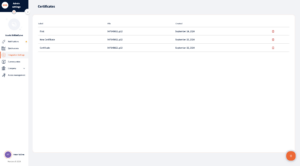
In order to view all of the configured certificates in PAC go: Integration Settings
List of currently uploaded certificate will appear
UPLOAD CERTIFICATE
Click on  button in the bottom right corner of the page to add new certificates.
In order to add new certificate it is required to
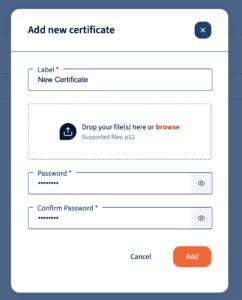
- Add label of Certificate
- Drop or browse the Certificate file to the platform. Supported format: .p12
- Password of the uploaded certificate
- Confirmation of the password
- Once “Add” clicked you can see uploaded certificates in the list
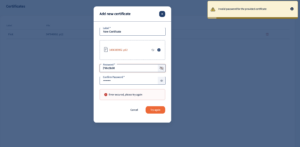
ERROR
Once the certificate password does not fit to the uploaded file, you get an error message. System asks you to review the entered details and reload again. If you uploaded the wrong file, you can reload the needed file for the certificate. You see ‘Invalid password for the provided certificate.’
DELETE CERTIFICATES
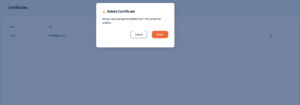
Click on trash bin button in the end of the certificate row in order to delete the configured certificate
Was this page helpful?
Thanks for your feedback.
Your response has been submitted — it helps us make these pages better.