
On this page0
This module allows you to manage employees’ access to Employee Self Service (ESS) and restricted modules.
ESS Access
To manage ESS access, go to the Access Management page in the Admin Settings menu.
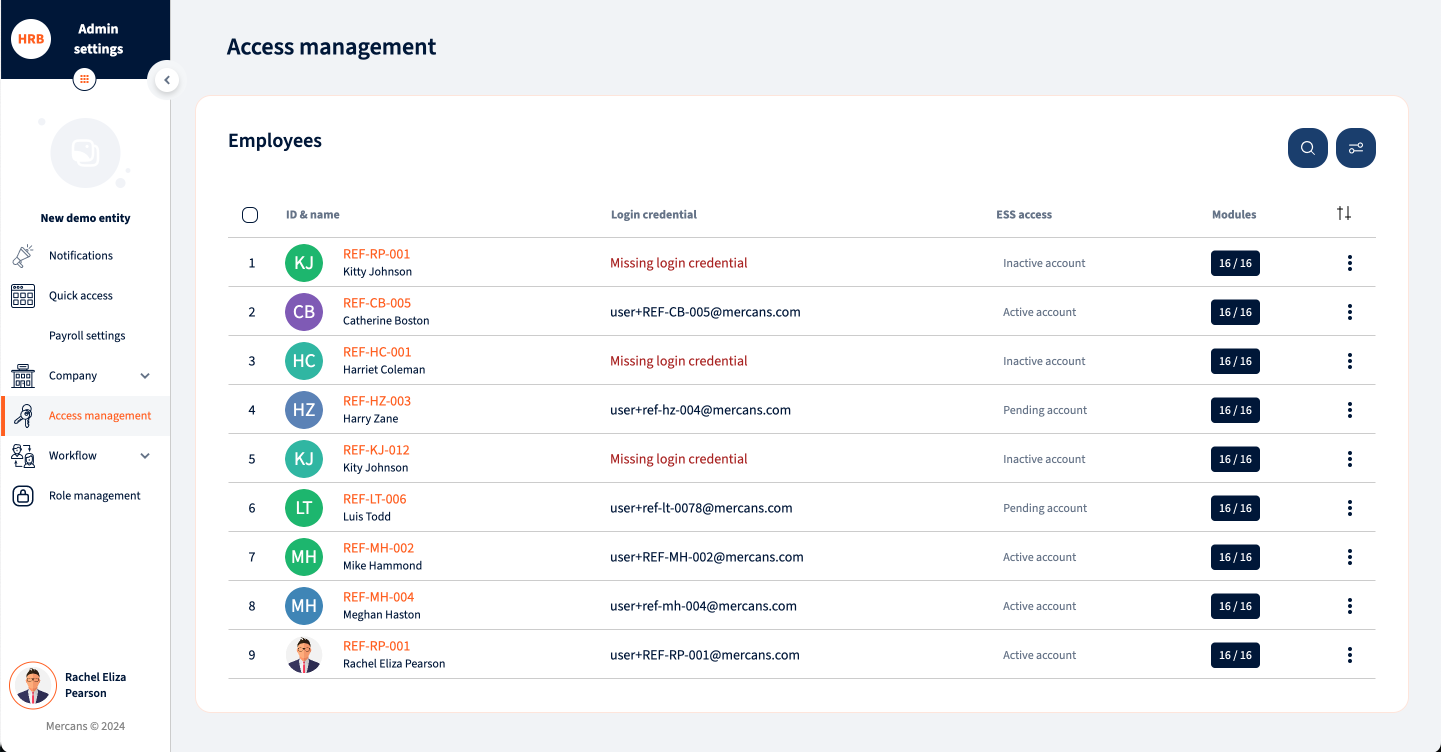
You can filter employees by various attributes by clicking the filter button in the top right corner of the page.
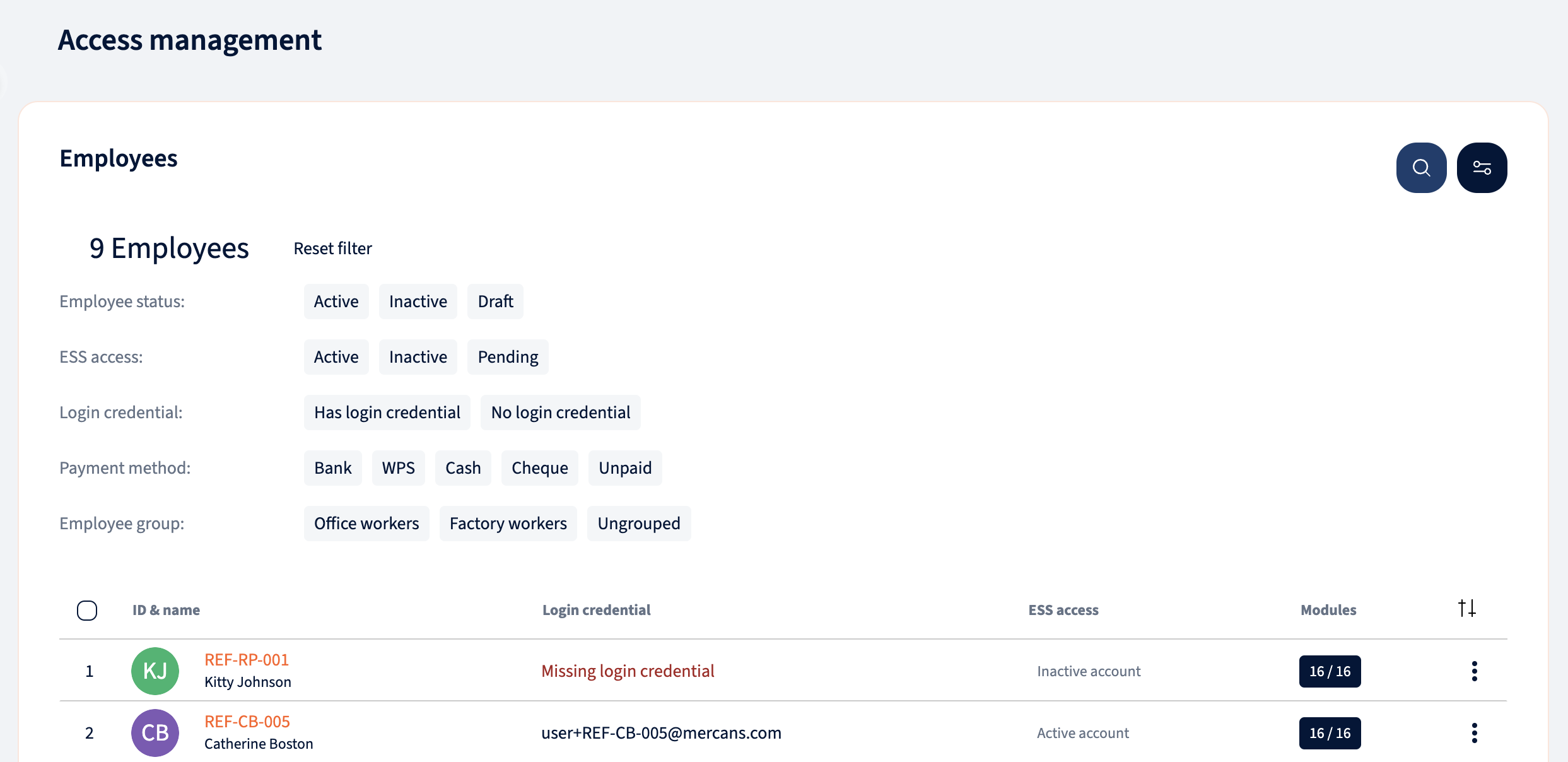
Exporting access data
You can export the Access Management view to an Excel (XLSX) file for offline audits or to share employee access snapshots with your compliance and audit teams — without leaving HRBlizz.
To export, click the Export button in the top-right corner of the Access Management page, next to the Search and Filter buttons. Hovering over it shows the tooltip “Export current view to XLSX.”
The export respects whatever is currently on screen:
- If you have filters or a search applied, the file contains only the employees that match your current view.
- If no filter is applied, the file contains all employees across every entity in your consolidation group that you have access to.
Each export reflects the filter state at the moment you click Export.
The exported file includes an Entity Name column so you can see which entity each employee belongs to across the consolidation group. Login credential and ESS access values match what is shown on screen — for example, employees without a login credential appear with a blank login credential, and pending invitations show as “pending.”
The file downloads automatically once it has been generated, with a short loading indicator while it is prepared. The filename includes the entity name and a timestamp, making exports easy to trace for audit purposes.
If no employees match your current filter, you will still receive a file containing the column headers only, along with the message: “No records match the current filter. The exported file contains headers only.”
The Export button is only visible to users with the required access permissions. Every export is recorded in the system Audit Trail, including who performed it, when, and which entity or consolidation group was in scope.
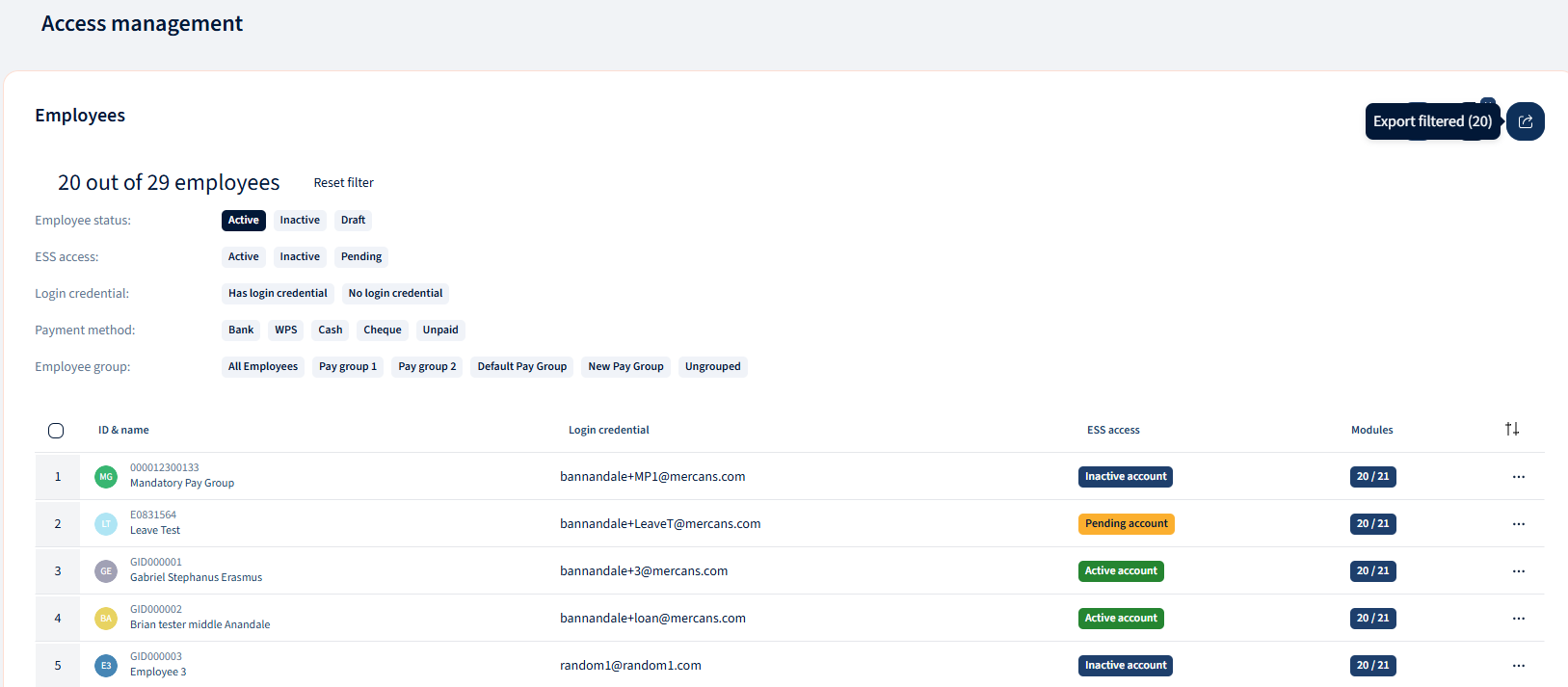
To send or revoke ESS access for an individual employee, click on the three dots to the right of the employee’s row.
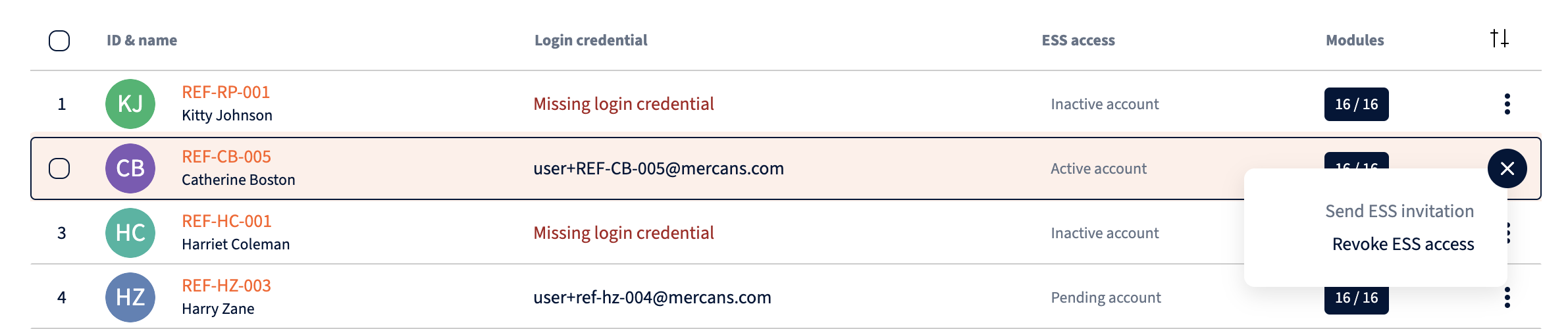
To send or revoke ESS access for multiple employees, check the boxes next to the desired employees and select the appropriate action from the bottom of the page. To select all employees, check the box at the top of the list, before “ID & Name”. If you want to select more than the visible employees, click on “Select all x rows” in the notification that appears.
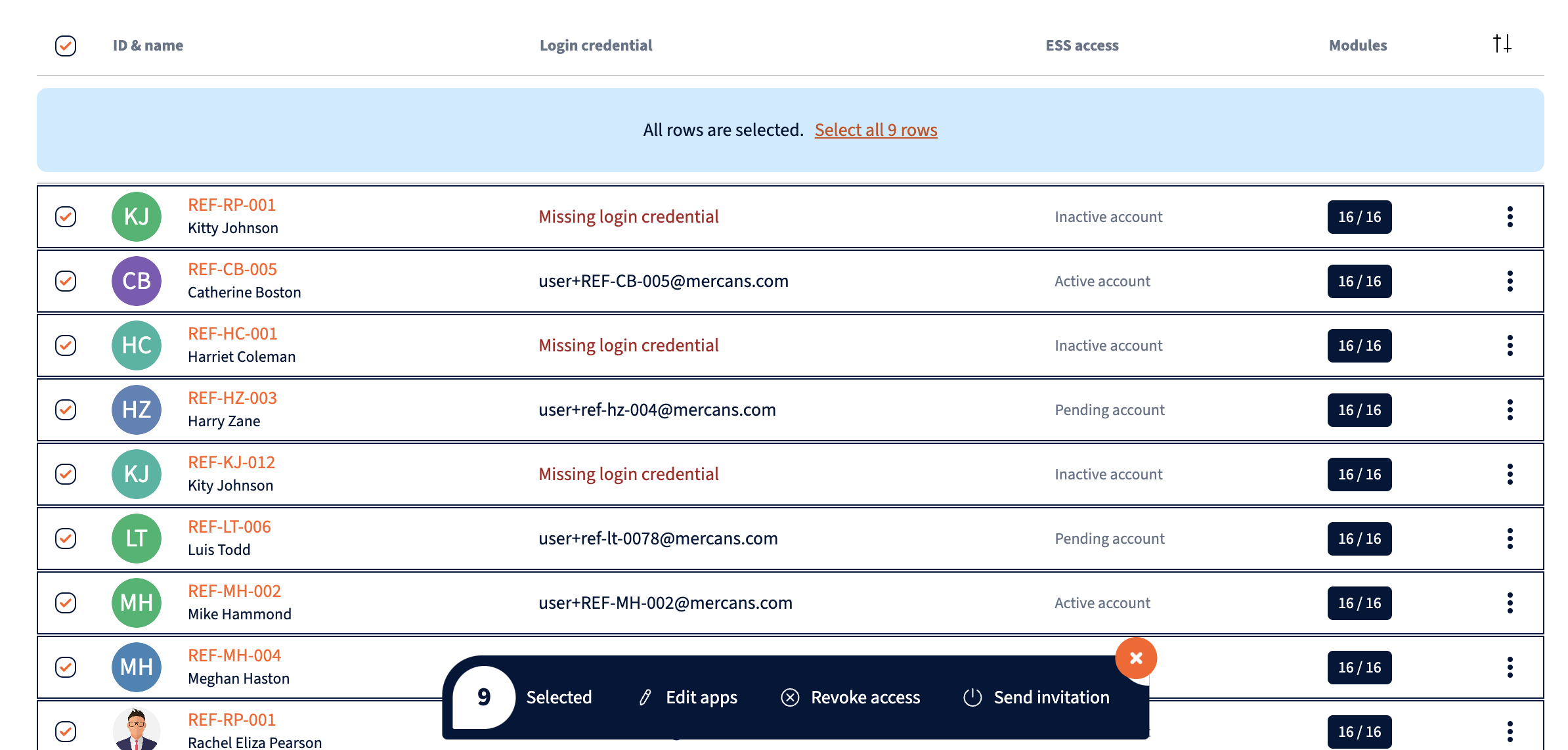
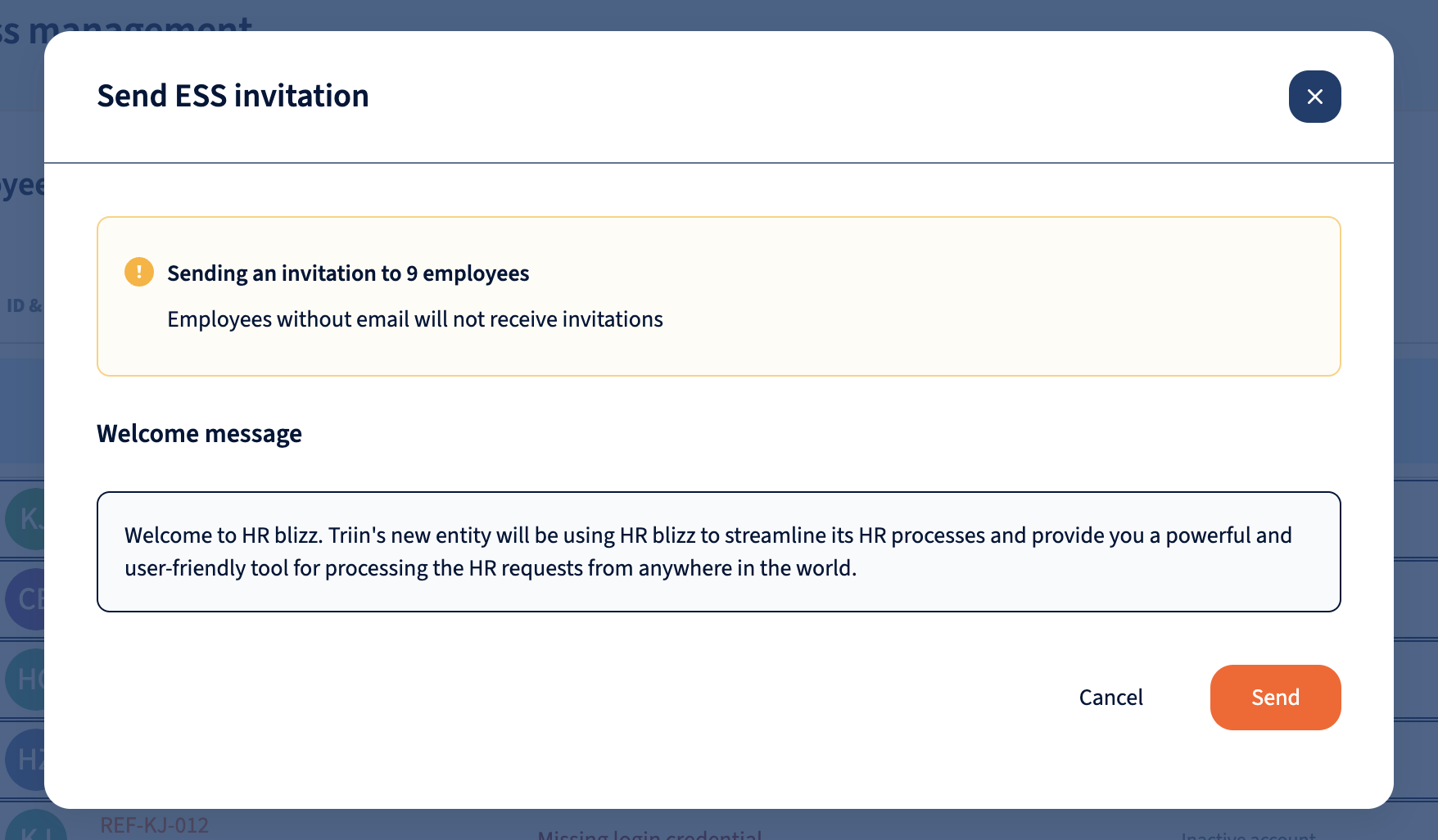
Select “Send ESS Invitation,” and a modal will appear showing the email addresses of the selected employee(s) along with a welcome message. To send out the invitation, click “Send.”
NB! Invitation link is viable for 24 hours. After that you can resend the invitation if needed.
Access to restricted modules
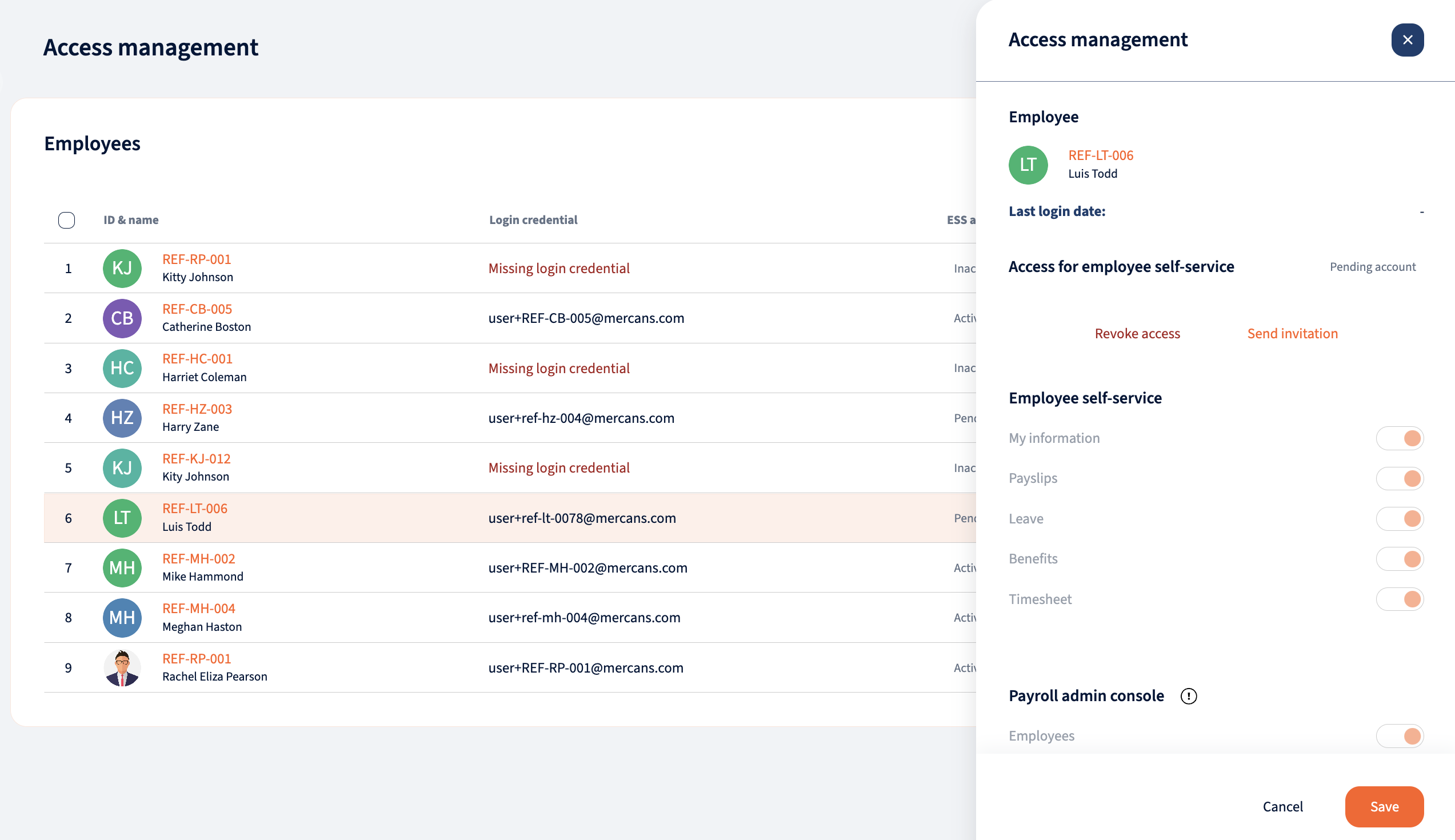
Modules can either be available or disabled for all employees. For ESS, modules can also have restricted access, meaning that the module is available only to selected employees. To manage access to restricted modules, click on the employee or select “Edit apps” from the bottom tab for bulk action.
Your response has been submitted — it helps us make these pages better.