






 Login
Login Home → Learn & Support →

Pay Elements Import
This document provides detailed guidance on the enhanced Pay Elements bulk import functionality. The enhancement enables administrators to import multiple Pay Elements simultaneously, along with up to three predefined Pay Element Details, ensuring improved efficiency, consistency, and accuracy during template creation.
This manual is intended for system administrators and payroll administrators responsible for managing employee Pay Element templates.
Previously, when creating a Pay Elements template, administrators could add Pay Elements but were unable to upload their associated details in bulk. This enhancement addresses that limitation by allowing:
- Bulk import of multiple Pay Elements per employee
- Automatic association of Pay Element Details during import
- Structured and consistent layout in the Template Preview
This enhancement also introduces multiple upload methods, allowing users to choose how Pay Elements are structured within the upload file and displayed in the Template Preview.
The supported upload methods are:
- Multi Upload (Horizontal)
- Single Upload (Vertical)
These options provide flexibility based on user preference and data preparation needs.
This enhancement applies to:
- Template creation via Drag & Drop file upload
- Import of Pay Elements at Employee ID level
- Automatic linkage of predefined Pay Element Details
The enhancement does not change existing Pay Element configuration or validation rules outside the import process.
Single Upload (Vertical)
- Each import represents only one Pay Element for all employees
- Pay Element Details are provided in the same row as the Pay Element Code
- In the Template Preview, Pay Elements appear vertically under the Employee ID
*NB* – It is important to note that the single upload will no longer be supported in the future, and existing templates and uploads will stay in place for users to migrate to the Multi-Upload method.
Multi-Upload (Horizontal):
Each Pay Element may have up to three associated details, which are handled automatically by the system during import.
Available Pay Element Details
The following Pay Element Details are supported:
- Pay Element Effective Date
- Pay Element End Date
- Pay Element Currency
Detail Association Rules
- Users do not manually select Pay Element Details
- Details are automatically associated with the relevant Pay Element during file import
- If fewer than three details are provided, the system associates only the available values
File Upload Structure (Drag & Drop Page)
Column Layout
When uploading a file using the Drag & Drop page, the structure includes:
- Employee ID
- Pay Element Code
- Pay Element Amount
- Pay Element Effective Date
- Pay Element End Date
- Pay Element Currency
Note: The availability of Pay Element Details as additional columns next to the Pay Element Code already exists and is retained for informational clarity.
- Each row represents one Pay Element for one employee
- Multiple rows can exist for the same Employee ID
- Pay Element Details must align with the corresponding Pay Element Code in the same row
Configuration:
Users will have the ability to configure which upload method to be used:
Location for configuration: Settings -> Main Settings -> Upload Methods

NB: Changing this setting affects all pay element imports. Ensure templates are updated or not used before switching off Single upload (Vertical)
Template creation preview:

Upload Preview:
Payroll Inputs uploads:
Navigate to Payroll -> Input -> “Select Payroll in draft status” -> Import
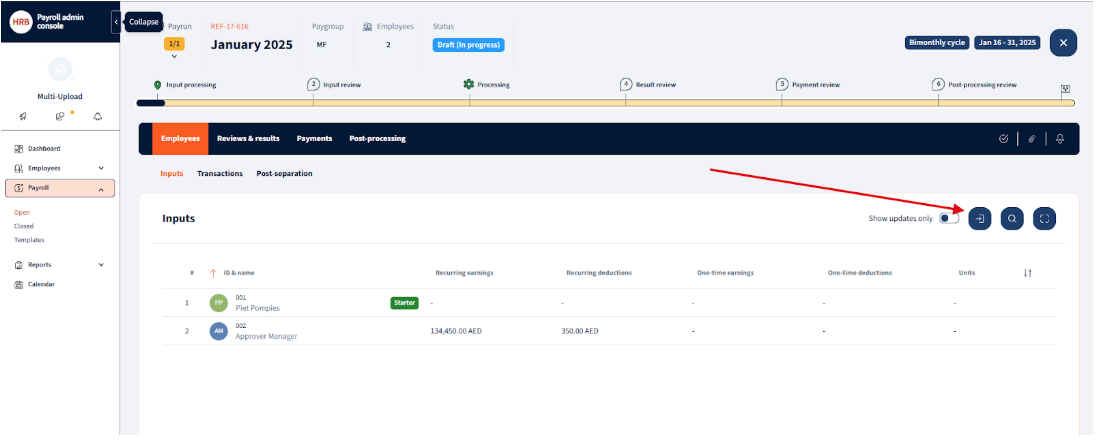
Choose templates to use:


We’re glad. Tell us how this page helped.

We’re sorry. Can you tell us what didn’t work for you?
Newsletter
Simplifying employment tasks worldwide.
Let us help you make sure you’re on the right track. Join 15,000+ subscribers and receive exclusive tips and resources.