






 Login
Login

One-time import & template creation
In the Payroll Inputs processing step, one-time inputs can be bulk uploaded.
Configuration:
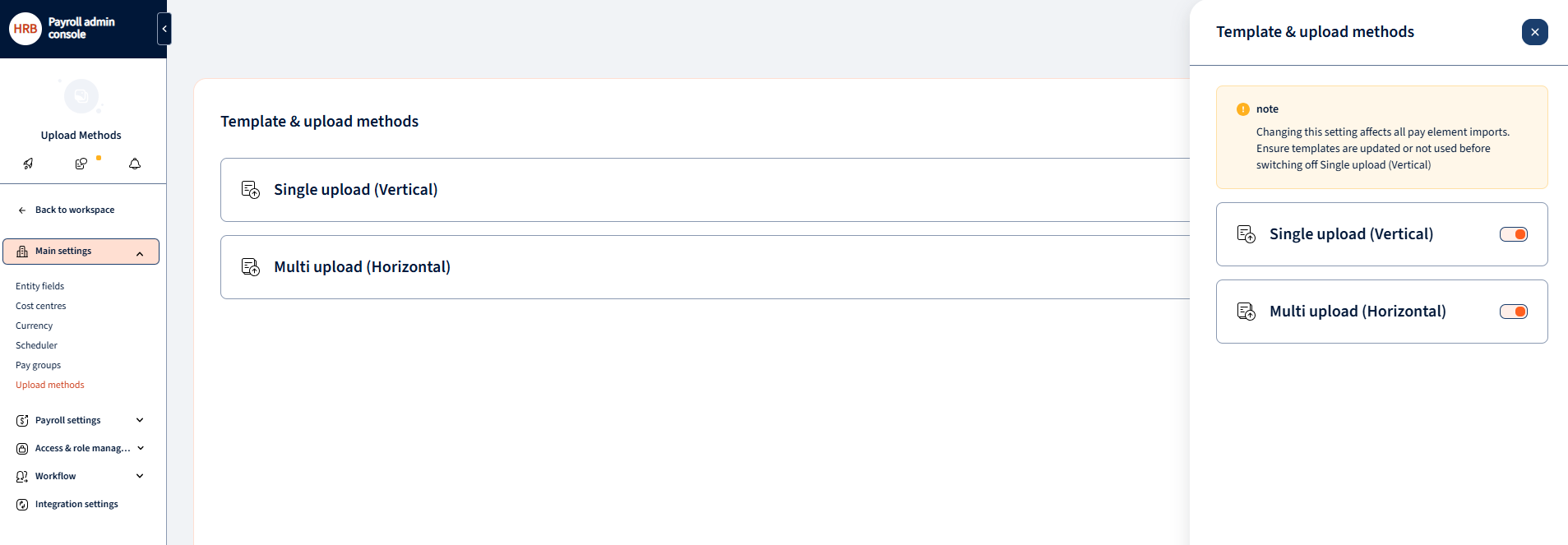
Users will have the ability to configure which upload method to be used:
Location for configuration: Settings -> Main Settings -> Upload Methods
To simplify the process of importing one-time inputs, you have the option to create templates, eliminating the need to map fields each time you import. This feature is accessible under Templates within the Payroll section.
Updating templates
Important! The structure of the import file has changed. Instead of mapping specific pay elements, general pay element codes can now be used.
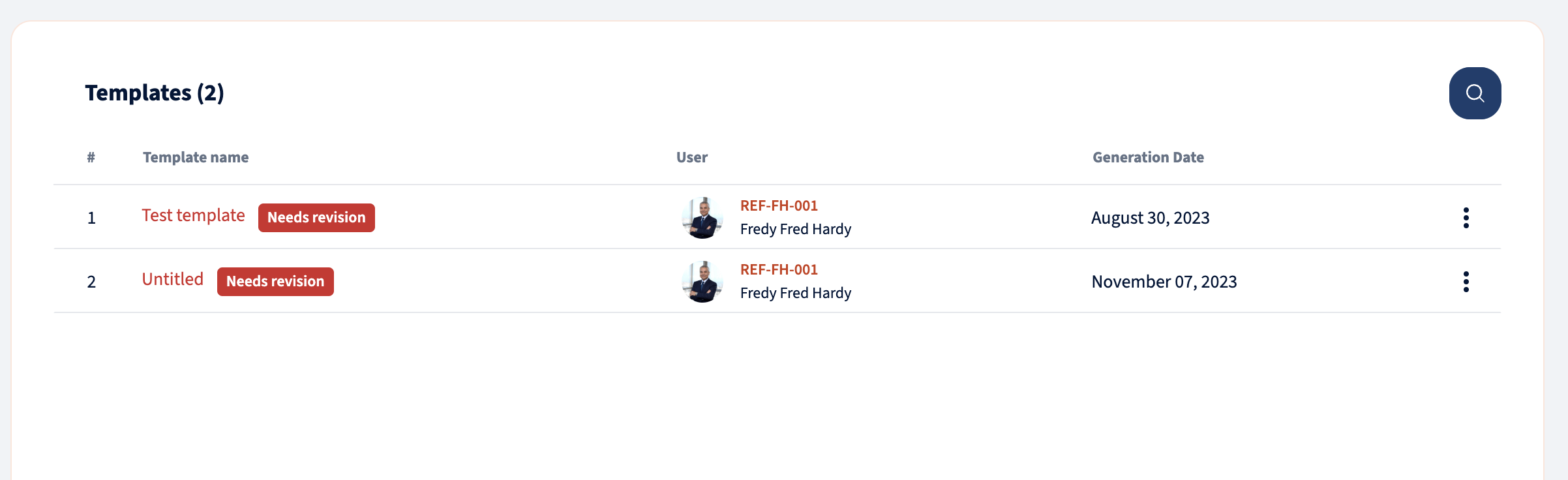
Old templates that include pay elements in the header are marked with the tag “Needs revision” and that template can not be used.
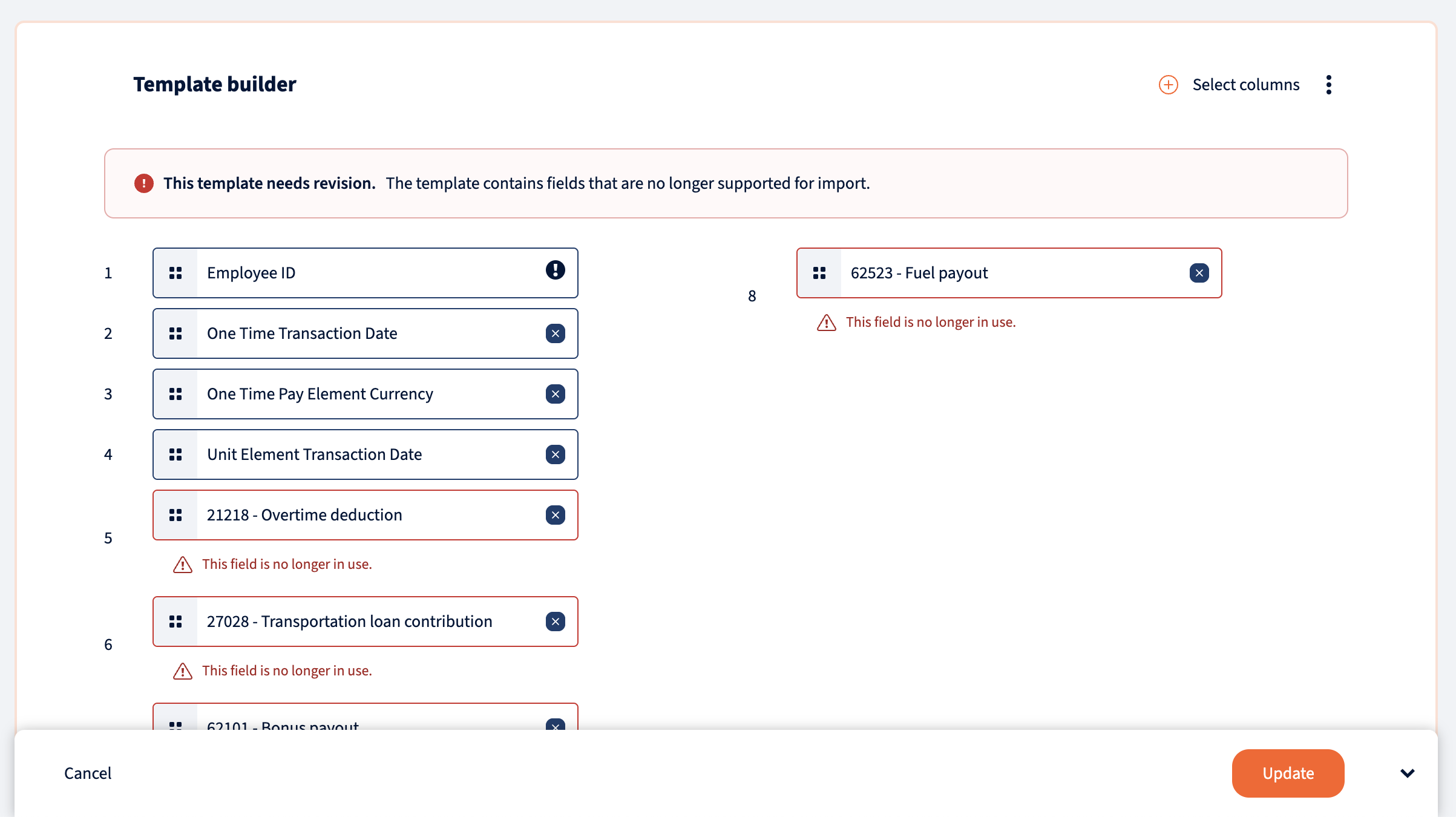
To update the template open it and remove marked fields no longer in use. Add the new field “Pay element code” and update the template.
Creating new template
Within Templates, you’ll find a list of all created templates organised by name. You can edit existing templates or create new ones by clicking on the + icon located in the bottom right corner.
And user is able to select Single or Multi Upload template creation.
Single Upload template:

Multi Upload Method:

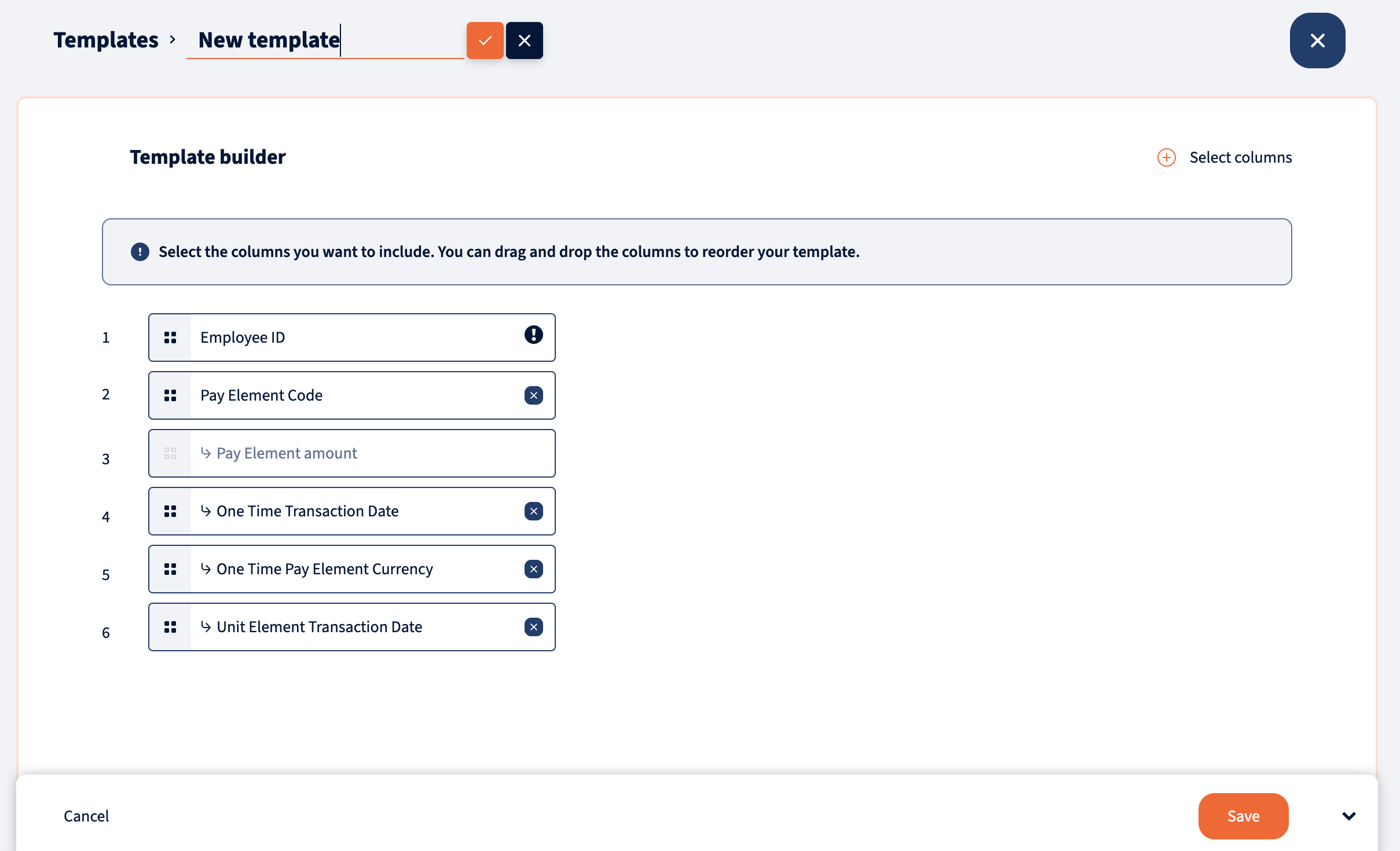
Upon creating a new template, you can assign a name to it. To map fields, simply click on “Select columns” situated on the top right corner.
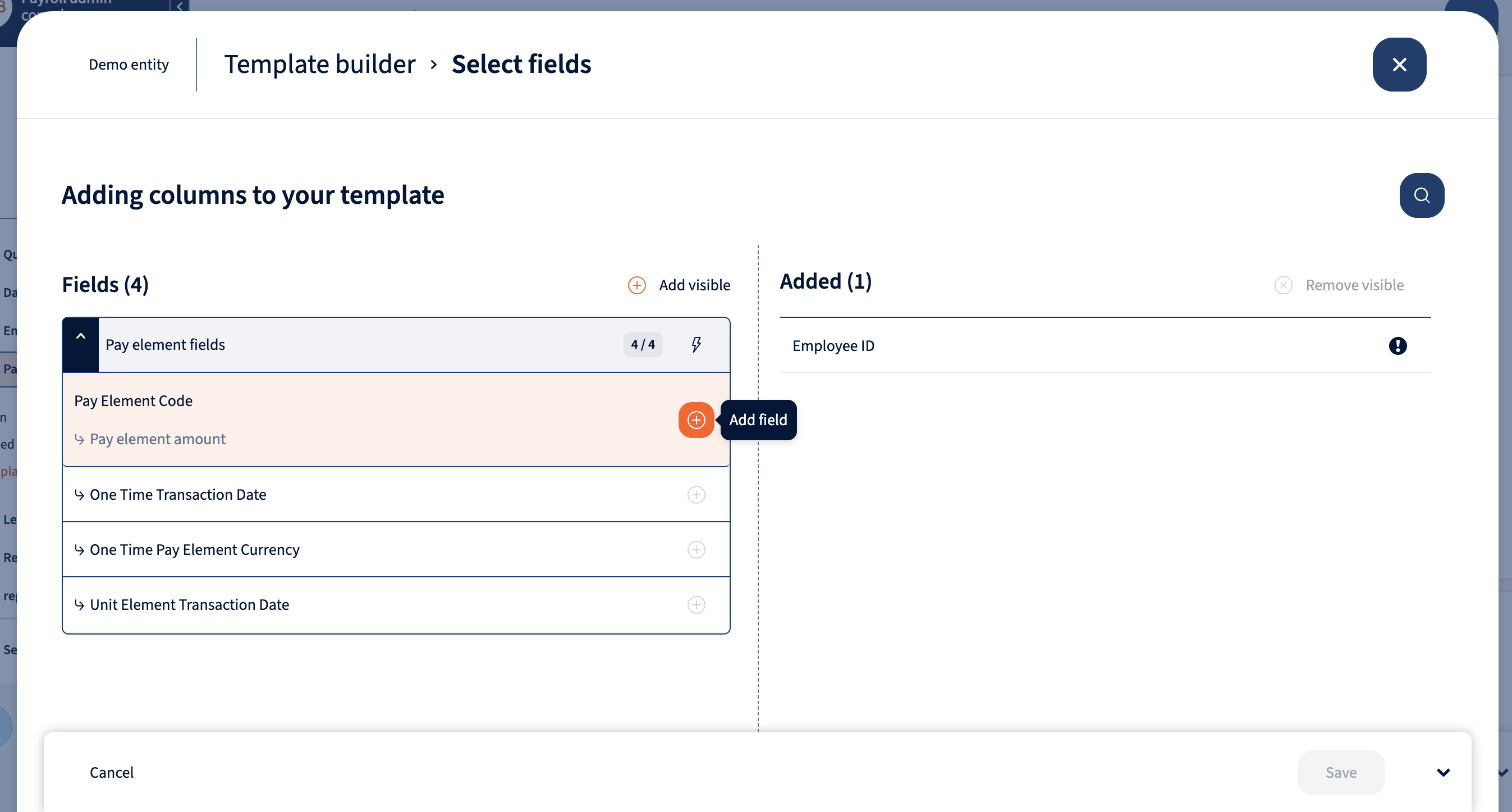
Within this modal, you can add fields to the template by clicking on them individually. Alternatively, you can add entire sections by clicking on the lightning icon next to the section name. Pay element code must be added before any other fields can be added.
Once you’ve added all the necessary fields, you’ll be able to see them in the template builder. Here, you can manage the order of fields as needed. Once satisfied with the template configuration, save it, and it will be available for use when importing one-time inputs.
One-time pay elements can be imported from the Payroll Input Processing step.

We’re glad. Tell us how this page helped.

We’re sorry. Can you tell us what didn’t work for you?
Newsletter
Simplifying employment tasks worldwide.
Let us help you make sure you’re on the right track. Join 15,000+ subscribers and receive exclusive tips and resources.