






 Login
Login

Notification – Outbound Process Results
Overview
To improve visibility into statutory reporting and outbound processing, the system allows configuring email notifications that are automatically triggered when a response is received from statutory authorities (e.g., acknowledgment, acceptance, rejection).
Unlike standard notifications where email/SMS templates are defined globally, in this setup each notification task has its own message configuration and email template.
This flexibility is essential because statutory authorities can have different response formats and data requirements.
Step-by-Step Configuration Guide
-
Navigate to Notification Settings
- Go to the Notifications tab.
- Select the Interface tab.
- Under Interface Outbound, choose Outbound Process Result Email Notification.

-
Understanding the Configuration Layout
Normally, the Message Actions section (used to configure email and SMS templates) appears at the main notification level.
However, for Outbound Process Result Email Notification, this section is nested inside each Notification Task.
Why this change?
Each statutory integration may require unique email templates and metadata.
To support this, the message section is now linked individually to each task, allowing:
• Custom email templates per statutory authority.
• Task-specific data binding.
• Independent modification and testing.
-
Creating a New Notification Task
- Click “Create New Task”.
- Enter a Task Name (e.g., Ireland Statutory Response Email).
- Click Save.
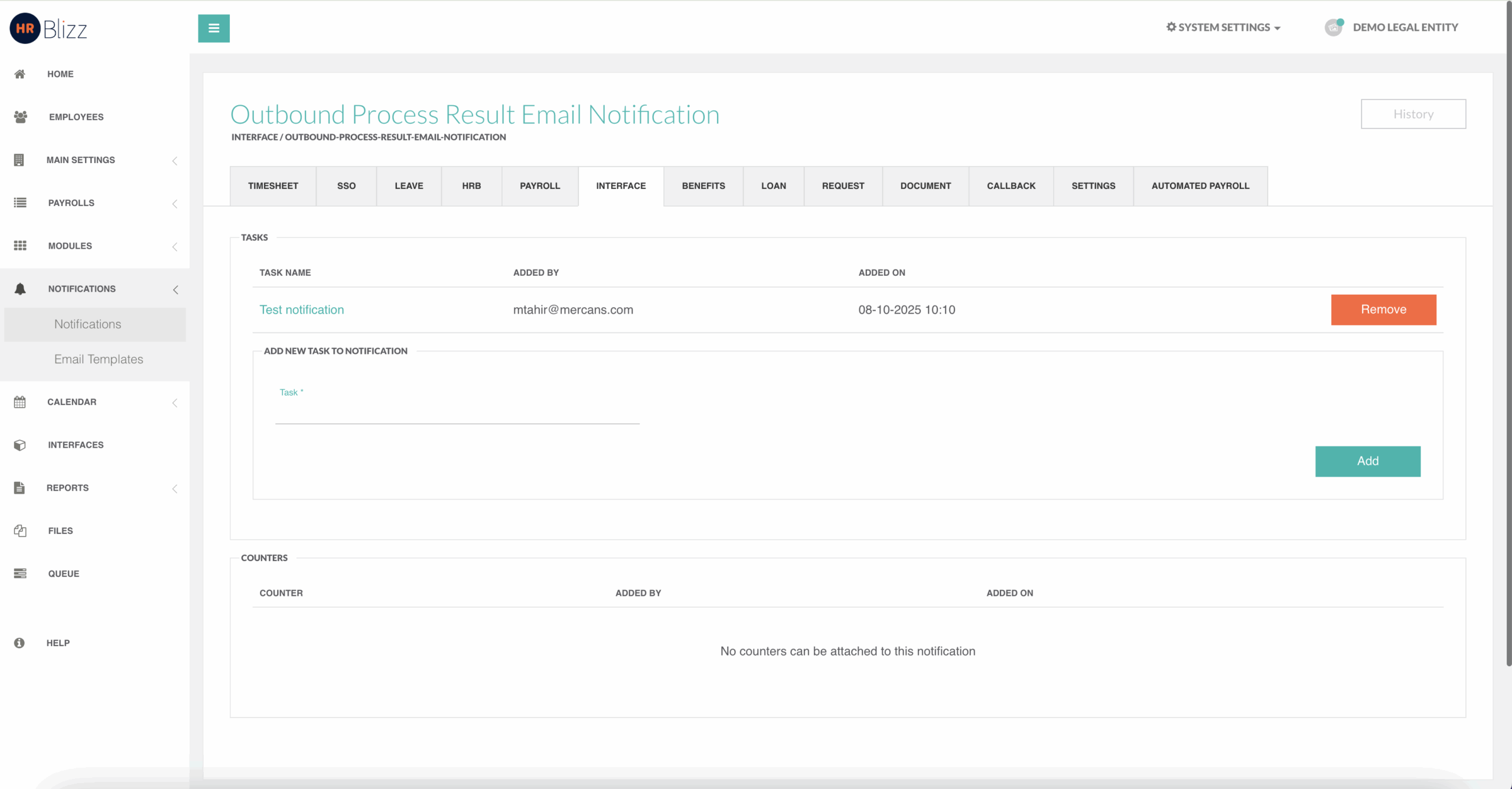
Once saved, click on the task name to open the Edit Task screen.
-
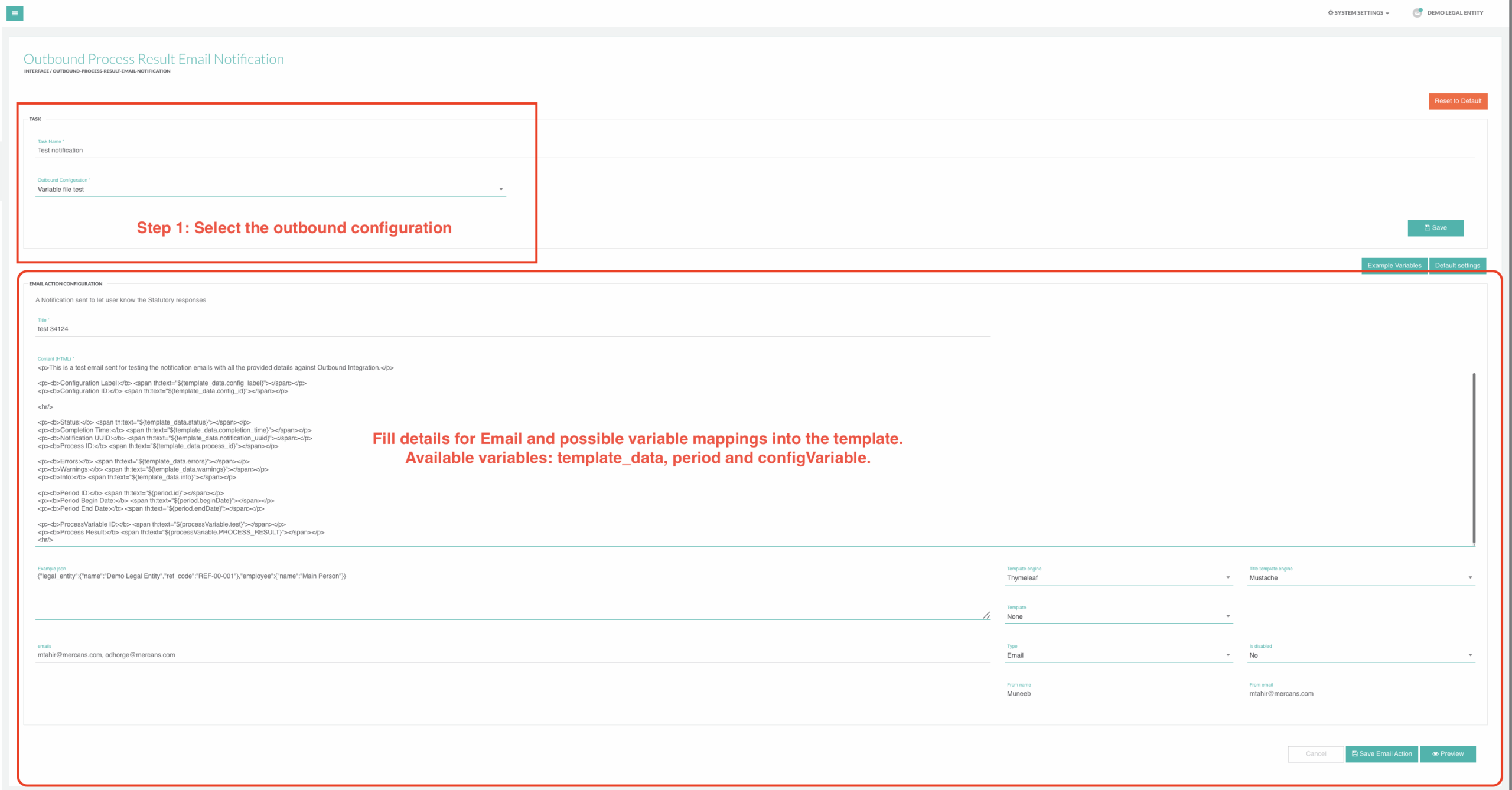
Configure the Task Details
- Select Outbound Configuration:
Choose the relevant outbound configuration.
• This can be a normal outbound configuration or a statutory one, depending on your use case. - Define the Email Template:
In the Message Section of the task, fill in:
• Subject
• Body
• Sender
• Recipients
You can use dynamic variables (explained below) to personalize and populate the email content automatically based on outbound process results and statutory responses.
- Select Outbound Configuration:
-
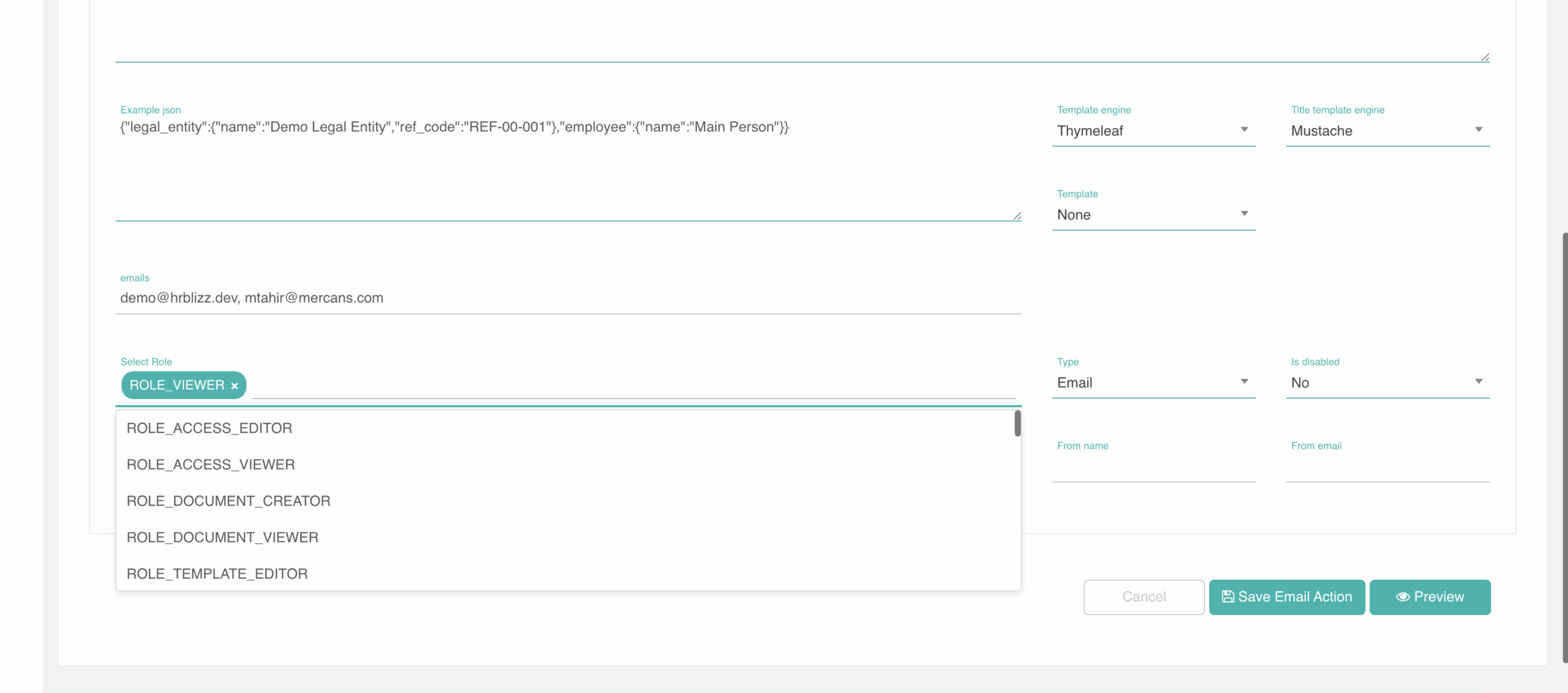
Email Recipients: Role-Based + Direct Email Support
In addition to specifying individual email addresses, the system now supports role-based recipients.
A. Using Role-Based Recipients
You can select a role, and the system will automatically send the email to all employees assigned to that role.

B. Combining Role + Email List
If both specific email addresses and a role are configured:
• The system merges both sets of recipients
• Duplicate email addresses are automatically removed
• All unique recipients will receive the notification
This ensures flexibility allowing both targeted and role-based communication in a single task.
-
Using Variables in Email Templates
To make your email templates dynamic, the system provides predefined variables that are automatically replaced when the notification is generated.
A. Statutory Response Variables that are required in the notification template.
| Variable | Description |
|---|---|
| integrationName | Name of the integration (e.g., “Ireland PAYE Submission”) |
| submissionId | Unique submission ID for the outbound process |
| timestamp | Time when the response was received |
| status | Response status (e.g., Accepted, Rejected, Acknowledged, Errored) |
| response | AI Interpreted response details |
B. period Variables
Provide information about the reporting period associated with the submission.
| Variable | Description |
|---|---|
| endDate | End date of the reporting period |
| id | Unique ID of the period |
| name | Period name |
| status | Status of the period |
| periodStatus | Additional status information |
| clientStatus | Client-level status indicator |
| beginDate | Start date of the reporting period |
**
C. template_data Variables**
Provide outbound process–specific information such as status, timings, and configuration details.
| Variable | Description |
|---|---|
| status | Outbound process status (e.g., COMPLETED, FAILED) |
| completion_time | Timestamp when process completed |
| notification_uuid | Unique identifier of the notification |
| process_id | Outbound process ID |
| errors | List of process errors, if any |
| warnings | List of warnings generated during processing |
| info | Informational messages |
| config_id | ID of the outbound configuration |
| config_label | Label/name of the outbound configuration |
**
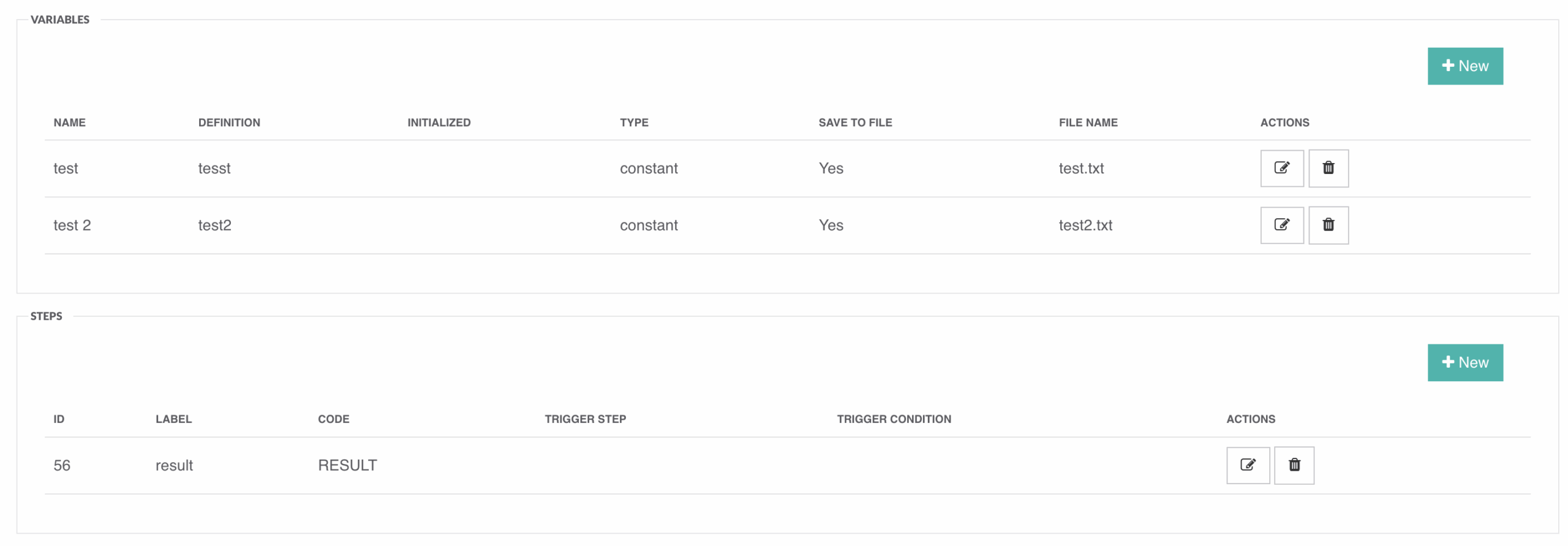
D. configVariable Variables**
Contain all custom variables defined in the outbound configuration.
| Variable | Description |
|---|---|
| processVariable.test | Custom variable defined in configuration |
| processVariable.PROCESS_RESULT | Default variable for outbound process result |
**
Reference of variables:**
-
Testing the Notification
After configuration:
- Trigger an outbound submission that generates a statutory response.
- Ensure the system processes the response and sends an email.
- Verify:
- Email is sent to the correct recipient(s).
- Variables are correctly replaced with actual values.
- Duplicate emails are not generated for the same response.
- Key Notes
• Each notification task can have its own independent email template.
• Recommended to name tasks according to statutory authority or integration.
• Ensure SMTP or notification service configuration is active before testing.
-
Example Email Template
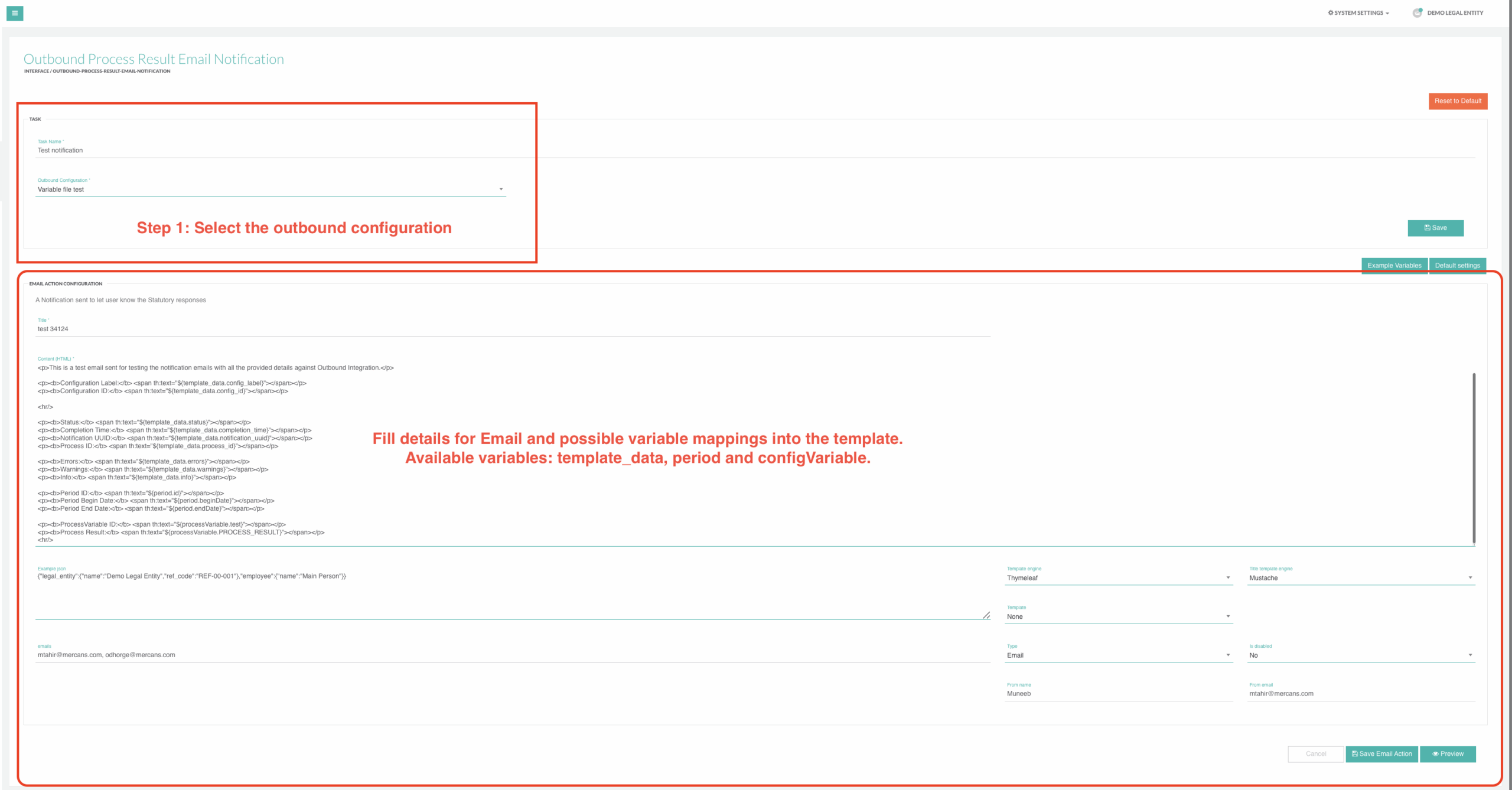
For basic setup, the provided email title and content can be used as example.
Title:
{{template_data.config_label}} - Statutory
Email Content:
<p>Integration Name: <span th:text="${template_data.config_label}"></span></p>
<p>Submission ID: <span th:text="${template_data.config_id}">_</span><span th:text="${period.id}">_</span><span th:text="${period.beginDate}"></span></p>
<p>Status: <span th:text="${template_data.status}"></span></p>
<p>Time: <span th:text="${template_data.completion_time}"></span></p>
<p>Result: <span th:text="${processVariable.PROCESS_RESULT}"></span></p>

We’re glad. Tell us how this page helped.

We’re sorry. Can you tell us what didn’t work for you?
Newsletter
Simplifying employment tasks worldwide.
Let us help you make sure you’re on the right track. Join 15,000+ subscribers and receive exclusive tips and resources.