






 Login
Login

Internal AI validations
Overview
This document provides a detailed overview of the AI Insights feature, designed to enhance payroll anomaly detection and validation within HRBlizz. The feature combines deterministic rule-based anomaly detection with Large Language Model (LLM)-powered enrichment to provide human-friendly summaries and actionable insights. It aims to accelerate payroll processing by identifying errors early, reducing manual review time, and improving accuracy.
Key Themes
- Hybrid Approach (Rules + AI): The system leverages both predefined, deterministic rules and advanced AI (LLM) for comprehensive anomaly detection and validation.
- Enhanced Explainability and Actionability: AI enrichment provides clear, business-friendly summaries of anomalies, including “why it’s wrong” and “what to do about it.”
- Efficiency and Reliability: The feature processes concurrently with payroll summary generation, aiming for no additional processing time. It incorporates robust mechanisms like async batching and graceful degradation for reliability.
- Country Agnostic Design: While initially tested and rolled out in the Netherlands, the underlying architecture is designed to be country-agnostic, capable of adapting to various statutory regulations globally.
- Phased Rollout and Continuous Improvement: The initial release has certain limitations (e.g., subset validation for output insights extension) with plans for future enhancements based on user feedback and evolving capabilities.
Important Facts
1.1. Core Functionality & Purpose
-
- Faster, clearer payroll anomaly detection with human-friendly summaries: The primary goal is to make “payroll data errors… easy to understand and prioritize.
- Two Solutions Working Simultaneously: Input AI Insights: Triggered at the input review stage, analysing current input data against the last 12 periods of processed payroll input data. It looks for “anomalies, some unusual data, duplicates, missed pay elements or some high spikes, drops”
- Output AI Insights (Results Validation): Activated after payroll processing (gross-to-net stage), focusing on “statutory regulations validations”. It feeds recreated payslips from payroll data into an LLM to validate against country-specific statutory regulations.
- Processing during Payroll Summary Generation: Output AI insights are generated during the payroll summary generation task. “This payroll summary generation is the one task that is generating this AI insights.” This concurrent and subset of 10 employees ensures “no additional time will be used to complete the process”
- Anonymized Data
When processing data for AI Insights, Mercans employs specific measures to ensure data privacy and a form of anonymization:
Limited Data Sharing with LLM Only essential data is shared with the Large Language Model (LLM). This includes the Employee ID (as a string only, with no names), along with anomaly details and aggregate values (such as median or current value).
Exclusion of Sensitive Data Full payroll tables, detailed historical data, and any Personally Identifiable Information (PII) beyond the Employee ID are explicitly not sent to the LLM.
Guardrails for Output To further protect privacy, a scrub() function is utilized. This function is designed to remove accidental echoes of employee IDs from any text generated by the LLM, acting as a safeguard to prevent PII from being inadvertently exposed in the insights

1.2. AI Enrichment with LLM
- Technology Stack: Uses “Open AI model GPT5” although the underlying approach is to be AI agnostic and the Backend services utilize Kotlin/Java.
- Duplicate rows: “Within the current period, if there are multiple rows for the same (end_date, pay_element_name) → flag as duplicates.” Purpose: “Avoid double entries inflating pay.
- Non-positive values: “In the current period, any amount <= 0 (excluding names like leave, holiday, balance, sick).” Purpose: “Pay elements should usually be >0 unless explicitly allowed.
- Missing element: “If an element was present in history (median calculated over tails) but not in the current period → flagged as missing.” Purpose: “Detect dropped pay elements that should normally recur (e.g., basic salary disappearing).
- New element: “If an element exists in the current period but not in the historical tails → flagged as new.” Purpose: “Highlight pay elements that appear for the first time (e.g., sudden new allowance/bonus).
- Spike / Drop (Unusual change): “Compare current amount vs. historical median. If deviation % > spike_drop.deviation_threshold_pct (default 30, or global threshold if unset) → anomaly.” Purpose: “Catch sudden raises, cuts, or errors.
1.3. Limitations and Future Enhancements
- Historical Data Requirement: For Input AI Insights to function effectively, it requires sufficient “past periods” (ideally 12 periods) for comparison and trend analysis
- Statutory Regulations List: A comprehensive list of output validations is not static as “it’s up to LLM to decide what is 10 major
- Country Agnostic Approach: The system performs a “Google search” to first “get a context of country and legal entity and goes to search the regulations then go back and validates again these regulations”. This allows it to work across countries (e.g., UAE, Germany, Netherlands). The effectiveness relies on the LLM’s training on specific country knowledge.
- Performance: While designed for concurrent processing, AI insights generation “takes few minutes” (1.5 to 5 minutes) depending on complexity This time is not additive if payroll processing itself is longer.
- Future Enhancements: “Auto-suggesting aliases for new pay element names,” “feedback-based threshold tuning,” “inline mini-charts for spikes/drops,” and “conversational Q&A over a payroll run
1.4. Support and Feedback Loop
- Normal Channels: Bugs and feature requests should follow the “normal bug process” and “product feature request” process, routed through support and product teams respectively, before reaching engineering.
1.5 Instructions:
To configure the AI features, you will need to set up specific development flags within the Back Office.
The location to access and configure these flags is: Back office => Select Legal Entity => Main Settings => General Information => Advanced Settings => Development Flags.
Here are the flags that need to be set up:
generateAiInputValidations
- Value: 1.
- Exposed Value: All.
- Purpose: This flag is necessary to enable AI input step insight validation generation.
generateAiIOValidations
- Value: 1.
- Exposed Value: Internal. (Note: During the conversation, it was also mentioned as all, but the formal table lists Internal. Oleg clarified that “IO” stands for Input/Output insights).
- Purpose: This flag enables AI output (result) step insight validation generation.
payroll_validations_enabled
- Value: 1.
- Exposed Value: All.
- Purpose: This flag is compulsory to view AI validations and additional rule-based values. It acts as a front-end feature flag.
Once these configurations are complete, you will be able to run a new payroll and view the results of the AI validations. The AI insights feature is currently available in the production environment.

The following roles need to be present for the user to view the above features within PAC once activated.
‘ROLE_MANAGER’, ‘ROLE_PAYROLL_AUDIT_CONFIGURATION_EDITOR’, and ‘ROLE_PAYROLL_AUDIT_CONFIGURATION_VIEWER’
1.6 Benefits for Clients:
- Clarity: Understand detected issues with clear, business-friendly messages and actionable advice.
- Efficiency: Reduce manual verification time and quicken the identification of critical payroll errors.
- Accuracy: Leverage advanced AI and rule-based systems to enhance payroll accuracy and compliance.
1.7 What does it look like?
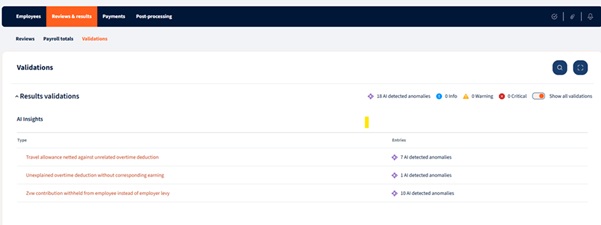
1.8 Configuration within PAC for AI Validation rules:
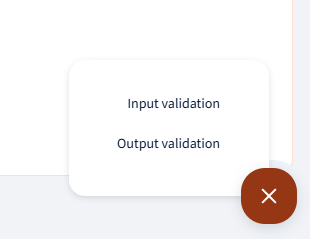
Settings -> Payroll Settings -> AI Validation

User can click on add button and select Input or Output validation for new rules to be added:
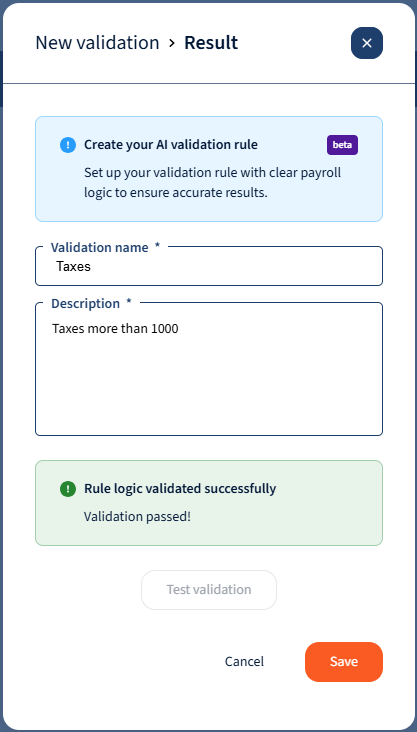
Once selected the user will be required to enter a Validation name and Description.
The description is the instruction provided to the AI Agent, and there is a validation that takes place to verify whether the description/rule is validated as a valid rule and can be used to validate the payroll data.
Users will also be able to add ad-hoc rules when they are in the process of processing the payroll:
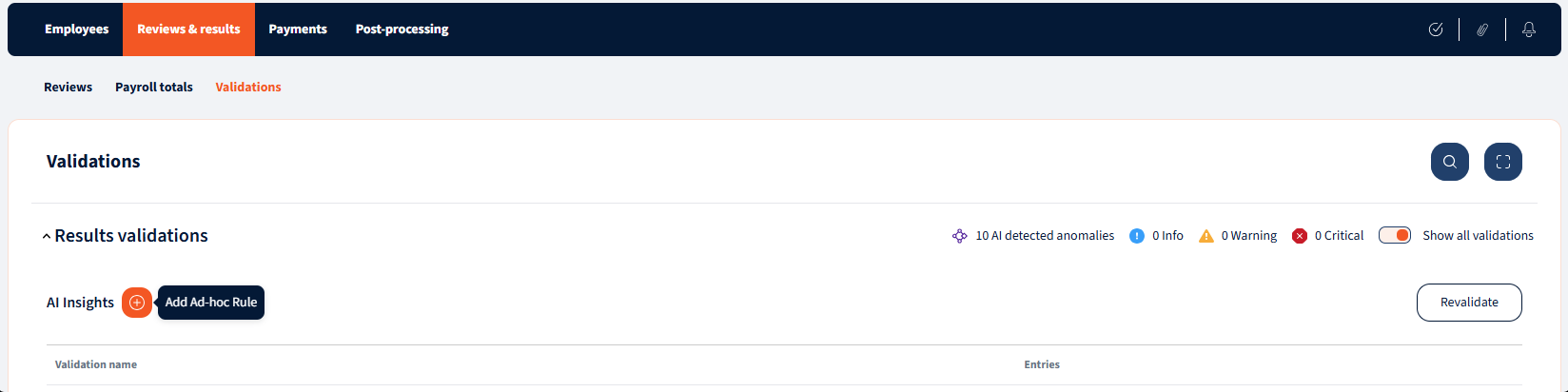
Once the rules have been added, the system will now validate payroll data as well as provide recommended actions to resolve any discrepencies found by the AI Agent:

The following are some examples that can be used when promting the AI Rule agent:
| # | Description | Rule |
| 1 | Net Pay less than threshold | Identify all employees whose net pay is less than X |
| 2 | Net Pay more than threshold | Identify all employees whose net pay is more than X |
| 3 | Gross Pay less than threshold | Identify all employees whose gross pay is less than X |
| 4 | Gross Pay more than threshold | Identify all employees whose gross pay is more than X |
| 5 | Wage type value less than threshold | Identify all employees with Y wage type value less than X |
| 6 | Wage type value more than threshold | Identify all employees with Y wage type value more than X |
| 7 | Zero-paid employees | Identify all employees with net pay equal to zero |
| 8 | Negative Net Pay employees | Identify all employees with negative net pay |
| 9 | Post-termination payments | Identify all employees whose last day of work was before current payroll period and are included in the current payroll |
| 10 | Starters | Identify all employees whose first day of work is during the current payroll period |
| 11 | Leavers | Identify all employees whose last day of work is during the current payroll period |
| 12 | Retro & Arrears Payments | Identify all employees with retro or arrears payments or deductions |
| 13 | Duplicate Employees | Identify all employees with duplicate employee IDs |
| 14 | Wage Type value anomaly | Identify all wage type values that that deviate significantly from the expected wage type values based on the current payroll calculations using low/medium/high sensitivity. |
| 15 | End-of-Service Calculation validation | Verify that the end-of-service calculations meet the minimum amounts defined in the labor law |
| 16 | Active employees not in payroll | Identify all active employees who are not included in the current payroll run |

We’re glad. Tell us how this page helped.

We’re sorry. Can you tell us what didn’t work for you?
Newsletter
Simplifying employment tasks worldwide.
Let us help you make sure you’re on the right track. Join 15,000+ subscribers and receive exclusive tips and resources.