
On this page0
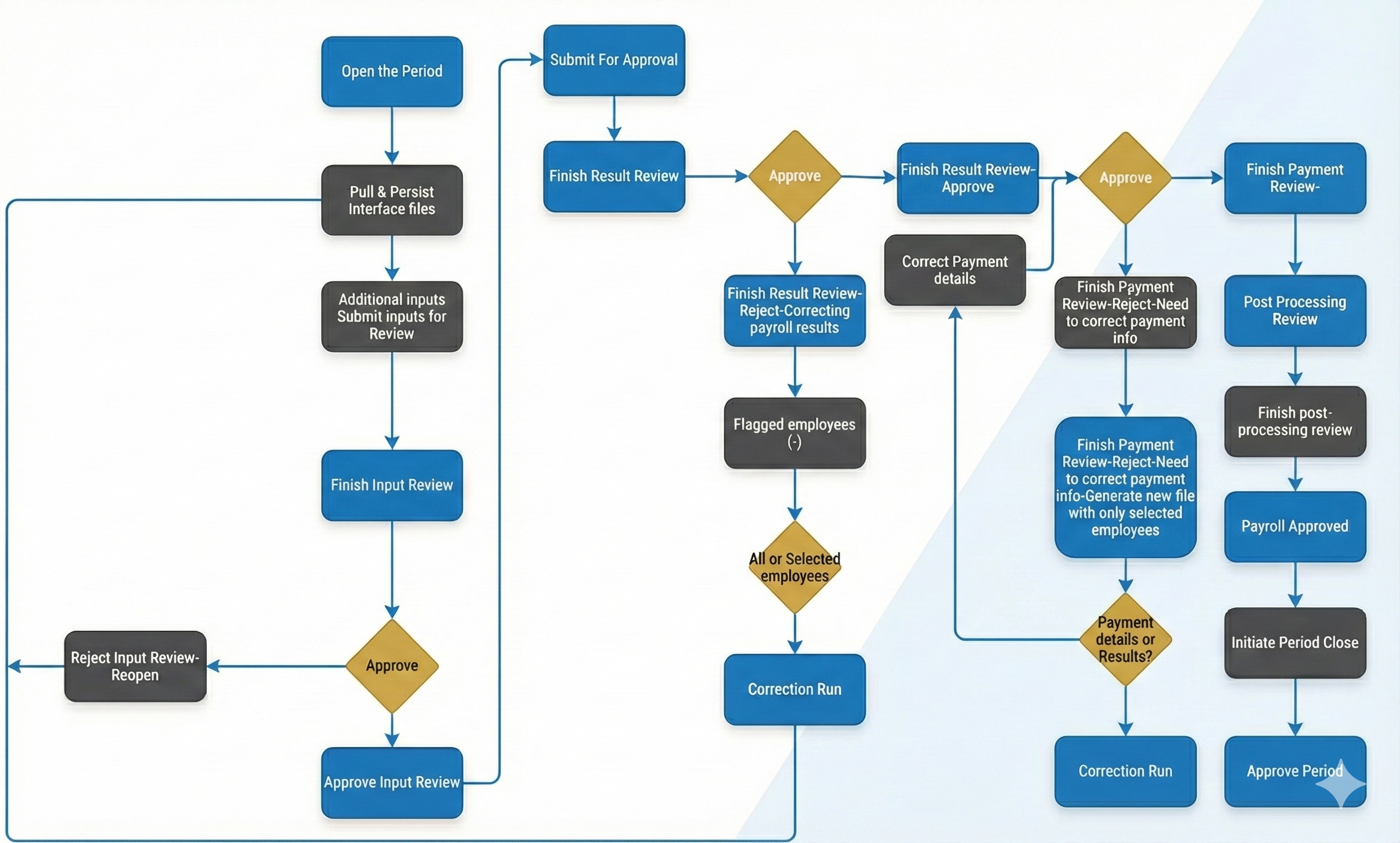
The payroll flow consists of multiple stages to ensure accurate and timely payment to employees, incorporating mechanisms for external data synchronization, rigorous validation (including Artificial Intelligence-powered anomaly detection), and structured correction runs.
Step 1: Open the Period
The payroll cycle begins with the formal opening of the new payroll period within the Payroll Admin Console (PAC).
- Tasks: This step enables period master data for editing, prepares employee data for the new period, and activates the system’s ability to consume updates from legislative authorities and integrated third-party HR applications.
- Validation Enhancement: Future regulative AI validations are designed to check for commitments from the previous period and potential impacts of major regulative changes for the new month.
- Status: Master data and inputs are now open for changes.
Step 2: External Updates (Systems and Legislative)
This phase focuses on the automated import and synchronization of necessary payroll data.
- Data Acquisition: This includes tasks like Pulling and Persisting Interface Files, managing data persistence, and validating information received from client-specific setups, external HR systems, and legislative sources.
- Compliance: Where applicable, the system handles the automated Requesting of employee tax cards from authorities, ensuring the latest tax percentages etc. are retrieved before calculation.
- Dynamic Interface (DI): The Dynamic Parser (DPI) facilitates this, supporting sources like Flat files (PAC upload), SFTP, and API feeds, utilizing pre-processors for data clean-up and post-processors to apply mappings and create a parsable payload.
Step 3: Additional Inputs and Submit Inputs for Review (Internal Review)
After initial automated data loading, internal payroll teams review and finalize inputs before calculation begins.
- Input Revision: This involves reviewing data from external interfaces and manually applying or changing data, including updates to master data for new hires and terminations, and inputting one-time earnings/deductions. Bulk processing of inputs is supported through templates.
- Validation: Reviewers use the Pending Inputs report and the Audit Trail to track changes. They review the screen-generated Gross earnings and deductions totals.
- AI Input Validation: Input AI Insights are triggered at this stage, analyzing current input data against historical processed data (ideally 12 previous periods) to flag anomalies such as duplicates, missing pay elements, or unusual spikes/drops in amounts. This helps accelerate payroll processing by identifying errors early.
Step 4: Submit for Input Review (Management Approval Gate)
This crucial step marks the transition from data preparation to formal calculation and requires sign-off.
- Control Implementation: It is highly recommended to implement segregation of duties at this point in a global business context, requiring an authoritative user to approve the inputs.
- Action: The user submits inputs for review, approving changes made post-automated integrations. Additional Adhoc AI validations can be configured during this review phase.
- Reports Available: Pending Inputs report, Gross earnings and deductions including changes made post automated integrations on screen, View Employee Gross and Deduction totals in Payroll Totals screen, changes made post automated integration.
Review Input Validations under the Validations screen additional Adhoc validations can be configured.
AI input validations
- Status: Upon submission, the Master Data Cutoff is applied, locking master data edits and preventing users from persisting new interface files, ensuring data integrity for the ensuing calculation.
Step 5: Approve Input Review & Processing
This step encompasses the approval/rejection decision and the subsequent Gross-to-Net calculation.
- Reports Available: Pending Inputs report, Gross earnings and deductions including changes made post automated integrations on screen, View Employee Gross and Deduction totals in Payroll Totals screen, changes made post automated integration.
- Step 5.1 Approve Input Review: Approval triggers the full gross-to-net calculation process. The system calculates payroll results, including permanent calculations and legislative deductions.
- AI Output Validation: During processing, Output AI Insights (Results Validation) are activated (at the gross-to-net stage) to check compliance against country-specific statutory regulations. This concurrent process aims for no additional processing time.
Reports Available: Pending Inputs, On Screen Gross and Deductions, Input validations and Audit Report
- Status: Master data remains locked during processing.
- Step 5.2 Reject Input Review: If the inputs are unsatisfactory, the user can reject the approval. This reopens the payroll for changes and unlocks master data for updates needed to correct legislative or data errors.
Step 6: Approve/Reject Result Review
The initial calculated payroll results undergo detailed scrutiny.
- Review Tasks: This involves reviewing detailed Gross to Net results, the Audit trail, and the full suite of AI input and output validations and regulative exceptions.
- Reports Available: Detailed Gross to Nett, AI input validations, AI output validations, AI Regulative exemptions and Audit trail
- Step 6.1 Approve Result Review: Approving the results confirms the payroll data and triggers the prompt for the payment date and Employer Bank account details. This initiates the option for the payment step and subsequent bank file generation.
- Status: Master data remains locked.
- Step 6.2 Reject Result Review (Correction Run Initiation): If results are incorrect, rejection allows the user to initiate a Correction Run (CR). The user can flag specific employees (Flagged employees only) or select the entire payroll for correction. This action sends the payroll back to Step 2 for input adjustment and subsequent recalculation, restarting the flow from the external updates stage for the selected group.
Step 7: Finish Result Review / Merge Correction Run
This step finalizes the calculation phase and integrates any parallel correction work.
- Merging: If a Correction Run was initiated (Step 6.2) and successfully processed, the results are merged back into the main pay run.
- Payment Preparation: The process moves forward, requiring the user to confirm payment date and employer bank details. This triggers the generation of the bank file and payment reports for final review.
- Status: Master data remains locked.
Step 8: Approve/Reject Payment Review
The generated bank file and payment reports undergo confirmation.
- Reports Available: Bank file and Payment’s report.
- Step 8.1 Approve – Finish Payment Review: Approves the bank file and payment report, advancing the payroll to the Post Processing Review (Step 10).
- Step 8.2 Reject – Finish Payment Review: If errors are detected in the payment details or employee inputs, rejection is necessary. The user chooses the correction type:
◦ If input corrections are needed: The system reverts the process to Step 2 for a full payroll correction run.
◦ If only payment information needs correction: This triggers a Payment Correction Run (PCR), specifically opening master data only for payment details editing (Step 9).
Step 9: Correct Employee Payment Information (PCR Steps)
This dedicated flow handles swift corrections to payment-related fields without recalculating the entire payroll (triggered by rejecting payment review for payment info errors in Step 8.2).
- Targeted Edits: The user accesses employee master data fields specifically designated as payment-related to make necessary updates. Payroll calculations are explicitly excluded from being changed in a PCR.
- Sub-steps: The PCR involves a simplified flow: Corrected Input Processing (no calculation changes) -> Corrected Result Review -> Corrected Payment Review.
- Finalization: After correcting the data and processing the corrected reviews, the Payment Correction Run is successfully merged back into the original run.
Step 10: Post Processing Review
This step focuses on generating and reviewing final client and statutory documents.
- Report Generation: Key outputs like Payslips, GL files, Statutory Reports, and Custom Reports are generated for review. (All other custom reports)
- Payslip Submission: This is the final opportunity to manually submit payslips to the Employee Self Service (ESS) portal or initiate submission to an outbound target.
- Critical Action: Rejecting this step is highly discouraged as payroll results are finalized, and further correction requires technical support manual intervention and ticket submission.
Step 11: Finish Post-Processing Review
The definitive finalization of the current payroll period.
- Action: Approval confirms the post-processing review and reports. This action formally closes the payroll run.
- Automation: This step may include initiating custom executions or final statutory submissions depending on specific client and local requirements.
Step 12: Initiate Period Close
This is the administrative closure of the reporting period.
- Status Lock: At this point, the system implements a stringent lock: master data is locked, interface files cannot be persisted, and the master data cutoff is fully applied, meaning no master data changes or input changes are permitted.
Step 13: Approve Period
The final administrative sign-off for the concluded period.
- Action: The period closure is formally approved, concluding the entire payroll cycle for that period.
- Next Cycle: Once approved and closed, the system can then open the next period for processing.
Your response has been submitted — it helps us make these pages better.